
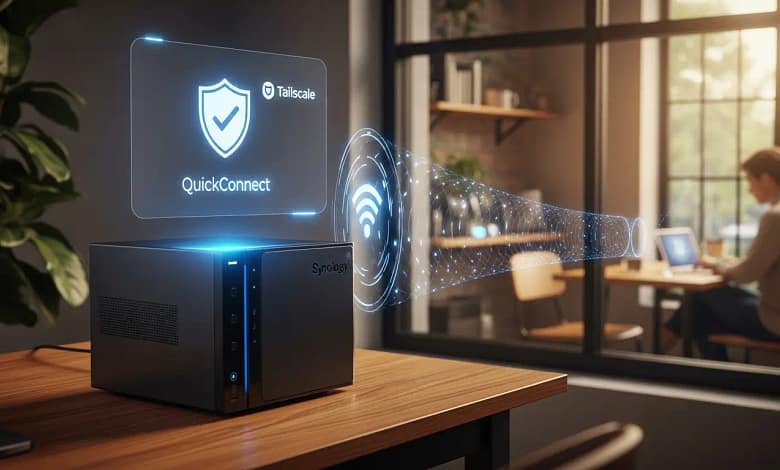
- • Access your NAS securely from anywhere – no port forwarding, no router changes
- • Why port forwarding is dangerous: automated attacks, ransomware, data theft
- • Three safe methods: Tailscale (easiest), QuickConnect (Synology), WireGuard (advanced)
- • Comparison table: Tailscale vs QuickConnect vs WireGuard – features, privacy, speed
- • Decision tree: find your ideal method in 30 seconds based on your NAS brand
- • Step-by-step setup + security checklist to protect your family files forever
Keep your family files safe and reachable from anywhere — no open ports, no router hacks, no security shortcuts.
If you’ve been Googling how to access my NAS remotely without port forwarding, you’re in exactly the right place — and the answer is simpler than you might think.
I still remember the moment someone in an online forum told me to “just open port 5000” on my router so I could reach my NAS from work. I found the port forwarding menu — and froze. Something felt deeply wrong, like leaving my front door wide open just to make it easier to get inside.
That hesitation was the right instinct. Forwarding ports directly to your NAS is one of the most common home-network security mistakes in 2026 — and you don’t need to do it at all. There are safer, simpler methods that keep your files locked down while still giving you full access from any coffee shop, hotel, or airport in the world.
In this guide, you’ll learn exactly how to access your NAS remotely without port forwarding — with plain-English explanations, a step-by-step decision path, and honest trade-offs for every method. No router degree required.
TL;DR — The Short Answer
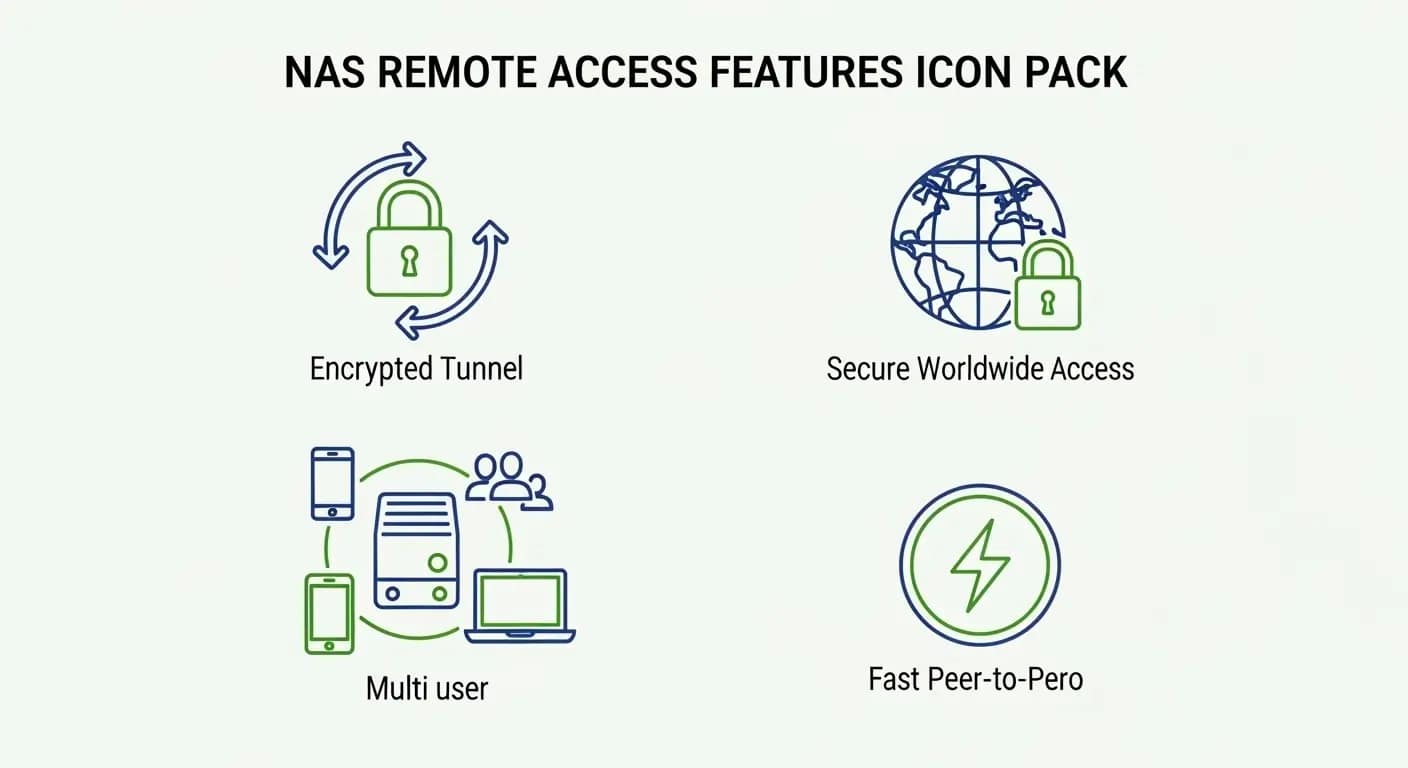
There are 3 safe ways to access your NAS remotely without port forwarding in 2026:
- Tailscale — Zero-config mesh VPN. Works on any NAS brand. Best for most people.
- Synology QuickConnect / QNAP myQNAPcloud — Free cloud relay built directly into your NAS. Easiest if you own a Synology or QNAP.
- WireGuard VPN — Open-source, fast, and free. Best for advanced users who want full self-hosted control.
All three are encrypted by default. None require you to touch your router’s port forwarding settings.
Bottom line: how to access my NAS remotely without port forwarding is no longer a technical challenge — it’s a 10-minute setup with the right method.
Affiliate disclosure: This post may contain affiliate links. If you buy through these links, HomeCloudHQ may earn a commission at no extra cost to you.
Ready to try the easiest option right now? Check out Tailscale here — no router changes required, works on every NAS brand.
Why Avoid Port Forwarding for NAS Remote Access?
Jargon Box — Port Forwarding
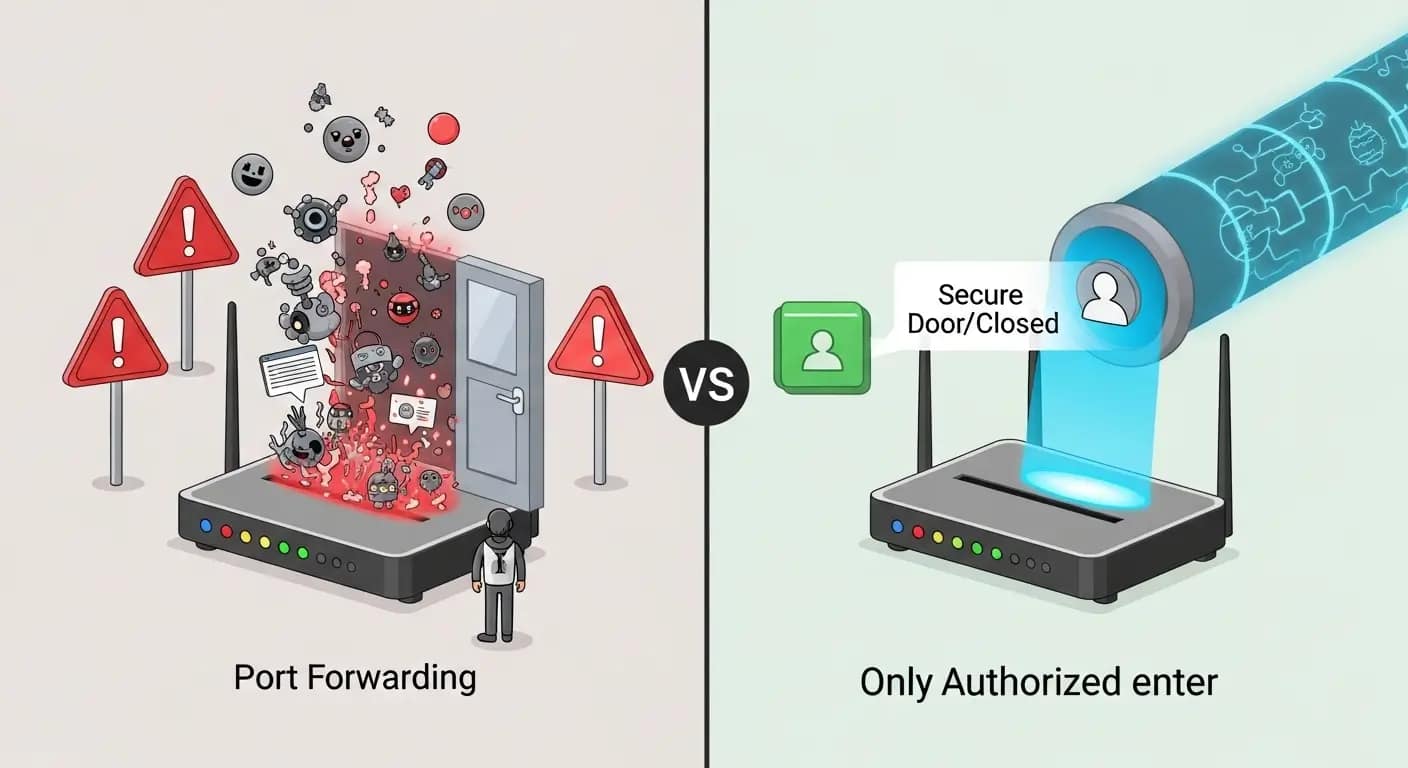
Your home router is like a security guard blocking uninvited visitors from the internet. Port forwarding tells that guard to permanently open a specific numbered door (a port) so outside traffic can reach your NAS directly. It’s convenient — but it also means that door is open for every internet-connected device in the world to try knocking on.
For years, port forwarding was the standard advice for remote NAS access. You’d assign a port number to your NAS’s local IP address, and suddenly it was reachable from anywhere. Simple — but that simplicity hides a serious, ongoing risk.
When you open a port, you’re not just letting yourself in. You’re creating a permanently visible entry point that automated bots probe around the clock, scanning for weaknesses. Does that sound like something you want sitting in front of your family photos and tax documents?
The Security Risks Explained
Here’s what actually happens when port forwarding is active on your NAS:
- Brute-force password attacks — Automated tools try thousands of username/password combinations against your NAS login, 24 hours a day.
- Firmware vulnerability exploits — If your NAS software has any known security flaw, attackers can use your open port to exploit it — sometimes without needing a password at all.
- Ransomware injection — Several major NAS ransomware campaigns have specifically targeted devices exposed via port forwarding. Attackers encrypt your files and demand payment.
- Silent data theft — Family photos, tax returns, medical records, work documents — everything on your NAS becomes a potential target the moment an open port is discovered.
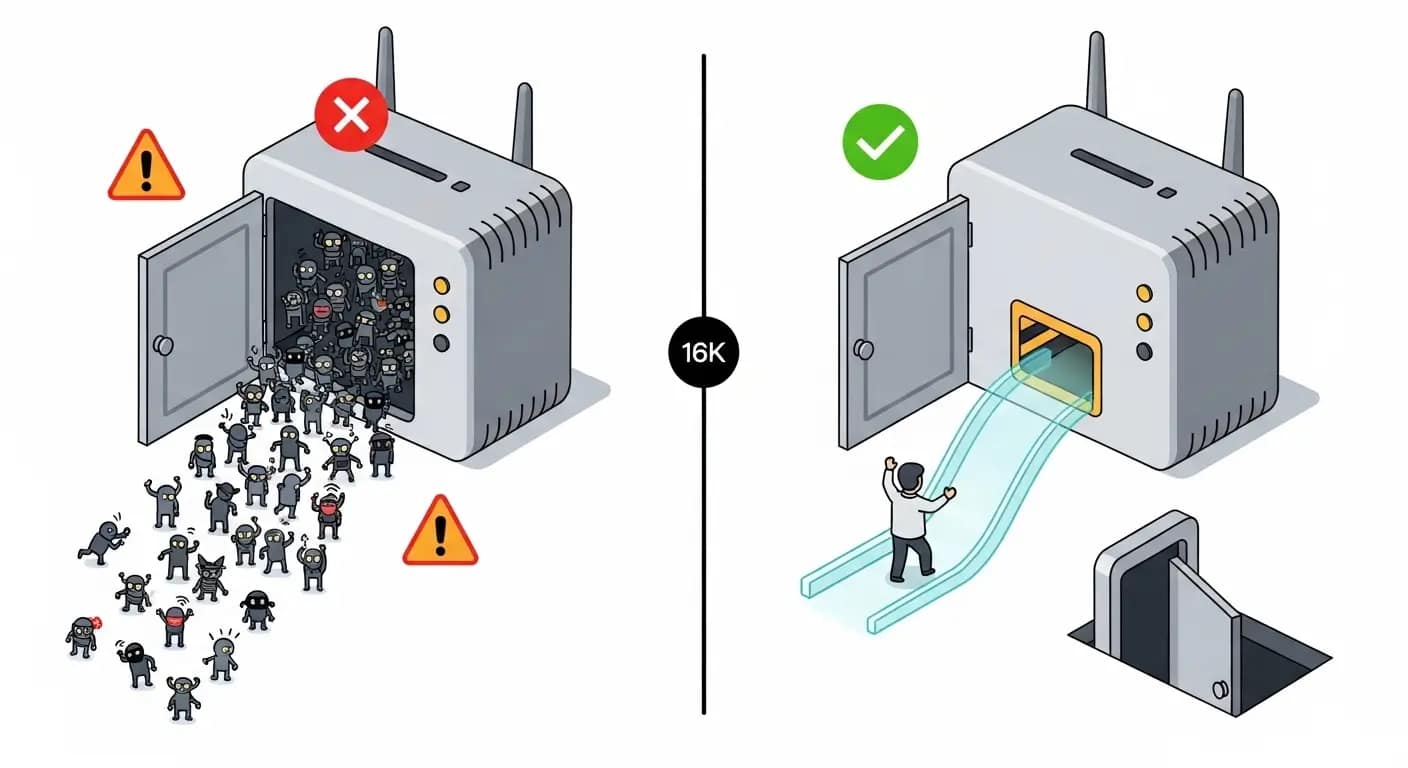
Common Hacker Attack Scenarios
Security Note:
If your NAS currently has active port forwarding rules in your router, consider disabling them before you finish this guide. Every method below is specifically designed to eliminate that public exposure. Your NAS should never need to appear visible on a public internet scan.
Here’s how a typical attack unfolds in practice:
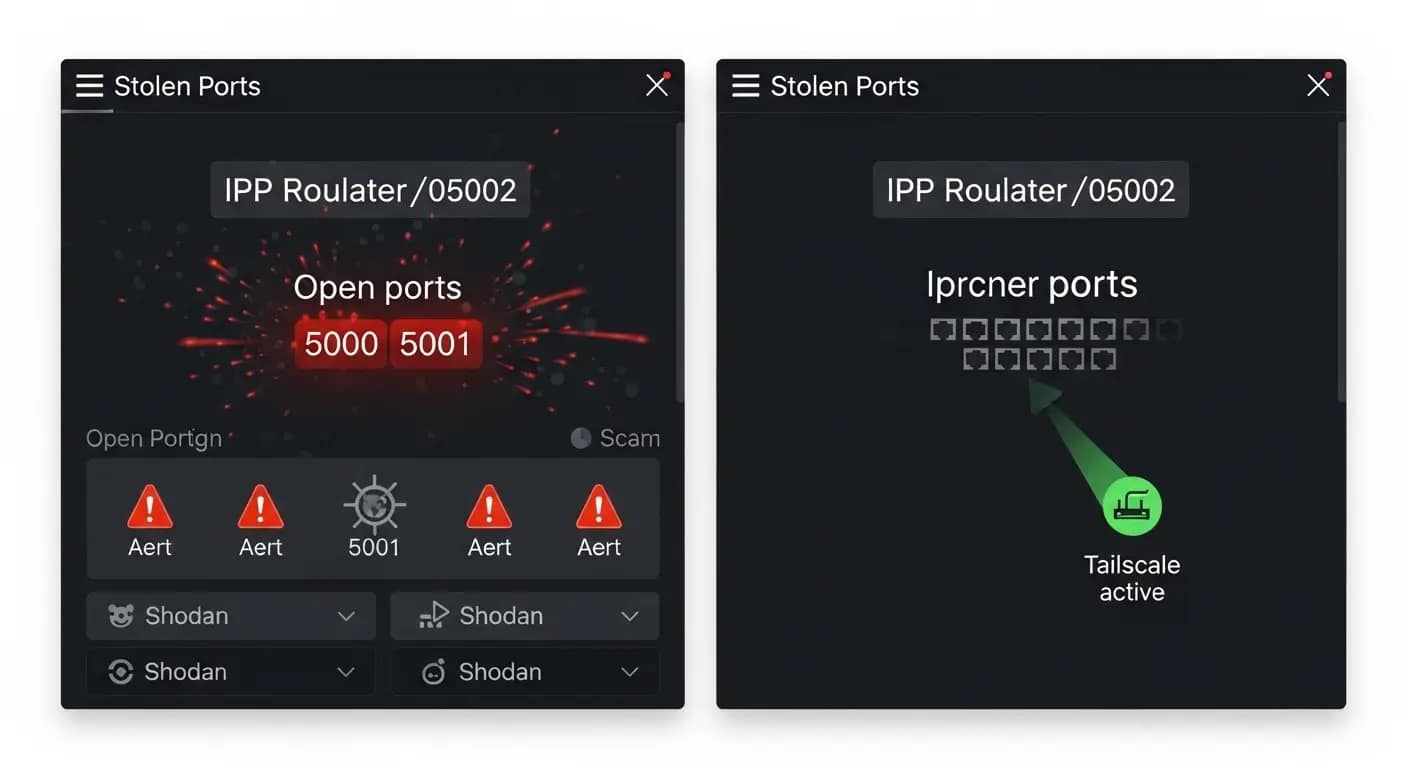
- An automated scanner sweeps millions of IP addresses, probing for ports commonly associated with NAS devices — such as 5000, 5001, and 8080.
- Your NAS responds to the probe. The scanner flags your IP as an active target.
- Credential-stuffing begins — automated tools cycle through thousands of known username/password combinations.
- If any attempt succeeds — or if a firmware vulnerability is exploitable — the attacker gains full access to everything stored on your NAS.
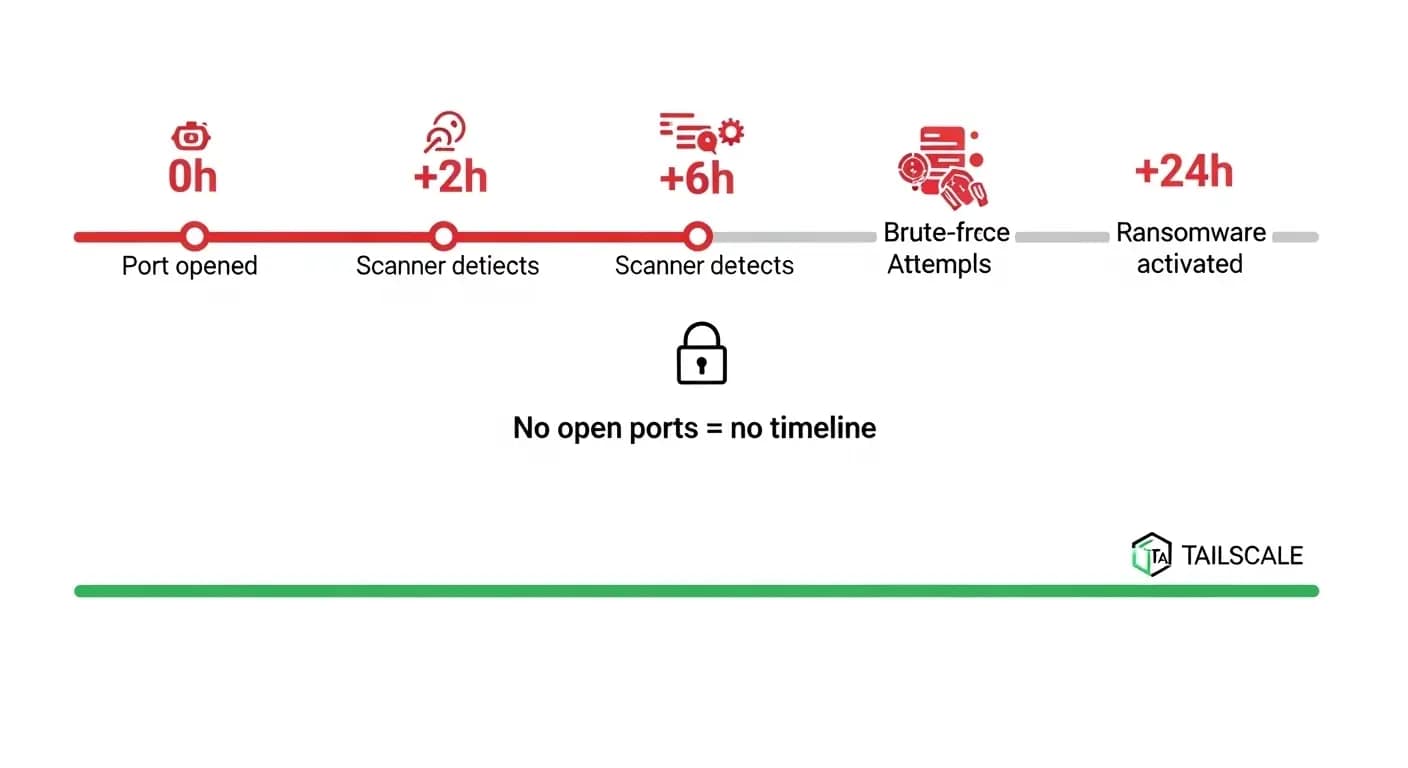
This process can begin within hours of a port being opened. The good news? Every method in this guide makes your NAS completely invisible to those scans, because it never needs a publicly reachable address in the first place.
Want to go deeper?
Read our NAS ransomware protection checklist to fully lock down your device before enabling remote access.
How to Access My NAS Remotely Without Port Forwarding — 3 Safe Methods
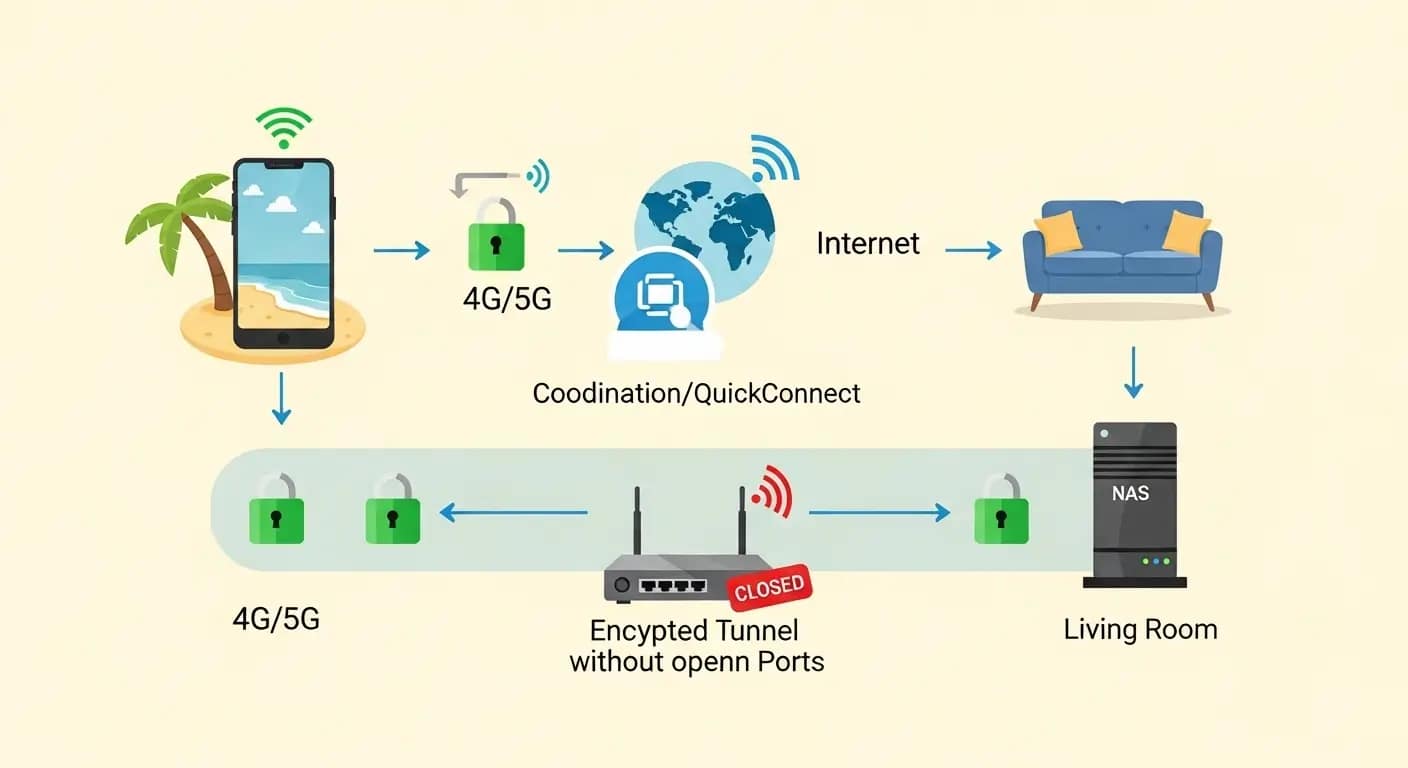
Each method below creates a private, encrypted path to your NAS without ever opening a port to the public internet. Your device stays invisible to scanners while remaining fully accessible to you and your family — from anywhere.
Method 1 — Tailscale (Easiest for Any NAS)
Jargon Box — VPN & Zero-Trust
VPN (Virtual Private Network) — A secure, encrypted tunnel between your device and your home network. With a VPN active, your phone or laptop behaves exactly as if it’s sitting on your home Wi-Fi — even from across the country. Think of it as a secret underground passage that only your authenticated devices know about.
Zero-Trust Network — A security model that assumes no device should ever be trusted automatically. Every connection must prove its identity every single time — no exceptions, no “I was here yesterday” free passes. Like a VIP club that checks every ID at the door, even for regulars.
Tailscale is a mesh VPN built on WireGuard — the most modern VPN protocol available. What makes it exceptional for home users is its near-zero configuration: install it on your NAS and on your phone or laptop, and they automatically discover and connect to each other. No router changes. No static IP. No Dynamic DNS. Nothing.
How Tailscale works — step by step:
- Create a free account at tailscale.com.
- Install the Tailscale package on your NAS (available in Synology’s Package Center, QNAP’s App Center, and for TrueNAS, Unraid, and others).
- Install the Tailscale app on your phone, tablet, or laptop.
- Log in with the same Tailscale account on all devices.
- Every device receives a private Tailscale IP address and appears inside your personal encrypted network.
- Access your NAS from anywhere using its Tailscale IP — fully private, fully encrypted.
Quick translation: A Tailscale IP is just a private address that only your Tailscale devices can see — like a members-only phone extension for your NAS.
Tailscale offers a free plan for personal home use, with paid plans for larger setups. Check current pricing and plans here.
Method 2 — Synology QuickConnect or QNAP myQNAPcloud
Jargon Box — QuickConnect / myQNAPcloud
These are cloud relay services built directly into your NAS operating system. Instead of exposing your NAS to the internet directly, your NAS makes an outgoing connection to the manufacturer’s secure relay servers. When you connect remotely, those servers bridge your session back to your NAS. Your home IP address is never directly visible. Think of it as a trusted mail forwarder — your real address stays private, but your packages still reach you.
If you own a Synology NAS, QuickConnect is almost certainly your fastest path to remote access. It ships pre-installed in DSM (DiskStation Manager) and takes only a few clicks to activate.
To enable Synology QuickConnect:
- Log into your Synology DSM interface on your home network (typically at http://NAS-IP:5000).
- Go to Control Panel → QuickConnect.
- Sign in with or create a free Synology account.
- Choose a unique QuickConnect ID (for example, johnsonfamilynas).
- Click Apply. Done.
From any browser, anywhere, you can now visit quickconnect.to/johnsonfamilynas and reach your NAS securely. No router changes. No static IP. No additional software on your computer.
Official Synology documentation: Quick Start with QuickConnect.
QNAP owners have an equivalent called myQNAPcloud, available through the App Center in QTS. Official QNAP documentation: QNAP myQNAPcloud Remote Access Guide.
Method 3 — WireGuard VPN (Advanced but Fully Free)
Jargon Box — WireGuard
WireGuard is a modern, open-source VPN protocol engineered for speed and simplicity. Unlike older VPN protocols that were bloated and complex, WireGuard uses cutting-edge cryptography in a very compact codebase — which means fewer places for bugs to hide and faster performance overall. Many NAS devices now support it natively.
With WireGuard, you run a VPN server directly on your NAS or home router. When you’re away, your phone or laptop connects to that server — and all traffic flows through an encrypted, authenticated tunnel, as if you were physically home.
How WireGuard differs from Tailscale:
- Entirely self-hosted — your data never passes through any third-party server.
- Completely free and open source.
- More involved setup — you generate encryption keys, create client profiles, and manage IP assignments manually.
- Requires opening one port on your router — but to the VPN server only, not directly to your NAS. This distinction is critical for security.
Security Note — WireGuard & Port Opening:
WireGuard requires opening one port on your router to accept VPN connections. This is fundamentally different from forwarding a port directly to your NAS. The only thing visible on that port is the WireGuard server, which requires cryptographic authentication before granting any network access whatsoever. Think of it as a locked door to a secure lobby — not an open door straight into your living room. For most beginners, Tailscale or QuickConnect remain the safer starting point because they require zero port opening.
Synology added native WireGuard VPN server support starting in DSM 7.2, available via the VPN Server package in Package Center. QNAP also supports WireGuard in recent QTS versions. If you want full self-hosted control with zero reliance on third-party services, WireGuard is an excellent long-term solution.
Quick Comparison: Tailscale vs QuickConnect vs WireGuard
If your goal is simply figuring out how to access my NAS remotely without port forwarding, this table will give you a direct answer in under a minute.
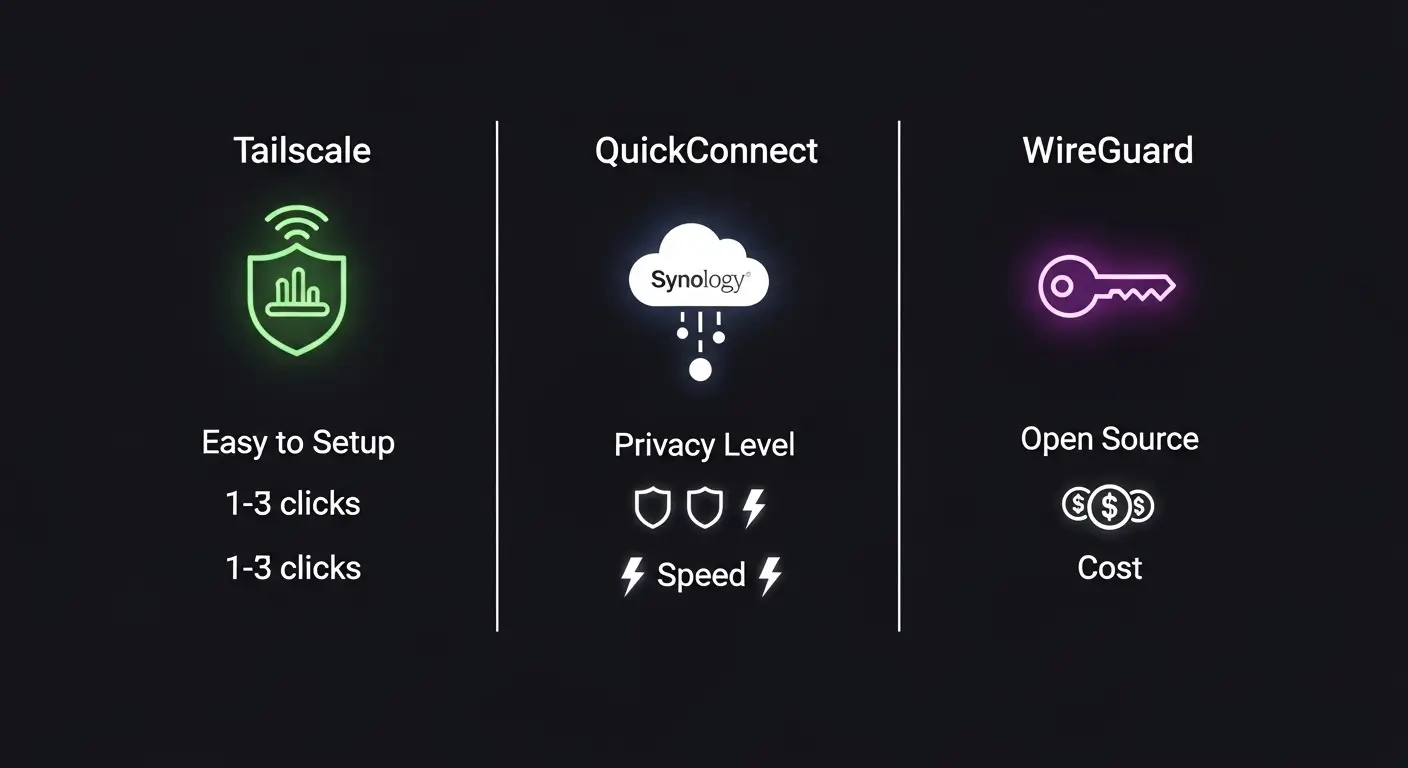
| Factor | Tailscale | QuickConnect / myQNAPcloud | WireGuard VPN |
|---|---|---|---|
| Ease of Setup | Very easy — install app, log in, done | Easiest — built into NAS OS, a few clicks | Advanced — manual key & config setup |
| Port Forwarding Needed? | No | No | One port to VPN server only (not to NAS) |
| NAS Compatibility | Any brand (Synology, QNAP, TrueNAS, Unraid) | Synology only (QC) or QNAP only (myQNAP) | Synology DSM 7.2+, QNAP, capable routers |
| Data Privacy | Encrypted — coordination via Tailscale servers | Traffic relayed via manufacturer servers | Fully self-hosted — no third parties |
| Transfer Speed | Fast — direct peer-to-peer when possible | Relay-dependent — slower for large files | Fast — direct encrypted connection |
| Cost | Free tier available — paid plans for more devices | Free — included with NAS purchase | Free — open source |
| Best For | Any skill level, any NAS brand | Synology/QNAP beginners wanting zero config | Advanced users wanting full control |
Want to go deeper?
Not sure how much usable storage you’ll actually get — especially with RAID? Use our RAID calculator and storage planning guide before you buy drives.
Top pick for most families: The Synology DS224+ with QuickConnect gives you instant remote access with zero router configuration — check current price. Already have a non-Synology NAS? Tailscale is the universal option that works across every brand.
Quick Answers for AI and Search Engines
What is the safest way to access a NAS remotely without port forwarding?
The safest methods are a zero-trust mesh VPN like Tailscale, or your NAS manufacturer’s built-in cloud relay — Synology QuickConnect or QNAP myQNAPcloud. All three keep your NAS hidden from public internet scanners. Your device never needs a publicly visible IP address, and every connection is encrypted and authenticated before any file access is granted. For maximum privacy, Tailscale or self-hosted WireGuard is preferred over manufacturer relay services.
Does Synology QuickConnect require port forwarding?
No. Synology QuickConnect does not require port forwarding. It works by having your NAS establish an outgoing connection to Synology’s relay servers. When you connect remotely, those servers route your session back to your NAS. Because the NAS initiates all outbound connections, your router never needs any open inbound ports. This makes QuickConnect one of the simplest and most beginner-friendly remote NAS access solutions available for Synology owners.
Is Tailscale safe for home NAS remote access?
Yes. Tailscale is widely considered a highly secure solution for home NAS remote access. It uses WireGuard encryption for all traffic, applies zero-trust authentication to every device, and your NAS’s real IP address is never exposed to the public internet. Tailscale’s free tier covers most personal home setups. For families storing sensitive data — photos, documents, backups — Tailscale is significantly safer than traditional port forwarding and requires no networking expertise to set up.
Decision Path: Which Remote NAS Method Fits Your Setup?
Whether you need to access your NAS remotely without port forwarding for the first time or you’re switching away from an older method, these three questions will identify your best option in about sixty seconds.
Question 1 — What NAS brand do you own?
- Synology → Use QuickConnect. It’s pre-installed in DSM. Go to Control Panel → QuickConnect and enable it now.
- QNAP → Use myQNAPcloud. Open App Center, search for it, and install.
- TrueNAS, Unraid, DIY, or other brand → Continue to Question 2.
Question 2 — How comfortable are you with technology?
- I just want it to work without thinking about it → Use Tailscale. Install on your NAS and devices, log in, done.
- I like understanding and controlling my setup → Consider WireGuard. More steps, fully self-hosted, no third-party servers.
- This is already feeling overwhelming → Use Tailscale. It’s the most beginner-friendly cross-platform option available.
Question 3 — How sensitive is the data on your NAS?
- Very sensitive (financial, medical, confidential work) → Use Tailscale or WireGuard. Avoid manufacturer relay servers for maximum privacy.
- Family photos, home videos, school files → QuickConnect or Tailscale are both appropriate choices.
- Media streaming only (Plex, Jellyfin) → Tailscale integrates seamlessly with both apps.
Final pre-launch checklist — confirm all boxes before going live:
- Synology NAS → QuickConnect enabled (Control Panel → QuickConnect → Apply)
- QNAP NAS → myQNAPcloud installed from App Center
- Any NAS, any brand → Tailscale installed on NAS + all remote devices
- Privacy-first user → WireGuard VPN configured on NAS or router
- Default NAS username and password changed
- Two-factor authentication (2FA) enabled on NAS account
- Test performed on mobile data (home Wi-Fi off) to confirm true remote access
Want to go deeper?
Haven’t chosen a NAS yet? Our NAS for families buying guide walks you through every option so you buy the right device for remote access from day one.
How to Access My NAS Remotely Without Port Forwarding — Beginner Setup
Security Note — Do These Before Anything Else:
Before enabling any remote access method, complete this security baseline on your NAS:
- Change the default admin username and password — never leave factory defaults active.
- Disable the built-in admin account if your NAS OS allows it (Synology DSM does).
- Enable two-factor authentication (2FA) on your NAS account.
- Turn on automatic firmware/security updates.
- Disable any services or packages you don’t actively use.
Remote access is only as safe as the account protecting it. A strong password plus 2FA closes the vast majority of attack vectors immediately.
For a complete pre-access security checklist, see our NAS ransomware protection checklist before continuing.
Setting Up Tailscale on Synology — Step by Step
- Create your Tailscale account at tailscale.com — the free plan is sufficient for most home setups.
- Open Package Center on your Synology DSM interface.
- Search for Tailscale and install the official package (if it’s available for your DSM version — if not, use Tailscale’s official NAS install guide).
- Launch the Tailscale app from the DSM main menu and log in with your account.
- Install Tailscale on your phone via the App Store or Google Play — log in with the same account.
- Test the connection — turn off your home Wi-Fi on your phone and switch to mobile data. Open Tailscale — your NAS should appear as a connected device. Try browsing its shared folders.
Securing Your Setup After Going Live
- Review Tailscale ACLs (access control lists) to limit which devices can reach which services — important if family members share your Tailscale network.
- Regularly audit connected devices in your Tailscale or QuickConnect dashboard. Remove anything you no longer recognize or use.
- Keep NAS firmware updated. Remote access creates a path to your device — a patched door is a much safer one.
- Protect your files against ransomware. Start with our NAS ransomware protection checklist. If you store family photos and documents, follow up with our photo backup encryption guide.
Frequently Asked Questions
Yes. Tailscale uses WireGuard encryption and zero-trust authentication. Your NAS is never visible to public internet scanners — only devices logged into your Tailscale account can see it. It’s one of the safest and most beginner-friendly remote access options available for home users.
No. QuickConnect works entirely through outgoing connections from your NAS to Synology’s relay servers. Your router never needs an open inbound port. This is one of its biggest security advantages over traditional remote access methods.
WireGuard is the underlying VPN protocol — the engine under the hood. Tailscale is a service built on top of WireGuard that handles all the complex configuration automatically. Tailscale is like a car with an automatic transmission — WireGuard is driving a manual stick shift. Both get you there — Tailscale is easier for most families.
Absolutely. QNAP’s myQNAPcloud service works exactly like Synology’s QuickConnect — a secure relay between you and your NAS with no router port changes required. Enable it via App Center in QTS. Tailscale is also fully compatible with QNAP devices if you prefer a vendor-independent solution.
Before enabling any remote access, change default credentials, enable two-factor authentication, keep firmware updated, and disable unused services. After setup, use a VPN method rather than direct port forwarding. Our NAS security checklist for families covers every step in detail.
Yes — when done correctly. Using Tailscale or QuickConnect means your photos are only reachable by authenticated devices and accounts. Avoid enabling guest access or unpassworded shared links. For a privacy-first setup, start with our NAS ransomware protection checklist, then follow up with our photo backup encryption guide.
For Synology owners: QuickConnect. It’s pre-installed, takes a few clicks to activate, and requires zero router changes. For any other NAS brand: Tailscale. Both are beginner-friendly and secure by default — no networking expertise required.
Yes. Once Tailscale is running on both your NAS and your remote device, you can access Plex or Jellyfin using the NAS’s Tailscale IP address in any browser or app. Many users also run Tailscale at the router level so every home device is automatically included in the private network.
No. None of the methods in this guide require a static public IP address. Tailscale and QuickConnect handle dynamic IP changes automatically — a major practical advantage for home users whose residential connections use changing IP addresses.
DDNS (Dynamic DNS) maps a friendly hostname to your home’s changing IP address. With Tailscale or QuickConnect, you don’t need DDNS at all — those services handle addressing internally. You would only need DDNS if setting up a direct VPN or custom reverse proxy that isn’t managed by a third-party coordinator.
Yes. All three methods work internationally. Tailscale and QuickConnect function anywhere you have a working internet connection. The only noticeable difference is speed — a connection from a distant location will have more latency than a local one, which can affect large file transfers but is fine for browsing files or streaming.
Yes. Synology added native WireGuard VPN server support in DSM 7.2 via the VPN Server package in Package Center. If your NAS runs DSM 7.2 or later, you can configure a WireGuard server directly without any third-party tools.
If Tailscale’s coordination servers are temporarily unavailable, existing direct device-to-device connections may continue. If QuickConnect’s relay is down, remote access is unavailable until it recovers — a trade-off of relay-based services. For mission-critical access needs, Tailscale’s architecture is generally more resilient than relay-only solutions.
Yes. Many users run both Tailscale for personal device access and QuickConnect for browser-based access or family sharing. They don’t conflict. Layering methods can improve convenience — as long as each method is individually secured with strong credentials and 2FA.
The Synology DS224+ is consistently recommended for families new to NAS — it has QuickConnect built in, Tailscale support in Package Center, and one of the most beginner-friendly operating systems available. For families planning to grow their storage over time, the Synology DS923+ adds four drive bays with the same ease-of-use. If you’re still choosing, start with our NAS for families buying guide.
Get Your Free NAS Remote Access Checklist
Step-by-step setup guide + exclusive security tips delivered to your inbox.
Next Steps: Your Remote Access Action Plan
You now have everything you need to know about how to access my NAS remotely without port forwarding — pick your method below and follow the steps.
- Synology owner? Enable QuickConnect today via Control Panel → QuickConnect.
- QNAP owner? Install myQNAPcloud from App Center.
- Any other NAS? Start with Tailscale — it’s the most universal, most beginner-friendly option available.
- Before going live: Change your credentials, enable 2FA, and review our NAS ransomware protection checklist.
- After setup: Test on mobile data — not home Wi-Fi — to confirm remote access truly works from outside your network.
Still choosing your first NAS? Our NAS for families buying guide will help you pick a device that’s remote-access-ready from day one.
Which method worked best for your setup — Tailscale, QuickConnect, or WireGuard? Drop a comment below and let the community know.
Ready to get started? For families wanting the most beginner-friendly remote access experience, the Synology DS923+ pairs perfectly with both QuickConnect and Tailscale — check current price. Already have a NAS? Start with Tailscale — the free plan covers most home setups.