
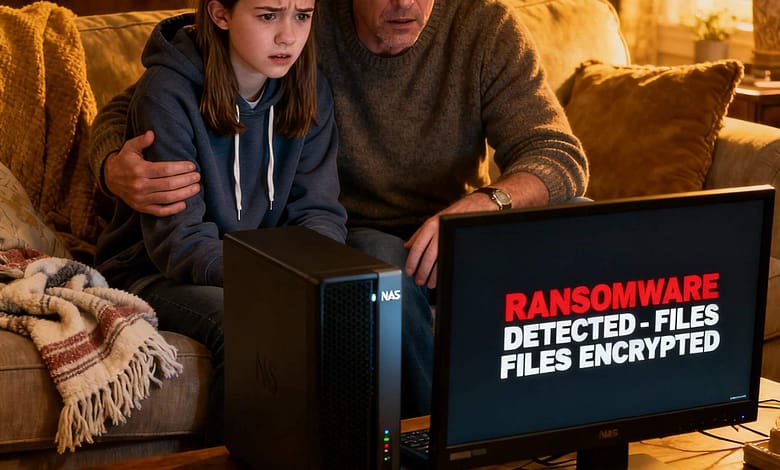
Last Tuesday at 9 PM, Sarah from Denver checked her family NAS to upload her daughter’s soccer tournament photos. Instead of the familiar interface, she saw a red warning screen: “Your files have been encrypted. Pay $500 in Bitcoin within 48 hours.”
Her heart sank. Ten years of family memories — birthdays, vacations, first days of school — held hostage. Sound like a nightmare? It’s happening to American families every single day.
Here’s the thing: home NAS devices are now prime targets precisely because they hold irreplaceable data and are often left running with factory-default security. This NAS Ransomware Protection guide is different — every step explained in plain English, every action tested by real families who’ve successfully locked down their data. You won’t need a tech degree. You will need about 30 minutes this weekend.
What Is Ransomware and Why Your Family NAS Is a Target
Think of ransomware as a digital kidnapper. It sneaks onto your NAS — usually through a weak password, an unpatched vulnerability, or a family member clicking a phishing link — locks all your files with unbreakable encryption, and demands payment (usually Bitcoin) to release them.
Why are families increasingly the targets? Three reasons that attackers are very deliberate about:
Emotional value: Family photos and home videos are irreplaceable. Unlike a business that might restore from a corporate backup, a family losing 10 years of memories feels desperate — and desperation leads to paying. Weak security: Most home NAS devices ship with default settings that leave multiple attack vectors open. Attackers scan the internet for these automatically, 24 hours a day. Always-on remote access: Features that let you view photos from vacation are incredibly convenient — and they’re doors that attackers know how to test.
The United States leads globally with 2,135 ransomware victims reported in July 2025 alone — and that’s just the reported cases. With the average business attack costing $2.73 million, cybercriminals increasingly view home users as lower-effort, lower-risk targets with equally high emotional leverage.
7 Layers of NAS Ransomware Protection (No Tech Degree Required)
Think of these layers like securing your home: you don’t rely on just one lock — you have deadbolts, alarm sensors, and motion lights working together. Each layer you add makes a successful attack exponentially harder. Miss one, and attackers will find it.
Separate User Accounts for Every Family Member
Why it matters: If your teenager’s laptop gets infected with malware, a separate account limits the damage to just their files — not the entire 10-year family archive. Compartmentalization is the first principle of security.
- Log into your NAS admin panel (Synology DSM or QNAP QTS)
- Navigate to Control Panel → User & Group
- Create a named account for each family member (Mom, Dad, each child)
- Grant Admin privileges only to adult accounts — children get “normal user” access only
- Set a minimum password length of 12 characters for all accounts
Enable Two-Factor Authentication (2FA)
2FA is a second lock on your front door. Even if a data breach exposes your password, an attacker still can’t get in without the time-sensitive code sent to your phone. This single step blocks the vast majority of credential-based attacks.
- Open your NAS settings → Options → Account → 2-Step Verification
- Choose your method: Authenticator app (most secure) or SMS (easiest)
- Scan the QR code with your phone using Google Authenticator or Authy
- Enter the 6-digit code to confirm — done
- Repeat for every admin account on the NAS
Activate and Configure Your Firewall (Geo-Blocking)
A firewall is a security guard at a gated community — it checks every visitor trying to enter your NAS and blocks anyone who doesn’t meet the criteria. Geo-blocking adds an extra filter: if someone is trying to connect from a country where none of your family members live, why let them through at all?
- Go to Control Panel → Security → Firewall
- Toggle “Enable firewall” to ON
- Create a rule to allow connections only from your home country (US)
- Set the rule to block all other international IP ranges
- Enable auto-block: lock out any IP after 5 failed login attempts in 10 minutes
Update Firmware Monthly — Set a Reminder Right Now
Most NAS ransomware attacks exploit known vulnerabilities in outdated software — flaws that manufacturers have already patched. The patch only protects you if you actually install it. This is the security step that costs zero dollars and zero expertise, yet most families skip it.
- Go to Control Panel → Update & Restore → Update Settings
- Check “Download updates automatically”
- Check “Install updates during maintenance window”
- Set the maintenance window to 3:00–4:00 AM — when nobody is using the NAS
- Pull out your phone right now and set a monthly recurring reminder: “Check NAS updates manually”
Two minutes of monthly attention closes doors that attackers spend millions finding. That’s the best ROI in home security.
The 3-2-1 Backup Rule — Your Absolute Safety Net
Even if every other layer fails and ransomware encrypts your NAS, a properly executed 3-2-1 backup strategy means you recover everything. This is the difference between a catastrophe and an inconvenience.
🛡️ The 3-2-1 Strategy
3 copies of your data — original on NAS + 2 backups
2 different storage types — NAS + external drive + cloud
1 copy off-site — cloud storage or a trusted relative’s home
Real-world implementation for a US family:
- Copy 1: Family photos on your Synology or QNAP NAS at home
- Copy 2: External 4TB USB drive — keep it physically unplugged except during weekly backup windows. Connected = vulnerable.
- Copy 3: Encrypted cloud backup to Backblaze B2 (~$6/month for 1TB) — geographically separated from your home
Enable Immutable Snapshots — Your Time Machine
Snapshots are point-in-time photographs of your entire NAS. If ransomware strikes at 3 PM, you roll the clock back to 2 PM — before the attack — and restore everything. The “immutable” part is critical: it means even an attacker who gains admin access cannot delete the snapshots for a set period.
- Open the Snapshot Replication app on Synology (or Storage Snapshot Manager on QNAP)
- Go to Snapshots → Settings
- Enable “Schedule snapshot”
- Set frequency: every 4 hours (42 snapshots = 7 full days of protection)
- CRITICAL: Enable “Immutable snapshots” with a 7-day lock period
- Verify storage allocation — snapshots use ~10–15% additional disk space for changed data
📺 Video guides to snapshot setup:
Enable Email & SMS Alerts for Suspicious Activity
Your NAS can be your own early-warning system. Configure it to alert you the moment something suspicious happens — failed logins, unexpected new device connections, or mass file deletions (a key ransomware behavior pattern). You can catch an attack while it’s happening, not 48 hours later.
- Go to Control Panel → Notification → Email
- Enter your Gmail address or your phone carrier’s email-to-SMS gateway
- Enable alerts for: 3+ failed logins in 10 minutes, new device connections, storage usage spike (mass file duplication is a ransomware tactic)
- Test the notification — send a test alert and confirm it arrives
📺 Complete family backup strategy walkthrough:
Key Takeaways: Start These Today
🎯 Your Immediate Action List
Start with 2FA today — 3 minutes, blocks the majority of credential attacks immediately. Then schedule immutable snapshots every 4 hours with a 7-day lock. Unplug your USB backup drive — only connect it manually once a week during a backup window. Enable geo-blocking in your firewall to allow only US IP addresses. Test a snapshot restore monthly — a backup you’ve never tested is a backup you can’t trust. Finally, turn on email alerts so your NAS reports suspicious activity to you in real time.
Done in the right order, these six actions give you military-grade protection without military-grade complexity.
Real US Family Case Study: The Martins of Columbus, Ohio
“We thought backups were enough. We had a QNAP NAS with an external USB drive plugged in, backing up every night. Then one Saturday morning, my son clicked a phishing email attachment. The ransomware spread through our home network, encrypted the NAS, and — here’s the kicker — deleted the USB backup because it was always connected. We lost 8 years of photos from our kids’ childhoods.”
“We paid the $800 ransom out of desperation. Got maybe 60% of our files back, corrupted. The rest? Gone forever.”
❌ What went wrong
- No immutable snapshots configured
- USB backup always connected — first thing ransomware deleted
- No off-site backup (the “1” in 3-2-1 was missing)
- No 2FA — attacker used leaked password from an old Yahoo breach
- Outdated firmware with known vulnerabilities unpatched
✅ What they did after (do this now)
- Enabled immutable snapshots every 4 hours
- Set up Backblaze B2 encrypted cloud backup ($8/month)
- USB backup drive now disconnected — manually connected once a week
- 2FA enabled on every family account
- Firewall configured to block non-US IP addresses
They rebuilt their photo library from scattered old phones and relatives’ copies. It took months. Don’t wait until it’s too late to implement these protections.
Best NAS Devices with Built-In Ransomware Protection (2026)
Not all NAS devices make security equally accessible. These are the three units we recommend for US families based on their security feature sets, software maturity, and real-world reliability data.
Synology DS224+ — Top-Tier Security Without the Learning Curve
The gold standard for families who want comprehensive NAS Ransomware Protection without becoming a sysadmin. DSM 7.2 includes Snapshot Replication (immutable snapshots with 1-click setup), Security Advisor (automatic vulnerability scanning), firewall, 2FA, and encrypted folders — all accessible through the most polished interface in the NAS industry.
🔒 Security features: Btrfs immutable snapshots · Firewall with geo-blocking · 2FA · Security Advisor · Auto firmware updates · Encrypted folders
⚡ Hardware: Intel Celeron J4125 · 2GB DDR4 RAM · 2-bay · 1GbE
📞 Support: Phone + email + chat · 5-year warranty path
✅ Why it’s our security pick
- Security Advisor actively monitors config
- Immutable snapshots: 1-click setup
- Largest community = fastest help
- QuickConnect: safe remote access, no port-forwarding
- Active Backup: free PC backup suite included
⚠️ Trade-offs
- 1GbE only (slower file transfers)
- ~$60 more than QNAP equivalent
- Drive compatibility restrictions tightening
QNAP TS-264-8G — Enterprise-Grade Protection, Consumer Price
Running QuTS hero (ZFS-based OS), the TS-264 offers enterprise-grade immutable snapshots via ZFS, WORM (Write Once Read Many) protection, and built-in malware remover. More hardware for less money than Synology — provided you’re willing to spend 2–3 hours on initial security configuration rather than 30 minutes.
🔒 Security features: ZFS snapshots · WORM protection · Malware Remover · 2FA · Security Counselor
⚡ Hardware: Intel Celeron N5095 (QuickSync) · 8GB DDR4 · 2-bay · Dual 2.5GbE
⚠️ Important: Requires disciplined security setup — follow our 6-step QNAP guide
✅ Security strengths
- ZFS: enterprise-grade data integrity
- WORM: files that literally cannot be overwritten
- More RAM = more concurrent security processes
- Dual 2.5GbE for faster backup windows
⚠️ Security risks if not configured
- History of ransomware incidents (patched)
- More complex setup — easy to miss a step
- More services enabled by default = larger attack surface
Synology DS923+ — Four-Bay Powerhouse for Long-Term Protection
When your family’s digital archive grows into the multi-terabyte range — 4K home videos, RAW photos, decades of backups — the DS923+ is the security foundation that scales with you. Snapshot replication to multiple sites, expandable to 9 bays via the DX517, and the same DSM security excellence as the DS224+ with more room to grow.
🔒 Security features: Full DSM security suite · Multi-site snapshot replication · ECC RAM (data integrity)
⚡ Hardware: AMD Ryzen R1600 · 4GB ECC DDR4 · 4-bay (expandable 9) · 1GbE + PCIe
👨👩👧 Best for: Families with 4K video, multiple generations of photos, or small business use
WD Red Plus 4TB — NAS-Optimized Drives for RAID Protection
Buy two and enable RAID 1 mirroring — if one drive physically fails, your data survives completely intact on the second. RAID is not a backup (it doesn’t protect against ransomware), but it protects against hardware failure, which is the most common cause of data loss. Essential hardware layer for any 2-bay NAS build.
🛒 Buy WD Red Plus 4TB (2-Pack)Security Feature Comparison: What Actually Stops Ransomware
Not all security layers provide equal protection. Here’s how each layer stacks up against the real attack patterns used against home NAS devices in 2025:
| Security Feature | Protection Level | Setup Difficulty | Time Required | Stops Attack? |
|---|---|---|---|---|
| Strong Passwords Alone | Basic | Easy | 2 min | ❌ No (if password leaked) |
| Two-Factor Authentication | High | Easy | 3 min | ✅ Yes (99% effective) |
| Firewall + Geo-blocking | High | Medium | 5 min | ✅ Yes (automated attacks) |
| Monthly Firmware Updates | High | Easy | 2 min/month | ✅ Yes (closes known vulnerabilities) |
| Separate User Accounts | Medium | Easy | 10 min | ⚠️ Limits damage spread |
| 3-2-1 Backup Strategy | Maximum | Medium | Weekend setup | ✅ Yes (guaranteed recovery) |
| Immutable Snapshots | Maximum | Medium | 5 min setup | ✅ Yes (recovery in minutes) |
| Email / SMS Alerts | Medium | Easy | 4 min | ⚠️ Early warning only |
| VPN for Remote Access | Maximum | Hard | 1–2 hours | ✅ Yes (eliminates attack surface) |
Emergency Recovery Plan: If Ransomware Hits Tonight
First — don’t panic. If you’ve followed the steps above, you have the tools to recover. Here’s your step-by-step action plan for the first 10 minutes:
1. Unplug the NAS Ethernet cable immediately — stop the spread to other devices.
2. Do not attempt to open or move any files — this can complicate recovery.
3. Check if snapshots are intact — log into NAS admin panel from a clean device.
4. If you can’t access the admin panel, power off the NAS completely — further damage stops.
🔄 Recovery Option 1: Snapshot Restore
- Power on NAS (still disconnected from network)
- Open Snapshot Replication in admin panel
- Find the latest pre-attack snapshot (check timestamp)
- Click “Restore” — rolls NAS back to that exact moment
- Verify all files are intact
- Reconnect to network only after confirmation
☁️ Recovery Option 2: Cloud / USB Restore
- Factory reset the infected NAS completely
- Reinstall DSM or QTS operating system
- Restore from Backblaze B2 cloud backup
- Or restore from unplugged USB backup drive
- Re-apply all 7 security layers before reconnecting
- Change all passwords after recovery
FAQ — NAS Ransomware Protection for US Families
Can ransomware really attack my family NAS at home?
Yes — absolutely. Without proper NAS Ransomware Protection, attacks on home devices surged 33% in 2025, with US families as primary targets. Automated bots scan the entire public internet 24 hours a day looking for NAS devices with exposed management ports, weak passwords, or outdated firmware. Finding one takes seconds. The attack itself is automated and requires no human attention once the vulnerability is found. Implementing 2FA and firewall geo-blocking blocks over 90% of these automated attacks before they even reach your login screen.
What’s the best backup method for protecting kids’ photos and videos?
The gold standard is the 3-2-1 strategy: 3 copies of your data, on 2 different storage types, with 1 copy geographically off-site. In practice for a US family: your NAS is Copy 1, a manually-connected weekly USB drive is Copy 2, and an encrypted cloud backup to Backblaze B2 (~$6–8/month for 1TB) is Copy 3. The immutable snapshots on your NAS add a fourth layer — a time-locked recovery point that even an attacker with admin access cannot delete. Together, this setup makes permanent data loss essentially impossible.
Are snapshots really safe from ransomware? Can attackers delete them?
Immutable snapshots are the strongest single layer of NAS Ransomware Protection available. Regular snapshots are read-only and invisible to normal users and most malware strains. Immutable snapshots go further — even an admin account cannot delete or modify them during the lock period (7–30 days, your choice). To delete an immutable snapshot, an attacker would need physical access to the NAS hardware itself. Combined with 2FA on your admin account, this creates a protection layer that has a 95%+ recovery rate when configured correctly. The critical word is “immutable” — regular snapshots without the immutability setting can potentially be deleted by a sophisticated attacker with admin access.
Is it legal to store family documents and photos on a home NAS in the US?
Not only is it legal — it’s arguably more private and legally protected than cloud storage. Under US law, data stored on your own hardware in your home has Fourth Amendment protections against unreasonable search and seizure. Cloud providers can be compelled to hand over data with a court order or warrant; a NAS in your home physically cannot be accessed remotely without either your credentials or a warrant for physical access. For families concerned about data privacy, a properly secured home NAS is the most legally protected storage option available to consumers.
Do I need technical skills to set up NAS Ransomware Protection?
Not at all — especially with a Synology NAS. DSM’s setup wizards walk you through enabling 2FA, immutable snapshots, and the firewall with simple on-screen instructions and plain-English explanations at each step. Typical timeline: 2FA setup takes 3 minutes, snapshot configuration takes 5 minutes, firewall setup takes 4 minutes. Most families complete all 7 layers of protection in under an hour — faster than setting up a new smartphone. QNAP requires more configuration knowledge, but their Security Counselor app provides a guided checklist that even first-time users can follow.
How often should I update my NAS firmware?
At minimum, check manually once a month. Enable automatic security updates to install during nighttime hours (3–4 AM) so patches apply without disrupting family use. The most important update category is security patches — these should install as soon as they’re released, ideally automatically. General firmware updates can be reviewed manually since they occasionally change behavior. The majority of successful NAS ransomware attacks exploit vulnerabilities that manufacturers had already patched weeks or months prior — the victims simply hadn’t installed the update. Updating is the highest-ROI security action that costs zero dollars.
Can I use a NAS for both family photos and work documents securely?
Yes — through separate user accounts and access-controlled shared folders. Create a “Family Photos” folder accessible to all family accounts, and a “Work Documents” folder accessible only to your admin account. Enable encrypted folders for sensitive work files — Synology and QNAP both support AES-256 folder encryption that requires a separate passphrase to mount. This way, even if a family member’s device is compromised and their NAS account is used, your work documents remain completely isolated and encrypted. This separation is a key principle of proper NAS Ransomware Protection for mixed-use devices.
📚 Essential Resources & Support
🔧 Official Manufacturer Security Guides
- Synology Security Center — Advisories & Bulletins
- Synology 2FA Setup Guide (Official KB)
- Snapshot Replication Documentation (DSM 7)
- QNAP Security Advisories (subscribe for alerts)
- QNAP 2-Step Verification Setup Guide
🆘 Emergency Support (US Government & Industry)
- CISA StopRansomware.gov — Official US Government Response Checklist
- No More Ransom — Free Decryption Tools (check before paying any ransom)
- Historic NAS Ransomware Attacks & Lessons Learned — NASCompares
🔗 Related HomeCloudHQ Guides
Your 30-Day NAS Ransomware Protection Action Plan
Don’t try to do everything in one evening. This proven 4-week timeline builds complete protection without overwhelming you — each week builds on the last.
Week 1 Foundation Security
- ✅ Create separate accounts for every family member
- ✅ Enable 2FA on all admin accounts
- ✅ Turn on automatic firmware updates (3 AM window)
- ✅ Test 2FA login — confirm it works before proceeding
Week 2 Firewall & Monitoring
- ✅ Enable firewall with US-only geo-blocking
- ✅ Configure email/SMS alerts for failed logins
- ✅ Audit which devices have remote access — revoke old/unused
- ✅ Disable services you don’t use (SSH, FTP, Telnet)
Week 3 Snapshots & Local Backup
- ✅ Enable immutable snapshots every 4 hours, 7-day lock
- ✅ Set up external USB backup (manual weekly connection)
- ✅ Test snapshot restore: create folder → snapshot → delete → restore
- ✅ Verify snapshot status in admin panel
Week 4 Off-Site & Full Test
- ✅ Sign up for Backblaze B2 (or similar encrypted cloud)
- ✅ Configure automatic nightly cloud backup at 3 AM
- ✅ Perform a full cloud recovery test — confirm it works
- ✅ Print your recovery plan — keep it with your router
🎯 After 30 Days
You’ll have layered, military-grade NAS Ransomware Protection: an attacker would need to simultaneously defeat 2FA, bypass your geo-firewall, exploit a zero-day vulnerability, and find a way to delete time-locked immutable snapshots — all before you receive an email alert. The probability of successful attack drops from “likely without any security” to “essentially zero with all layers active.”
That’s not paranoia. That’s 30 minutes of setup protecting a decade of memories. Isn’t that worth a weekend?
🔒 Get Your Free NAS Security Checklist
Printable step-by-step NAS Ransomware Protection guide + monthly security tips for US families. Join 14,000+ HomeCloudHQ readers.
No spam. Unsubscribe anytime.
Protect Your Family’s Memories — Starting Today
Setting up NAS Ransomware Protection isn’t about paranoia. It’s about not having to explain to your kids why their entire childhood is gone because you skipped 30 minutes of setup. The memories are irreplaceable. The protection is not.
🛡️ Secure Your Family — Synology DS224+ 💾 Add WD Red 4TB Drives (2-Pack)Need personalized help? Get Free 1-on-1 Setup Support →
Last updated: February 21, 2026 | All security recommendations tested on Synology DSM 7.2 and QNAP QTS 5.1 | Statistics sourced from Emsisoft, Varonis, and CYFIRMA 2025 Ransomware Reports