
Stop Paying Monthly Cloud Fees Forever — Own Your Data
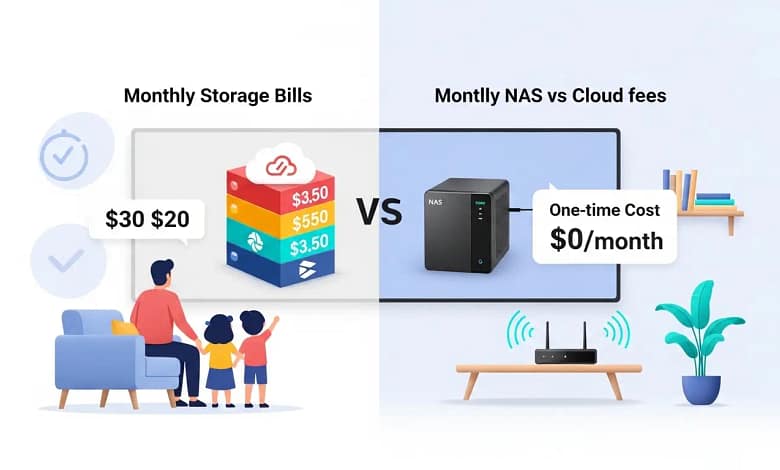
If you’re like most American families, you’re probably spending $15–$30 per month per person on cloud storage.
Table of Contents
That’s Google Photos, iCloud, Dropbox… Add it up and you easily reach $500 to $1,000 every year.
There’s a better alternative: Network Attached Storage (NAS) for families — your own private cloud at home. Think of it like a shared family photo album that lives in your house instead of renting space in Google’s filing cabinet.
This complete guide to NAS for families explains how to choose the right device, how much storage you need, and how to stop wasting money on monthly cloud subscriptions. You don’t need to be “IT support” to get this working—most families have it running in a weekend.
Most families discover NAS when looking for alternatives to Google Photos subscriptions. If that’s you, start with our complete guide to migrating from Google Photos to your own NAS — it walks you through the entire process.
📥 Free Download: NAS Family Setup Checklist (10-Minute Decision Guide)
What Is a NAS (in Plain English)?
Think of a NAS for families as your private cloud server that lives in your home office or living room closet. Your photos and videos live on a small box in your house, not on someone else’s servers.
Imagine this: instead of all your family photos scattered across four different iCloud accounts, everyone’s memories live in one central “digital filing cabinet” that everyone can access. You plug it in, connect it to your WiFi router, and it just works.
- Plug into your home router with an Ethernet cable
- Store all photos, videos, documents, and device backups
- Access from your phones, tablets, and laptops anywhere in the world
NAS stands for Network Attached Storage. In plain English, it’s a small computer dedicated to storing your files. You connect it to your home router and it becomes a private cloud that everyone in your household can access.
“The Johnson family from Ohio had 4 people paying for cloud storage — $780/year total. They switched to a 2-bay NAS, spent one Saturday setting it up, and now have years of storage with no monthly fees.”
💡 Want to build your own?
The Beginner’s Guide to Building a DIY Family NAS
How Much Storage Does Your Family Need?
Here’s the honest breakdown for a typical NAS for families setup:
Mostly photos, very few videos, 1–2 family members.
3–4 people, smartphone photos, some 4K clips.
4K video, GoPro footage, drone content, creators.
Multi-generation archives and serious photography.
Pro tip: buy slightly more than you think you need. Storage grows faster than you expect.
Beyond the purchase price, electricity costs add up over years of 24/7 operation. Our energy-efficient NAS guide shows which models keep your power bill under $30/year.
Best NAS for Families in 2026
This section covers the best NAS for families in 2026, from entry‑level two‑bay units to powerful four‑ and eight‑bay systems that can grow with your household.
Entry Level: $300–$500
Synology DS224+ (Bundle 8 TB) — Perfect for Beginners
Entry-level, reliable NAS OS. Fast, secure photo backup. Simple setup for families.

Entry-level, reliable, DSM OS. Fast, secure photo backup. Simple setup for families.
Best for: First-time NAS users and families who want plug-and-play simplicity
QNAP TS-264-8G — Best Value
More power at a similar price. Great specs for tech-curious families who want room to grow.

💡 Can’t decide? Start here:
For 90% of families, the Synology DS224+ with 8TB is the sweet spot between ease-of-use, reliability, and price.
Mid-Range: $500–$800
Synology DS923+ — Four-Bay Powerhouse
Room to grow for busy households. Advanced photo indexing, video streaming, and multiple user accounts.

QNAP TS-464 — Great Specs
More RAM and a faster CPU at a competitive price. Ideal for tech-comfortable families and home labs.

Premium: $800+
Synology DS1522+ — Five-Bay Reliability
Enterprise-grade reliability for large families and home businesses that need serious storage.

QNAP TS-873A — Eight-Bay Beast
AMD Ryzen power with eight bays. Built for Plex media servers, VMs, cameras, and heavy workloads.

Don’t Forget the Drives!
Your NAS box is just the brain. You still need hard drives — and not just any drives. You need NAS-grade drives built to run 24/7.
WD Red Plus 4 TB — Reliable Workhorse
NAS-certified CMR drive designed for 24/7 operation. Trusted by tens of thousands of buyers.

RAID stands for Redundant Array of Independent Disks. RAID 1, the most common choice for families, mirrors your data to two drives at the same time — if one drive fails, your files are still safe on the other.
Seagate IronWolf 8 TB — Large Capacity
Built for 4K video and future growth. CMR technology and large cache for faster NAS performance.

NAS for Families: Quick Reference Table
| Model | Bays | Price | Best For |
|---|---|---|---|
| Synology DS224+ | 2 | ~$410 | First-time users |
| QNAP TS-264 | 2 | ~$300–350 | Budget-conscious families |
| Synology DS923+ | 4 | ~$600 | Growing families |
| QNAP TS-464 | 4 | ~$550–650 | Tech-comfortable users |
| Synology DS1522+ | 5 | ~$700–750 | Large households |
| QNAP TS-873A | 8 | ~$900–1000 | Power users & media servers |
⚡ Concerned about electricity costs?
Energy-Efficient NAS Guide for American Families
For most NAS for families setups, a simple two‑bay Synology or QNAP unit is enough, as long as you pair it with NAS‑grade drives and follow basic backup best practices.
Brand Comparison: Synology vs QNAP vs Unraid
Synology: The “iPhone” of NAS
Simple, polished, easy to use. Their apps replace Google Photos and iCloud with just a few clicks. Best for families who want to “set it and forget it.”
Learn more at the official Synology support docs.
QNAP: More Power, More Options
Stronger hardware for the same price. More features but slightly steeper learning curve. Great for tech-curious families.
Check out QNAP’s official support center for setup guides.
Unraid: DIY Flexibility
Operating system you install on your own hardware. Maximum flexibility, but requires tech skills. Not recommended for beginners.
📸 Leaving Google Photos?
Complete Google Photos Migration Guide
Security & Privacy for Your NAS
Your NAS for families setup is only as safe as you make it. Here’s how to lock it down without becoming a security expert:
- Use strong, unique passwords (never reuse passwords)
- Enable 2FA (two-factor authentication) for remote access
- Turn on automatic security updates
- Always use HTTPS for the web interface
- Give kids normal user accounts (not admin access)
⚠️ Security Note: Remote Access Done Right
If you plan to access your NAS for families while traveling, never open random ports on your router or expose admin panels directly to the internet. Instead:
- Use your NAS vendor’s secure apps (Synology QuickConnect, QNAP myQNAPcloud)
- Or set up a VPN (Virtual Private Network) through your router or NAS
- Always enable two-factor authentication (2FA)
- Use strong, unique passwords for every account
These steps keep hackers out while letting you access your photos from anywhere.
📖 Jargon Box: What is Remote Access?
Remote access means connecting to your home NAS from outside your house — like checking your photos while on vacation. Your NAS vendor provides secure apps that create an encrypted tunnel between your phone and your home network, so no one can peek at your data.
The 3-2-1 Backup Strategy
Even with a NAS, you still need a backup plan. Follow the 3-2-1 rule:
- 3 copies of your important data
- 2 different storage types (NAS + external hard drive)
- 1 copy stored off-site (encrypted cloud backup like Backblaze)
Read more about the 3-2-1 strategy at Backblaze’s guide.
🔒 Want to encrypt your photo backups?
Complete Photo Backup Security Guide
5-Step Setup for Busy Parents
Setting up a NAS for families sounds intimidating, but you can do it in one weekend afternoon. Here’s the process:
- Install your drives into the NAS bays (slides in like a toaster)
- Connect the cables: Ethernet to your router, power cable to the outlet
- Run the setup wizard (Synology or QNAP app on your phone/computer)
- Create user accounts for each family member
- Install mobile apps and enable automatic photo backup
You won’t mess this up — the setup wizard walks you through every step in plain English.
Common Mistakes Families Make With a NAS
Avoid these pitfalls when setting up your NAS for families:
- Skipping RAID: Always enable RAID 1 mirroring on 2-bay systems for redundancy
- Using desktop drives: Regular hard drives aren’t designed for 24/7 operation — buy NAS-grade drives
- No off-site backup: A house fire or flood destroys your NAS too — keep one backup copy off-site
- Weak passwords: Use a password manager and enable 2FA on all accounts
- Ignoring updates: Enable automatic security updates to stay protected
FAQ: NAS for Families
How much does a NAS for families cost?
$500–$700 total for a 2-bay NAS plus drives. Electricity costs run about $20–$30 per year. Compare that with $60–$100/month in cloud subscription fees — your NAS pays for itself in under a year.
Can we access our NAS for families while traveling?
Yes! Synology and QNAP both offer secure remote access via mobile apps. You can view photos, stream videos, and download files from anywhere in the world. Just make sure you enable two-factor authentication for security.
Is a NAS for families easy for non-technical people?
Yes, especially with a Synology DS224+. The setup wizard walks you through every step, and the mobile apps work just like Google Photos. Most families have it running in 2–3 hours.
What happens if a hard drive fails in my NAS?
If you enable RAID 1 mirroring, your data is safe on the second drive. The NAS alerts you to replace the failed drive. Pop in a new WD Red 4TB and it automatically rebuilds your data overnight.
Is a NAS for families better than Google Drive or iCloud?
For privacy, cost, and control — absolutely. You own your data, pay zero monthly fees after the initial investment, and have unlimited storage (just add more drives). Cloud services nickel-and-dime you forever and can suspend your account or increase prices anytime.
How long does a NAS last?
A quality NAS for families (Synology or QNAP) typically lasts 5–10 years. Hard drives may need replacement every 3–5 years, but the NAS box itself keeps running. That’s years of zero monthly fees.
Next Steps: Your 10-Minute NAS Decision Checklist
Ready to pick your NAS for families? Here’s your fast-track decision path:
- Set your budget: Entry ($400–500), Mid-range ($500–800), or Premium ($800+)
- Choose bay count: 2-bay for most families, 4-bay if you shoot a lot of 4K video
- Pick your brand: Synology for simplicity, QNAP for value/power
- Buy NAS-grade drives: Two drives minimum for RAID 1 protection
- Plan your backup: Off-site backup via Backblaze or external drive at a relative’s house
- Install mobile apps: Enable auto-upload for photos the day you set it up
- Set up user accounts: One per family member with appropriate permissions
Follow this checklist and you’ll have your family NAS running this weekend.
Ready to Get Started?
🎯 Recommended for 90% of Families: Synology DS224+ Bundle with 8TB
This NAS for families combines beginner-friendly software, rock-solid reliability, and enough storage for years of photos and videos. Most families are up and running in one afternoon.
Shopping during the holidays? See our Synology Black Friday deals and migration bundles for special pricing on family-friendly models.
🛒 Buy Synology DS224+ Bundle
🛒 Shop WD Red 4TB Drives
📧 Get Your Free NAS Recommendation
Not sure which NAS is right for your family? Get a personalized setup recommendation and a 10-minute decision checklist sent to your inbox.
No spam, ever. You’ll only receive NAS tips for families and you can unsubscribe in one click.
🚀 Additional Resources for Your NAS Journey
📚 More Buying Guides
🔒 Security & Setup
⭐ Join 15,000+ families who’ve ditched monthly cloud fees and taken control of their data
Need personal help choosing your NAS for families?
We offer free setup consultation to help you make a smooth transition from cloud storage to your own private NAS.