
- Use USB Copy if you want simple, readable backups with zero learning curve.
- Use Hyper Backup if you need version history and protection against accidental deletions or ransomware.
- Both apps can run on an automatic schedule once you set them up.
- This guide walks you through both options in plain English and helps you decide in just two questions.
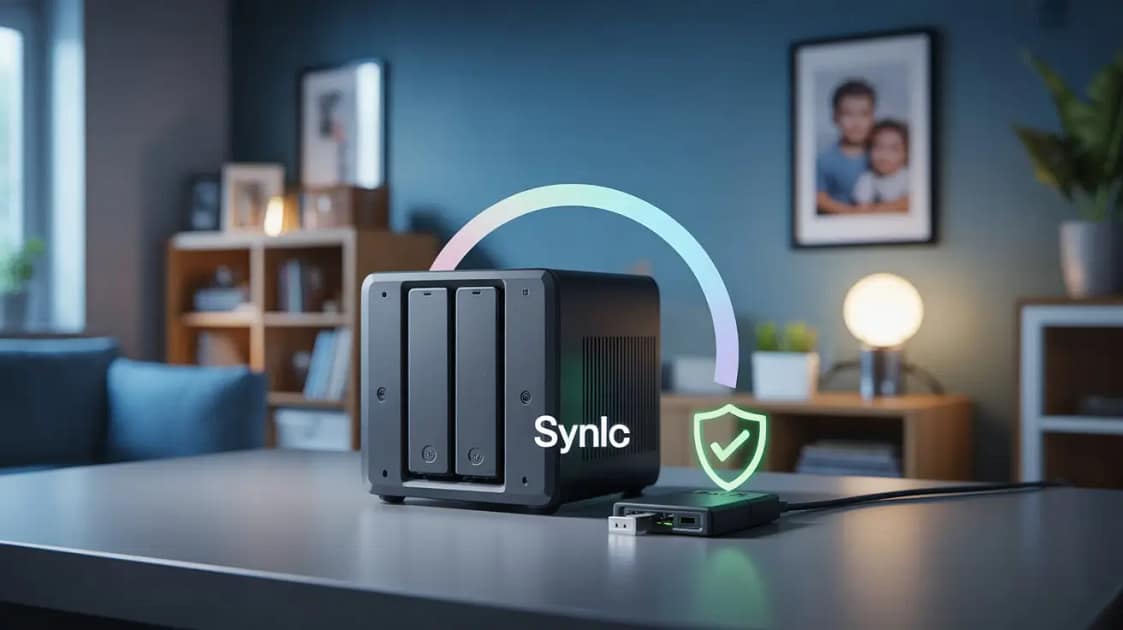
For Synology families who want set-it-and-forget-it protection — no tech degree required.
⚡ TL;DR: For most families → use USB Copy (files stay readable, zero learning curve). Want version history + ransomware protection? → use Hyper Backup. Both run automatically on a schedule. This guide walks you through both in plain English and helps you pick in 2 questions.
Ever had that moment where you manually copy a few folders to a USB drive, think “I really should automate this somehow” — then close the laptop and forget about it for six months? Yeah. Me too.
Your NAS stores your family photos, your kids’ school projects, your financial documents. It deserves a real Synology USB backup — not a sticky note that says “back this up this weekend.” The good news: Synology makes this surprisingly straightforward, and you can have it running before tonight’s dinner.
In this guide, you’ll learn exactly how to automatically back up your NAS to a USB drive using Synology DSM 7 — which tool to pick, how to configure your Synology USB backup step by step, and how to protect your backup from the one threat most guides completely ignore.
Why a USB Backup Matters Even If Your NAS Already Has RAID
If your Synology NAS already has two drives in RAID, you might be thinking: “I’m already covered.” Not quite. RAID and a backup are two very different things — and confusing them is the most common mistake NAS owners make.
📖 Jargon Box: NAS (Network-Attached Storage) — A small personal server that lives in your home and stores all your files, like a private Dropbox you own and control. It connects to your home router so every device in your house can reach it.
RAID Protects Against a Failed Hard Drive — Not Against You (or Ransomware)
RAID mirrors your data across two drives simultaneously. If one drive physically dies, the other keeps running. That’s genuinely useful — but it only covers one specific failure scenario. RAID does nothing to protect you from accidentally deleting a folder, from a software bug corrupting files, or from ransomware.
📖 Jargon Box: RAID — A system that writes your data to two hard drives at the same time, so if one drive fails, the other automatically takes over. Think of it like writing your diary in two notebooks simultaneously. Great for hardware failures — completely useless against human error or malware.
When ransomware hits your NAS, it encrypts every file it can reach — including both drives in your RAID array at the same time, because they’re treated as one logical volume. Your mirror becomes a perfect mirror of corrupted, unreadable data. That’s exactly why a separate, disconnected Synology USB backup matters.
The One Scenario That Destroys Your NAS and an Always-Plugged-In USB Drive
Here’s the scenario nobody in the SERP addresses directly: your USB backup drive is plugged in 24/7. Ransomware infects your NAS. It encrypts your NAS files — then walks straight over to the USB drive and encrypts that too. Your “backup” is now just as broken as your original data.
The fix is simple and free: use auto-eject (your NAS disconnects the USB drive automatically after each backup finishes) or adopt a weekly plug-in routine. We’ll cover both in detail below.
📖 Jargon Box: 3-2-1 Backup Rule — Keep 3 copies of your data, on 2 different types of storage, with 1 copy stored off-site (outside your home). A USB drive you store in your car or at a family member’s place is your off-site “1.” Think of it like keeping a spare house key at a neighbor’s — not just in the same drawer as your main key. Backblaze explains the 3-2-1 rule in detail here.
💡 Not sure how much usable storage your RAID actually gives you?
Our RAID calculator and storage planning guide shows you exactly how much real space you’ll have — before you buy a single drive.
USB Copy vs. Hyper Backup — Which Should You Use for Your Synology USB Backup?
Synology gives you two built-in tools for USB backups: USB Copy and Hyper Backup. Both work. Both can run on a schedule. But they’re designed for very different needs — and picking the wrong one creates frustration when you actually need to restore something.
What Is USB Copy?
USB Copy is Synology’s simplest backup tool. It copies your files to a USB drive in plain, readable format — exactly as they appear on your NAS. Plug the drive into any computer and you can open your files directly, no special software needed. See Synology’s official USB Copy overview.
📖 Jargon Box: USB Copy — Synology’s plug-and-play backup tool that copies your files as-is onto a USB drive. Think of it as a high-speed photocopier for your NAS: what you get is exactly what you see. No restore process, no special app — just files you can browse and open anywhere.
USB Copy is perfect for family photos and documents when simplicity is the priority. Its limitation: it does not keep multiple versions of your files. If ransomware corrupts a file and USB Copy runs before you notice, the corrupted version overwrites the backup.
What Is Hyper Backup?
Hyper Backup is Synology’s more powerful backup application. It saves data in a compressed, versioned format — keeping multiple snapshots of your files over time. If ransomware strikes on Tuesday, you can roll back to Monday’s clean version and restore exactly what you had before the attack.
📖 Jargon Box: Hyper Backup — Synology’s backup app that stores your files in a compressed, versioned format. Think of it as a time machine for your NAS: you can travel back to any past snapshot and recover your files exactly as they were on that specific date.
The trade-off: files are stored in a proprietary format, so you can’t simply open them from the USB drive on another computer — you need to run a restore process through Hyper Backup first. It also backs up your DSM application settings, Docker containers, and system configuration — useful if you’ve customized your setup over time.
| Feature | USB Copy | Hyper Backup |
|---|---|---|
| Setup difficulty | ⭐ Very easy | ⭐⭐ Moderate |
| Files readable without software | ✅ Yes | ❌ No (proprietary format) |
| Keeps multiple backup versions | ❌ No | ✅ Yes |
| Ransomware protection (via versioning) | Limited | ✅ Stronger |
| Backs up app settings & configs | ❌ No | ✅ Yes |
| Best for | Family photos & documents | Full NAS protection |
🧭 Pick Your Tool in 2 Questions
- Do you want to open files directly from the USB drive on any computer, without any restore process?
→ Go with USB Copy. - Do you want to roll back to a file from last week if ransomware strikes or you accidentally delete something?
→ Go with Hyper Backup.
Still unsure? Start with USB Copy. It takes under 10 minutes to configure, your files stay readable, and you can always add Hyper Backup later as a second layer of protection. Starting simple beats never starting at all.
🖴 Not sure which USB drive to use for your Synology USB backup?
Here’s the external USB drive I recommend for most Synology families — plug-and-play compatible, no special formatting required. Prices change often, so check the current price before buying.
🛒 Check Current Price on AmazonAffiliate link — we may earn a small commission at no extra cost to you.
Step-by-Step: How to Set Up Synology USB Backup on DSM 7 Automatically
This section walks you through configuring your Synology USB backup entirely through your browser — no command line, no SSH, no scripts. If you can navigate a website, you can do this.
📖 Jargon Box: DSM (DiskStation Manager) — Synology’s operating system. It runs inside your NAS and you access it through any web browser on your home network, usually by visiting find.synology.com or your NAS’s local IP address. Think of it as the “Windows” of your Synology NAS.
What You Need Before You Start
- A USB hard drive or flash drive — formatted as exFAT or ext4. For most families, exFAT is the best default: it’s readable on both Windows and Mac without extra drivers.
- Enough storage capacity — at minimum, match the size of the data you want to back up. For a two-drive rotation strategy, get two drives of the same size.
- A Synology NAS running DSM 7.x — these steps apply to the DS220+, DS224+, DS420+, DS920+, and most current 2-bay and 4-bay Synology models.
- Admin access to DSM — your NAS administrator username and password.
Method A — Set Up USB Copy (The Simplest Path, Step by Step)
- Plug your USB drive into one of the USB ports on the back of your Synology NAS.
- Log in to DSM from your browser.
- Open the Main Menu → search for and open USB Copy.
- Click Create to configure a new copy task.
- Set the Copy mode to “NAS to USB” to back up from your NAS to the external drive.
- Select the source shared folders on your NAS (e.g., Photos, Documents, Video).
- Set the destination folder on your USB drive.
- Under Schedule, choose your preferred frequency — weekly, daily, or trigger-on-insert (starts automatically when you plug in the drive).
- Enable Safe removal so the drive ejects automatically when the backup finishes.
- Click Apply. Your automatic Synology USB backup is now configured.
Method B — Set Up Hyper Backup to a USB Drive (For Version History)
- Plug your USB drive into the Synology NAS.
- Open DSM → Main Menu → Hyper Backup.
- Click the + icon → select Data backup task.
- Choose Local folder & USB as the backup destination.
- Select your USB drive from the dropdown.
- Choose the shared folders to include, and optionally any installed applications.
- Set your schedule — daily at a specific time is a reliable default for most families.
- Under Rotation settings, specify how many backup versions to retain (see guidance in the frequency section below).
- Enable client-side encryption if the drive will ever leave your home (see the encryption section below).
- Click Apply and let Hyper Backup complete its first full backup.
For the official Synology walkthrough with annotated screenshots, see the Synology Knowledge Base guide on backing up to a local USB drive.
How to Schedule Your Synology USB Backup to Run Automatically
Both tools support two scheduling approaches — and choosing the right one depends on how you plan to store your USB drive:
- Time-based schedule — runs at a set time (e.g., every Sunday at 10 PM). Best when you leave the drive plugged in and rely on auto-eject to protect it.
- Trigger on USB insert — starts automatically the moment you plug in the drive. Best for a weekly manual routine where you don’t leave the drive connected between backups.
For most families, trigger on insert paired with a weekly plug-in routine gives the best balance of automation and security. You plug in the drive, walk away, and come back to a completed backup notification.
Enable Auto-Eject When the Backup Finishes — The Anti-Ransomware Step Most People Skip
📖 Jargon Box: Auto-eject — A DSM setting that safely disconnects (unmounts) the USB drive after your backup task completes, without you touching anything. Your NAS essentially presses “Safely Remove Hardware” for you — and the drive becomes invisible to any software running on the system.
In USB Copy, look for the Safe removal toggle in task settings. In Hyper Backup, look for the option to eject the external device after the task completes. Enable it in whichever tool you use — always.
⚠️ Security Note: A USB drive that stays plugged into your NAS 24/7 is reachable by any software running on that NAS — including ransomware. If your NAS gets infected, the malware will encrypt your USB backup too, rendering it useless. Auto-eject means the drive is physically unmounted and invisible to all software as soon as the backup finishes. This single setting is the difference between a real Synology USB backup and a false sense of security.
How to Test Your Backup Before You Trust It — The Most-Skipped Step
A backup you’ve never tested is a backup you don’t actually have. After your first run completes, take five minutes to verify it works:
- USB Copy: Plug the drive into your laptop, open it, and confirm your photos and documents are there and actually openable.
- Hyper Backup: Open Hyper Backup in DSM → click Restore → choose a specific folder → restore it to a test location on your NAS → confirm the files open correctly.
Do this test when you first set up the backup, and repeat it every few months to make sure nothing has silently failed in the background.
🖴 Ready to grab your backup drive?
Here’s the external USB drive I use and recommend for automatic Synology backups — reliable, plug-and-play compatible, no formatting headaches. Prices vary, so check the current price before you buy.
🛒 Check Current Price on AmazonAffiliate link — we may earn a small commission at no extra cost to you.
Should You Encrypt Your Synology USB Backup?
Short answer: it depends on where the drive goes. Here’s the simple rule that makes this decision easy.
When Encryption Is Essential
If your USB drive never leaves your home, encryption is optional — helpful, but not urgent. But the moment that drive goes into your bag, sits in your car, gets stored at a relative’s house, or travels anywhere outside your front door, encryption becomes non-negotiable.
Without encryption, anyone who finds or steals that drive can plug it into any computer and browse every file on it — your family photos, tax records, financial documents, everything. No password. No barrier.
📖 Jargon Box: Encryption — A process that scrambles your backup files using a secret key (your password). Without the correct password, the files are completely unreadable — even to someone with advanced technical skills. Think of it as a lockbox: entirely useless to anyone who doesn’t have the combination.
The One Trade-Off You Must Understand
Encryption comes with one serious responsibility: if you forget your encryption password, your backup is permanently and completely unrecoverable. There is no “reset password” option. No backdoor. No support ticket that can unlock it. The files are mathematically locked.
This isn’t a reason to skip encryption — it’s a reason to store your password in a dedicated password manager (Bitwarden, 1Password, or Apple Keychain all work well). Do not store it in a text file on the same NAS you’re backing up.
How to Enable Encryption in Hyper Backup (One Checkbox — About 60 Seconds)
When creating a Hyper Backup task, the setup wizard includes an Enable client-side encryption checkbox near the end of the task configuration. Check it, set a strong password, and confirm. Hyper Backup handles the rest automatically on every future backup run — you never have to think about it again.
⚠️ Security Note: Encrypt your Synology USB backup if the drive ever leaves your home. Store your encryption password in a password manager — not in a sticky note, a text file on your desktop, or on the same NAS you’re protecting. If you lose the password, the backup is gone forever. No exceptions, no workarounds.
💡 Going further with photo backup security?
Our photo backup encryption guide covers every layer of protection for your family’s most irreplaceable files — from encryption settings to off-site rotation strategies.
How Often Should You Run Your Synology USB Backup — And How Many Versions to Keep?
There’s no single universal answer here — but there is a practical family-friendly default that works for the vast majority of home NAS setups without requiring any technical judgment calls.
The “Sunday Evening Plug-In” Family Routine
The most sustainable backup habit for busy families: plug in your USB drive once a week, let it run, and store it away. Sunday evening works well because it captures everything from the entire week — school project saved on Friday, vacation photos taken Saturday — before a new week begins.
With trigger-on-insert enabled, the routine is genuinely three steps: plug in, walk away, come back to a notification. The NAS detects the drive, starts the backup, ejects the drive when done, and sends you a confirmation. You’re finished before your coffee gets cold.
How Many Versions to Keep
If you’re using Hyper Backup, the versioning setting controls how many past snapshots are stored on your USB drive. More versions means more protection — but also more storage space consumed on the drive.
A practical starting point for families: keep enough versions to cover at least two to three weeks of history. This gives you enough time to notice if ransomware struck or a file went missing before your backup window closes. If your USB drive has ample capacity, keeping a full month of versions provides even stronger protection against ransomware that lies dormant for days before activating.
✅ Family Synology USB Backup Weekly Routine
- ☐ Plug USB drive into your Synology NAS (takes 5 seconds)
- ☐ Backup starts automatically — no further action needed if trigger-on-insert is enabled
- ☐ Wait for the DSM push notification: “Backup completed successfully”
- ☐ Drive auto-ejects — remove it physically from the NAS
- ☐ Store the drive away from the NAS: a drawer, a bag, the car glove box
- ☐ Optional: If using 2 drives, swap to the second drive next week — keep one always off-site
📖 Jargon Box: Incremental backup — After the first full backup, only new or changed files are copied on subsequent runs — making weekly backups much faster than the initial one. Think of it like only repacking the items in your suitcase that you actually used on a trip, instead of repacking every single thing you own.
How to Restore a Single Folder Without Restoring Your Entire NAS
Here’s the question most guides skip entirely: what happens when you actually need the backup? You accidentally deleted your daughter’s entire school project folder. One album of vacation photos is corrupted. You don’t want to restore your whole NAS — you just want that one thing back.
Restoring From USB Copy — Drag and Drop, That’s It
Because USB Copy stores files in plain readable format, restoring a single folder is as simple as connecting the drive to your computer or NAS and copying the files back manually. Find the folder you need, drag it to where it belongs. No special software, no recovery wizard, no multi-step process. This is one of USB Copy’s biggest practical advantages for everyday family use.
Restoring From Hyper Backup — Folder-Level Restore Walkthrough
- Plug your USB drive back into the Synology NAS.
- Open Hyper Backup in DSM.
- Click the Restore button (the counter-clockwise arrow icon in the toolbar).
- Select your USB backup task from the list.
- Choose Data to restore specific files or folders — not a full system restore.
- Browse the backup file tree and select exactly the folder or files you want to recover.
- Choose a restore destination: restore to the original location, or to a temporary folder first so you can review before overwriting.
- Click Next → Apply. Your files are restored.
If you have versioning enabled, you can also select which version to restore from — last Tuesday, two weeks ago, last month. This is the capability that makes Hyper Backup worth the extra setup investment for anyone serious about ransomware protection.
Frequently Asked Questions
Yes — setting up a Synology USB backup via USB Copy is designed for exactly this use case. If you can follow a numbered checklist and click through browser menus, you can configure this. USB Copy’s task wizard takes most beginners through the entire setup in well under 15 minutes, no command line or technical background required. Hyper Backup takes a little longer but is still entirely manageable if you follow the steps above.
It’s convenient, but it’s the single most common mistake with USB backups. A permanently connected drive is visible to every piece of software running on your NAS — including ransomware. If your NAS gets infected, the malware can reach your USB backup just as easily as your NAS data. The safe alternative: enable auto-eject so the drive disconnects automatically after each backup completes, or adopt a weekly plug-in routine instead of leaving it connected. For a full picture of the risks, see our NAS security checklist for families.
At minimum, your USB drive should be at least as large as the total data you plan to back up. Check the size of your target shared folders in DSM’s Storage Manager before buying. If you’re using Hyper Backup with versioning enabled, add extra headroom — roughly 1.5× to 2× your current data size is a reasonable starting point to accommodate multiple historical versions. For internal NAS drives (the drives inside your NAS), the WD Red Plus 4TB is a reliable NAS-certified option — prices vary, check current price.
USB Copy and Hyper Backup are Synology-exclusive applications built into DSM. QNAP has its own equivalent: HBS 3 (Hybrid Backup Sync), which handles local USB and cloud backup tasks on QNAP devices. The underlying concepts — scheduled backups, versioning, auto-eject — are the same across both platforms, but the interface and exact steps differ. This guide covers Synology USB backup on DSM 7 specifically.
Yes — but only if the drive is disconnected when ransomware strikes. An always-connected USB drive offers essentially no ransomware protection because the malware reaches it just like any other folder. The effective combination: Hyper Backup with versioning (so you can roll back to a clean pre-infection version) plus auto-eject enabled (so the drive is unmounted and unreachable between backup runs). For a complete home NAS defense plan, read our NAS ransomware protection checklist.
Both USB Copy and Hyper Backup send notifications when a task completes — via DSM’s notification center, email, or mobile push through the Synology DS Finder app. Go to DSM → Control Panel → Notification to configure your preferred alert method. You can also open either application at any time and review the task log, which shows timestamps, file counts, and any errors.