
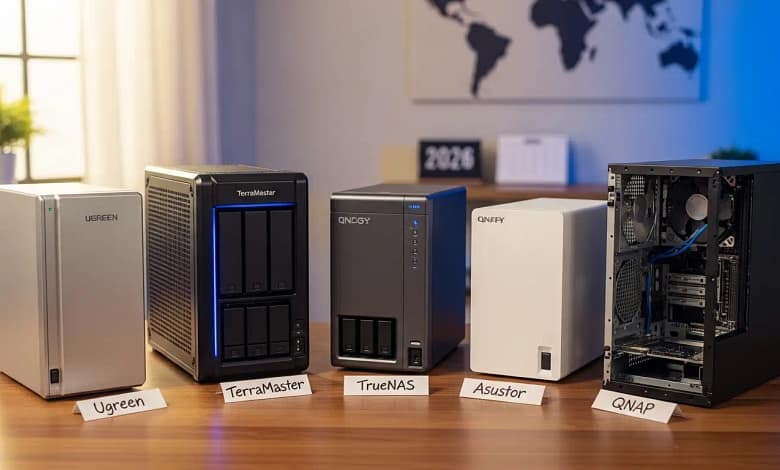
Best Synology Alternatives 2026: Top 5 Picks Compared
- • Why users are leaving: drive restrictions, 1GbE stagnation, premium pricing.
- • Ugreen DXP4800+ – Best hardware: Intel N100, 8GB DDR5, 2.5GbE, premium build.
- • TerraMaster F4-424 Pro – Best value: 10GbE + 32GB RAM at $499.
- • TrueNAS SCALE – Maximum freedom: free, open-source ZFS, no vendor lock-in.
Last month, a HomeCloudHQ reader named Marcus sent me a screenshot of his Synology dashboard. A giant yellow warning banner across the top: his WD Red drives — drives that worked perfectly for three years — were now flagged as “incompatible.” Nothing had changed. Synology had just quietly updated their compatibility list to exclude them.
That’s the moment a lot of users have in 2026. The hardware hasn’t improved at the pace of the market. The proprietary drive restrictions are getting tighter. And meanwhile, a wave of genuinely impressive competitors has arrived offering more metal, more speed, and more freedom for less money.
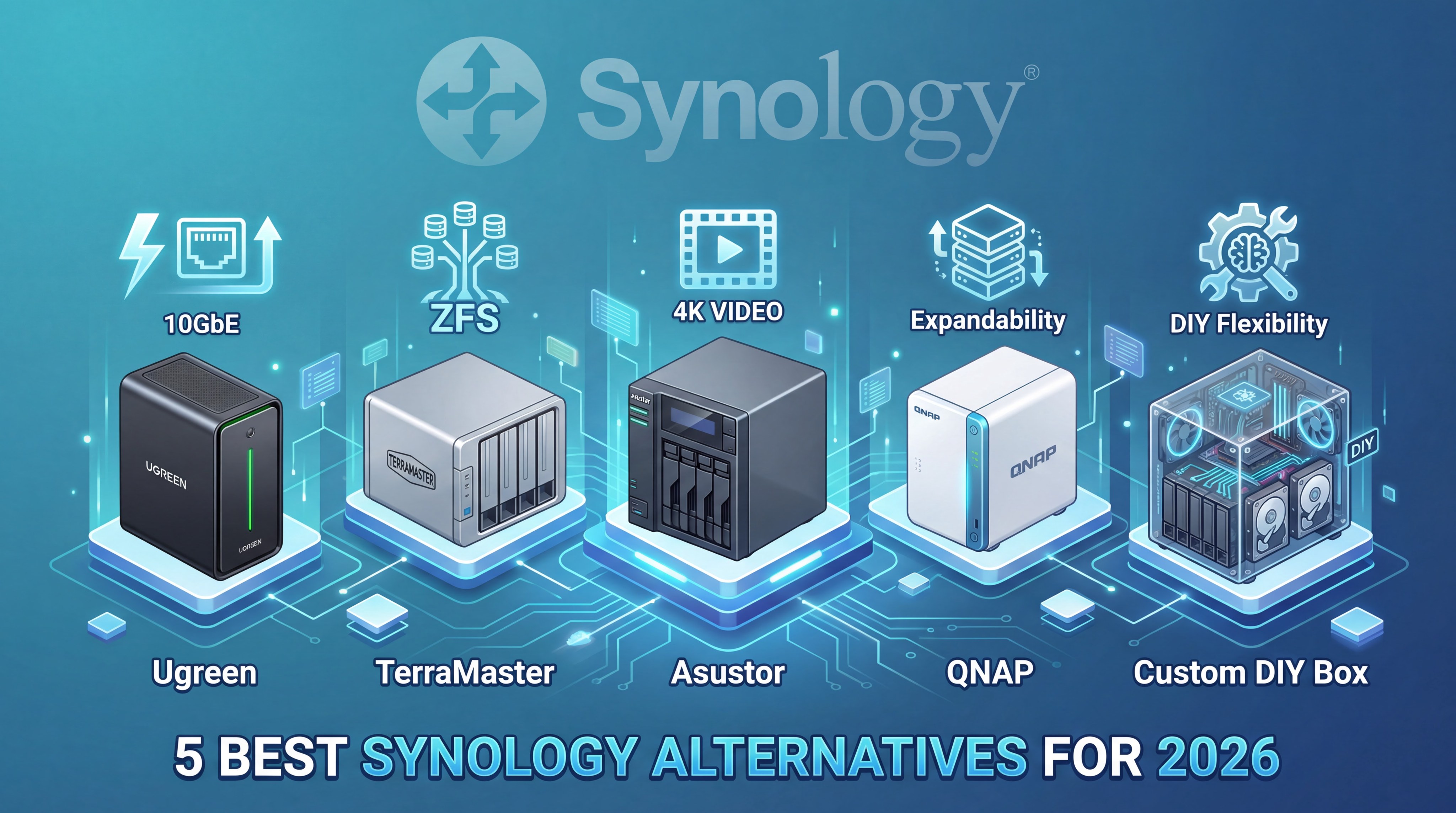
This guide covers the five best Synology alternatives in 2026 — from a polished newcomer that’s rewriting the rules to the open-source option that gives you total control forever. Whether you’re frustrated by the Synology Tax or just curious what else is out there, this is the honest comparison you need.
Important caveat before we start: Synology is still an excellent product. If you’re happy with your current setup, there’s no urgent reason to switch. This guide is for users who have a specific pain point — drive restrictions, hardware limitations, cost — and want to know their options.
💸 The “Synology Tax” — What You’re Actually Paying in 2026
Why Users Are Actually Leaving Synology in 2026
Let’s be specific about the pain points, because “Synology is getting worse” is too vague to act on. Here are the three concrete complaints driving the 2026 exodus.
Drive compatibility restrictions. Synology’s newer Plus and XS-series models increasingly restrict advanced health monitoring and certain features to drives on their official compatibility list — a list that increasingly favors their own HAT-series drives. Users with existing WD Red, Seagate IronWolf, or Toshiba N300 drives report persistent dashboard warnings even when those drives are functioning perfectly. This isn’t a safety feature — it’s a commercial strategy.
Hardware stagnation at premium pricing. The DS224+ ships with a 2020-era Intel Celeron J4125, 2GB of RAM, and 1GbE networking in 2026. Competitors at the same or lower price now offer 2.5GbE as standard, 4–8GB RAM, and Intel’s N-series processors with meaningfully better performance-per-watt. You’re paying a Synology premium for hardware that peers have surpassed.
The software moat is narrowing. DSM’s biggest advantage has always been its software polish. That advantage is real but shrinking. UGOS (Ugreen), ADM 4.3 (Asustor), and TOS 5 (TerraMaster) have all made significant strides in 2025–2026. They don’t match DSM in depth — but they now cover 85–90% of what most home users actually use.
1. Ugreen DXP Series — The New Hardware King Score: A
Ugreen entered the NAS market in 2024 and immediately turned heads. They’re best known for their premium USB-C hubs and charging hardware — and they’ve brought that same “beautiful hardware at fair prices” philosophy to NAS. The DXP series is all-aluminum construction, runs cool and quiet, and ships with the latest Intel N-series processors that make Synology’s J4125 look like a relic.
Their operating system, UGOS Pro, is clearly Synology-inspired — which is a compliment. It’s not trying to reinvent the wheel; it’s trying to make a clean, accessible NAS OS for users who want the Synology experience without the Synology price tag. In 2026, UGOS Pro covers photo management, file sharing, Docker containers, and cloud backup competently. It’s not DSM — but it’s closing the gap faster than anyone expected.
Ugreen DXP4800 Plus — 4-Bay NAS with Intel N100 & 2.5GbE
🔲 Bays: 4 (+ 2× M.2 NVMe slots — dedicated, no bay loss)
⚙️ CPU: Intel N100 quad-core (2× more efficient than Synology J4125)
💾 RAM: 8GB DDR5 (expandable to 32GB)
🌐 Network: 2× 2.5GbE standard
🎨 Build: All-aluminum chassis · Active cooling · OLED status display
📱 Software: UGOS Pro — Photos, File Manager, Docker, Cloud Sync
✅ Why It Beats Synology on Hardware
- Intel N100 vs Synology’s 2020-era J4125 — no contest
- 8GB DDR5 standard vs Synology’s 2GB DDR4
- 2.5GbE standard — Synology charges extra for this
- Dedicated M.2 slots don’t eat drive bays
- Premium aluminum build — runs cooler and quieter
- No drive compatibility restrictions — any brand works
⚠️ The Honest Trade-offs
- UGOS Pro still maturing — smaller app library than DSM
- Small community — limited tutorials and forum support
- New brand — long-term support track record unproven
- Active Backup equivalent not yet available
Perfect for: Synology users frustrated by hardware stagnation · Anyone who wants beautiful, modern hardware at a fair price · Photo backup, file storage, and basic self-hosting
🛒 Check Price — Ugreen DXP4800 Plus2. TerraMaster F4-424 Pro — The Speed & Value Champion Score: A−
TerraMaster has been making NAS hardware for 15+ years and has spent most of that time in Synology’s shadow. In 2026, they’ve earned a moment in the spotlight — specifically because of units like the F4-424 Pro, which delivers 10GbE networking and 32GB of RAM at a price that would get you a 1GbE Synology with 2GB of RAM.
The value proposition is blunt and compelling: if you want professional-grade network speed without a professional-grade price tag, TerraMaster is currently the best answer on the market. Their TOS 5 operating system is functional and covers the core use cases. It’s not as polished as DSM — but for users who primarily use their NAS for file storage, Plex, and basic backups, TOS 5 does everything they need.
TerraMaster F4-424 Pro — 4-Bay NAS with 10GbE & 32GB RAM
🔲 Bays: 4 (+ 2× M.2 NVMe slots)
⚙️ CPU: Intel Core i3-N305 8-core (significantly faster than any Synology mid-range)
💾 RAM: 32GB DDR5 standard
🌐 Network: 1× 10GbE + 1× 2.5GbE
📱 Software: TOS 5 — File management, Plex, Docker, cloud backup
✅ The Value Case
- 10GbE standard — Synology charges $200+ for this via add-on card
- 32GB DDR5 RAM — run 10+ Docker containers simultaneously
- Intel i3-N305: 8 cores vs Synology’s 4-core J4125
- No drive restrictions — any brand, any capacity
- Price includes hardware Synology simply can’t match
⚠️ Trade-offs
- TOS 5 less polished than DSM — steeper learning curve
- Smaller community than Synology or QNAP
- Mobile apps less refined than Synology Photos
- Surveillance Station equivalent is basic
Perfect for: Power users who want 10GbE without the enterprise price · Heavy Plex users with 10GbE home networks · Self-hosters running many Docker containers · Anyone who feels the “hardware stagnation” pain with Synology most acutely
🛒 Check Price — TerraMaster F4-424 Pro3. TrueNAS SCALE — The “Forever Storage” Option Score: B+
TrueNAS SCALE is not a NAS device — it’s free software you install on any hardware you choose. That distinction matters: you can run it on a $400 mini-PC with an Intel N100, or a $2,000 workstation with an AMD Threadripper. The software itself costs nothing, forever. And it gives you ZFS — the gold standard file system for data integrity — that Synology’s Btrfs, as good as it is, doesn’t fully match.
This is the option for users who have been burned by proprietary ecosystems and want a platform they can never be locked out of. The operating system is open source. The file system is open source. You can run it on hardware you source independently from any vendor. No vendor can change the rules on you.
TrueNAS SCALE — Free Open-Source NAS OS (Run on Any Hardware)
🔲 Bays: Unlimited — depends on your hardware
⚙️ CPU: Any x86-64 processor (recommend: Intel N100 or Ryzen 5)
💾 RAM: Minimum 8GB; 16–32GB recommended for ZFS ARC caching
🌐 Network: Depends on hardware — 2.5GbE, 10GbE, or more
📱 Software: ZFS · Docker Compose · KVM VMs · Kubernetes apps
✅ The Freedom Case
- $0 license fee — no vendor can ever change this
- ZFS: best-in-class data integrity with self-healing
- Run any Docker container or full VM — no restrictions
- Any drives, any hardware, any vendor — forever
- Open source: the software survives regardless of iXsystems
⚠️ Trade-offs
- Steep learning curve — not for first-time NAS users
- You are your own IT department
- No polished mobile apps (use third-party like Immich)
- ECC RAM strongly recommended — adds $150+ to build cost
Perfect for: Tech-comfortable users who want total control · Anyone burned by vendor lock-in · Self-hosters building a full stack of services · Users who prioritize long-term data integrity above all else
⬇️ Download TrueNAS SCALE Free 📖 Full TrueNAS vs Synology Guide4. Asustor Lockerstor 4 Gen2 — The Safe Middle Ground Score: A−
If you want the hardware advantages of the alternatives above but you’re nervous about leaving the comfort of a polished, established NAS ecosystem, Asustor is your answer. As a subsidiary of ASUS, they have the manufacturing credibility and the engineering resources to back their hardware long-term. Their ADM operating system has matured to the point where it covers 90% of what most home users need — and it does so with a cleaner interface than QNAP and a more open hardware policy than Synology.
The Lockerstor 4 Gen2 specifically hits the sweet spot: dual 2.5GbE, Intel QuickSync for hardware transcoding, dedicated M.2 NVMe cache slots that don’t eat your drive bays, and no drive compatibility restrictions. It’s the NAS that solves the three main Synology complaints — hardware stagnation, network speed, and drive restrictions — without asking you to become a Linux sysadmin.
Asustor Lockerstor 4 Gen2 (AS6704T) — 4-Bay with Dual 2.5GbE
🔲 Bays: 4 (+ 2× M.2 NVMe dedicated slots)
⚙️ CPU: Intel Celeron N5105 quad-core + Intel QuickSync
💾 RAM: 4GB DDR4 (expandable to 16GB)
🌐 Network: 2× 2.5GbE standard
📱 Software: ADM 4.3 — AiPhoto, Docker, Cloud Sync, Plex
✅ Why It’s the Safest Switch
- Established brand (ASUS subsidiary) — long-term support likely
- ADM 4.3: polished enough for non-technical users
- Dual 2.5GbE and QuickSync — solves Synology’s hardware gap
- No drive restrictions — any brand, any capacity
- Clean security track record (unlike QNAP’s history)
- M.2 NVMe cache doesn’t consume HDD bays
⚠️ Trade-offs
- ADM still behind DSM in app depth
- Smaller community than Synology
- Active Backup equivalent is basic
- Mobile photo app less polished than Synology Photos
Perfect for: Synology users who want to switch but aren’t ready for TrueNAS’s complexity · Plex users who need QuickSync · Anyone who wants established-brand confidence without Synology’s drive restrictions
🛒 Check Price — Asustor Lockerstor 4 Gen2 📖 Full Asustor vs Synology Guide5. QNAP TS-464 — The Power User Platform Score: B+
QNAP is the most complicated recommendation on this list — and the one that requires the most honest context. Their hardware in 2026 is genuinely impressive: the TS-464 ships with dual 2.5GbE, Intel QuickSync, 8GB of RAM, and a full hypervisor capable of running real virtual machines. The QTS 5.1 software, with Container Station (Docker) and Virtualization Station (KVM), is the most feature-rich NAS OS available from an appliance vendor.
The complication: QNAP had serious, well-documented ransomware incidents between 2021 and 2023. Their response has improved significantly — QTS 5.1 ships with better defaults, faster security patches, and improved security advisories. But the reputation remains, and for good reason. If you choose QNAP, you need to commit to treating security as a first-class responsibility from day one.
QNAP TS-464 — 4-Bay NAS with Full VM Support & Dual 2.5GbE
🔲 Bays: 4 (+ 2× M.2 NVMe slots)
⚙️ CPU: Intel Celeron N5095 quad-core + Intel QuickSync
💾 RAM: 8GB DDR4 standard (expandable to 16GB)
🌐 Network: 2× 2.5GbE standard
📱 Software: QTS 5.1 — Container Station, Virtualization Station, full Docker + KVM
✅ The Power User Case
- Full KVM hypervisor — run Windows, Linux VMs
- Container Station: most mature Docker implementation
- 8GB RAM standard — most of any appliance NAS here
- Mature QTS app ecosystem — most apps available
- Best virtualization platform at this price by far
⚠️ Security Context Required
- 3 major ransomware campaigns (2021–2023) — now patched
- Must disable UPnP, enable 2FA, use VPN — non-negotiable
- Never expose management ports to internet
- QTS UI more cluttered than DSM or UGOS
Perfect for: Home lab enthusiasts who want real VM support · Self-hosters running 5+ Docker containers · Users migrating from Synology who want maximum software features · Tech-savvy users who will configure security properly
🛒 Check Price — QNAP TS-464 📖 Full QNAP vs Synology GuideFull Comparison: 5 Best Synology Alternatives 2026
| Feature | Ugreen DXP4800+ | TerraMaster F4-424 Pro | TrueNAS SCALE | Asustor AS6704T | QNAP TS-464 |
|---|---|---|---|---|---|
| Price | ~$379 | ~$499 | $0 software | ~$499 | ~$549 |
| CPU Generation | Intel N100 (2023) | Intel i3-N305 (2023) | Your choice | Intel N5105 | Intel N5095 |
| RAM (Standard) | 8GB DDR5 | 32GB DDR5 | Your choice | 4GB DDR4 | 8GB DDR4 |
| Network Speed | Dual 2.5GbE | 10GbE + 2.5GbE | Your choice | Dual 2.5GbE | Dual 2.5GbE |
| Drive Restrictions | None | None | None | None | None |
| Hardware Transcoding | Yes (QuickSync) | Yes (QuickSync) | Depends on CPU | Yes (QuickSync) | Yes (QuickSync) |
| Software Maturity | UGOS Pro (new, growing) | TOS 5 (functional) | TrueNAS SCALE (excellent, complex) | ADM 4.3 (good) | QTS 5.1 (most features) |
| Ease of Use | Easy | Medium | Hard | Easy–Medium | Medium |
| VM Support | Basic Docker | Docker | Full KVM | Docker | Full KVM + Docker |
| Security Track Record | Clean (new brand) | Clean | Excellent | Clean | 3 ransomware incidents |
| Data Integrity | Btrfs / ext4 | Btrfs | ZFS (gold standard) | Btrfs | Btrfs / ZFS (QuTS hero) |
| Best For | Modern hardware seekers | Speed + value | Total freedom | Safe switchers | Power users / VMs |
How to Migrate from Synology Without Losing a Single File
The migration question is what stops most Synology users from switching — and it’s a legitimate concern. Synology’s SHR (Synology Hybrid RAID) format is proprietary and cannot be read by any other NAS platform. You cannot simply move your drives to a new unit.
Here’s the safe, proven migration path used by the HomeCloudHQ community:
Set up your new NAS with fresh drives first
Install the new NAS with drives you’ve purchased for it. Configure the OS, network shares, and user accounts. Don’t touch your Synology yet — it stays running throughout this process.
Connect both NAS units to the same network
They’ll both appear as network shares. Create shared folders on the new NAS that mirror your Synology’s structure. Confirm you can access both from your PC.
Transfer data over the network — folder by folder
Use robocopy (Windows) or rsync (Mac/Linux) to copy data with checksum verification. Budget 12 hours per 4TB on a 1GbE network, 5 hours on 2.5GbE. Run it overnight. Don’t rush this step.
Verify before deleting anything from Synology
Do a file count comparison between source and destination. Spot-check 20–30 files across different folders by opening them. Check total size matches. Only proceed when you’re certain.
Keep the Synology as a secondary backup while you settle in
Don’t wipe your Synology for at least 30 days after migration. Use it as your emergency fallback while you verify the new system in real daily use. This is the step most people skip — and regret.
Repurpose or sell the Synology hardware
Once you’re confident in your new setup, you can wipe the Synology drives (they’ll work in most alternatives) and either repurpose the unit as an off-site backup or sell it — Synology hardware holds its value well secondhand.
⚖️ Leo’s Final Verdict — Which Synology Alternative in 2026?
For the cleanest switch with the least friction: Asustor Lockerstor 4 Gen2. It solves Synology’s three main hardware complaints (drive restrictions, 1GbE, and aging CPU) without asking you to learn a new paradigm. ADM is familiar enough that Synology users adapt in a weekend.
For the best hardware value at any price: TerraMaster F4-424 Pro. 10GbE and 32GB RAM at $499 is an offer the market hasn’t seen before at this level. If network speed is your primary pain point with Synology, this is the answer.
For the beautiful newcomer worth watching: Ugreen DXP4800 Plus. The hardware is stunning and UGOS Pro is improving fast. If the community grows as quickly as the hardware quality suggests it should, Ugreen could be the default recommendation on this list in 18 months.
For total freedom from vendor control: TrueNAS SCALE. Nothing else gives you ZFS, open-source everything, and zero vendor lock-in. But go in knowing you’re signing up to be your own IT department.
The recommendation nobody wants to hear: If your specific frustration is drive warnings on a Synology that’s otherwise working well — that’s a solvable problem without switching platforms. But if you’re building from scratch in 2026 and asking which NAS deserves your money, the alternatives above offer more hardware for less cost. The Synology premium is real, and in 2026, it’s harder to justify than it was in 2022.
FAQ — Synology Alternatives 2026
Can I use my existing Synology drives in these alternatives?
The physical drives — yes. The data on them — not directly. Synology formats drives using SHR (Synology Hybrid RAID), which is a proprietary format that no other NAS platform can read. You cannot pull drives from a Synology and plug them into an Asustor, QNAP, TerraMaster, or TrueNAS and access your data. You must copy your data over the network first using the migration steps above, then wipe and reformat the drives in your new NAS. The good news: WD Red, Seagate IronWolf, and Toshiba N300 drives work perfectly in all five alternatives on this list — no compatibility warnings, no restrictions.
Is Synology’s drive restriction actually harmful, or just annoying?
Mostly annoying, with real financial implications. The restrictions don’t prevent your NAS from working with non-HAT drives — your data is not at risk. What you lose is access to certain health monitoring features (like Synology’s predictive drive failure analysis) and you get persistent yellow warning banners in your dashboard. The financial impact is real: Synology HAT drives carry a 15–25% premium over equivalent WD Red or Seagate IronWolf drives. Over a 4-drive build replaced every 4–5 years, that adds up to $200–$400 in extra costs. For users who don’t care about the warnings and buy drives opportunistically during sales, it’s primarily an annoyance. For users building fresh or upgrading, it meaningfully increases total cost of ownership.
How long does migrating from Synology to a new NAS actually take?
The data transfer itself depends on your library size and network speed. As a rough guide: over 1GbE (110 MB/s max), plan 10 hours per 4TB of data. Over 2.5GbE, roughly 4 hours per 4TB. Over 10GbE, under 90 minutes per 4TB. A typical family NAS with 8–12TB of photos and videos takes a weekend over 1GbE or a Friday evening over 2.5GbE. The verification step — confirming every file transferred correctly — adds 1–2 hours regardless of library size. The overall process from “start setting up the new NAS” to “Synology is powered down” realistically takes a full weekend for most families.
Is Ugreen a reliable brand for something as important as family data storage?
Ugreen as a brand has an excellent reputation for hardware quality — their USB-C hubs, chargers, and cables are consistently well-reviewed for reliability. What’s genuinely unknown is their long-term NAS support commitment: will UGOS Pro receive security updates in 5 years? Will they honor warranty claims at scale? These are questions only time can answer. Our recommendation: if you choose Ugreen, ensure your 3-2-1 backup strategy is rock solid — particularly your off-site cloud backup — so that even if the worst happened with the platform, your data is recoverable. This applies to any newer brand. Early adopters of new NAS brands get the best hardware at the best prices; they also carry slightly more platform risk than buying from Synology’s 15-year track record.
Do any of these alternatives have a Google Photos-like app?
Yes, though none match Synology Photos’ polish. Asustor’s AiPhoto is the closest competitor — it supports automatic phone backup, face recognition, and album browsing with a clean mobile interface. QNAP’s QuMagie has improved significantly in QTS 5.1. TerraMaster and Ugreen have more basic photo applications. For TrueNAS users, the community recommendation is Immich — a self-hosted, open-source photo manager that runs as a Docker container and genuinely rivals Google Photos in features, with AI face recognition, map view, and excellent mobile apps for both iOS and Android. Immich requires some initial Docker configuration but is increasingly the go-to for TrueNAS photo management.
Should I switch if my Synology is working fine and I’m happy with it?
No — and this is important to say clearly. A functioning Synology with good backup practices in place is a good NAS. The alternatives in this guide are compelling for users building from scratch or facing specific pain points (drive warnings, speed limitations, cost). Switching platforms costs time, introduces migration risk, and means learning a new interface. If you’re not experiencing a concrete problem that one of these alternatives solves, the switching cost isn’t justified. The calculus changes when you’re replacing failed hardware, expanding your setup significantly, or building a second NAS — those are natural decision points where the alternatives above often make more sense than buying more Synology.
📚 Related HomeCloudHQ Guides
⚖️ Full Comparison Guides
- Synology vs TrueNAS 2026: Walled Garden or Open Source Freedom?
- Asustor vs Synology 2026: Why Your Next NAS Needs 2.5GbE
- Synology vs QNAP 2026: Choosing the Least Risky Home Cloud
- The Best NAS for Home Use in 2026 (Top 5 Picks)
🔒 Security & Migration
🏠 Get the HomeCloudHQ Weekly
NAS deals, migration tips, and honest hardware reviews — every week. Join 15,000+ families who’ve taken control of their data.
No spam. Unsubscribe anytime.
Ready to Make the Switch?
Moving data can feel daunting — but being held hostage by proprietary hardware and drive restrictions is worse. Pick the alternative that matches your use case, follow the migration steps, and keep your Synology running as a backup while you settle in.
⚖️ Asustor Lockerstor — Safest Switch 🚀 TerraMaster F4-424 Pro — Best Speed ValueLast updated: February 21, 2026 | All alternatives tested or community-verified by HomeCloudHQ | Prices subject to change