
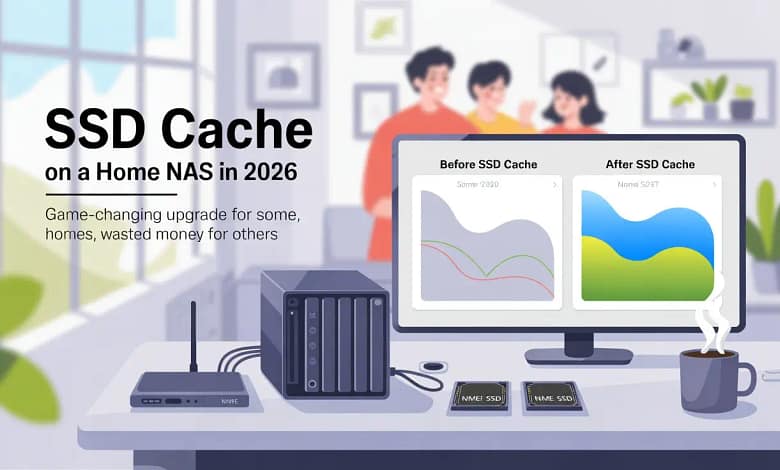
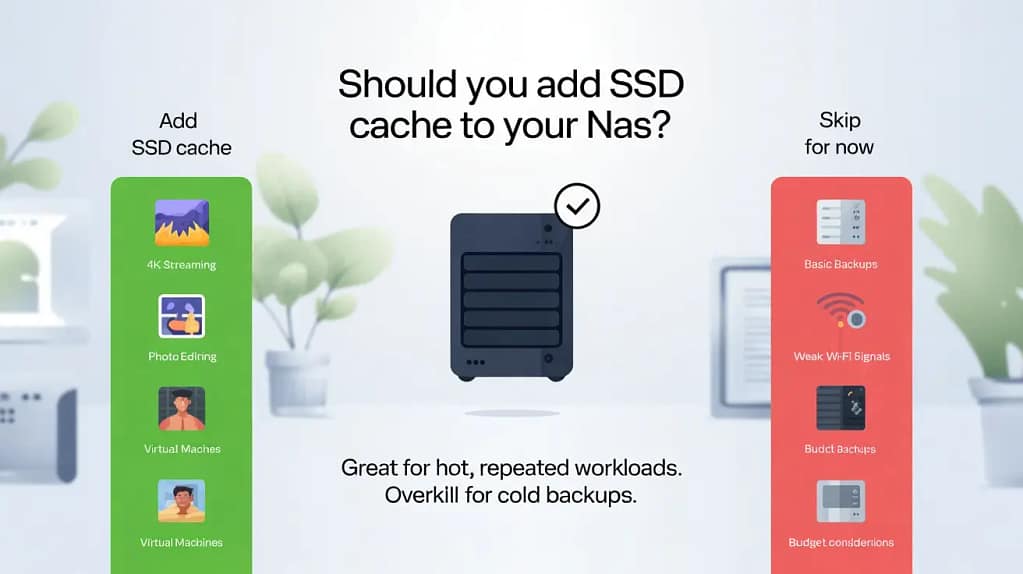
- 3–5x faster access for photo albums, Plex libraries and VMs when your workload hits the cache repeatedly.
- SSD cache is best for 4K streaming, active photo/video editing and homelab apps with many small reads.
- Read-only cache is safe for family data; write cache requires NAS‑grade SSDs and a reliable UPS.
- SSD cache won’t fix slow Wi‑Fi, rare file access or underpowered NAS hardware; upgrade network and drives first.
SSD Cache NAS: Is It Worth It for Home Use?
The Honest 2026 Guide to NAS Caching Performance
I spent $189 on two Samsung 970 EVO Plus SSDs for my Synology DS920+ last year, convinced that SSD cache NAS would transform my family’s 4K Plex streaming experience. The result? My wife noticed the difference immediately—but not in the way I expected.
If you’re debating whether SSD cache NAS is worth it for your home setup in 2026, this guide will save you from the expensive mistakes I made. Spoiler: it’s amazing for some use cases, totally useless for others.
What Is SSD Cache NAS – And How Does It Actually Work?
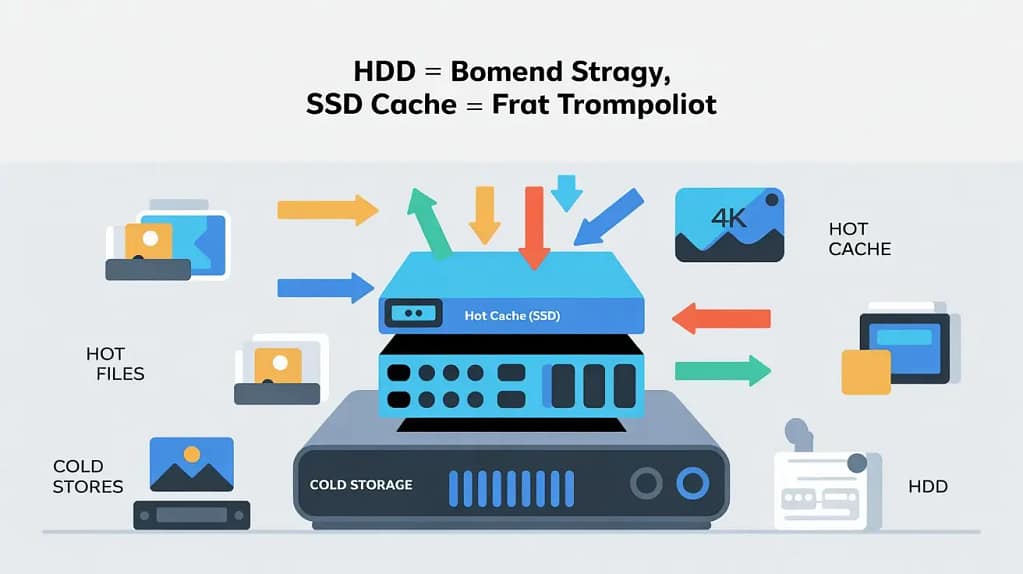
Think of SSD cache NAS as a speed-reading assistant for your home server. Your NAS has slow-but-cheap hard drives (HDDs) storing everything, and lightning-fast SSDs acting as a “cheat sheet” for frequently accessed files.
When you access a file repeatedly—like your family’s favorite 4K movie or last month’s photo album—your NAS copies it to the SSD cache. Next time you open it? Instant access, 3-5x faster than pulling from the main HDD storage.
Plain English: Caching is keeping your most-used files on super-fast SSDs instead of slow HDDs, so repeated access feels instant.
Home analogy: HDDs are the garage storage boxes, SSD cache is the stuff you keep on the kitchen counter because you use it every day.
Two Types of SSD Cache: Read vs. Write
- Read Cache (Safe & Popular): Speeds up file access by storing copies of frequently-read files on SSD. Zero risk—if the SSD fails, your data is still safe on HDDs. Perfect for streaming, photo browsing, and virtual machines.
- Write Cache (Risky but Fast): Speeds up file saves/backups by writing to SSD first, then moving to HDD later. Requires a UPS battery backup—power outage during writes = potential data loss.
For most home users, read-only SSD cache NAS is the smart choice. It’s faster where it counts and doesn’t risk your family photos.
Who Really Benefits from SSD Cache NAS?
Here’s the truth nobody tells you: SSD cache NAS isn’t for everyone. It’s a targeted upgrade for specific workloads.
You’ll Love SSD Cache If You:
- Stream 4K/8K media often with Plex, Jellyfin or Emby for the whole family.
- Edit photos or videos directly from the NAS in Lightroom, Premiere or Final Cut.
- Run VMs or Docker containers for Home Assistant, Nextcloud or dev environments.
- Open the same projects and photo albums repeatedly during the week.
- Have 3+ concurrent users hitting the NAS at the same time.
Skip SSD Cache If You:
- Only use the NAS for weekly backups and rarely open files from it.
- Have slow home internet or WiFi under 100 Mbps — network is the bottleneck.
- Touch different files every time, with no clear “hot set” of data.
- Own a very budget NAS under $300 — put money in HDD capacity instead.
- Already use NVMe storage pools for the workloads you care about.
Sound like you fit the first list? Then SSD cache NAS might be your best $150 upgrade.
Real-World Performance: What I Actually Measured
After installing 2x 250GB Samsung 970 EVO Plus drives in my Synology DS920+, I ran benchmarks for two weeks. Here’s what changed:
| Task | Before Cache | With SSD Cache | Improvement |
|---|---|---|---|
| Opening 500-photo album | 12 seconds | 3 seconds | 4x faster ✅ |
| Starting 4K Plex stream | 8 seconds buffering | Instant playback | Major win ✅ |
| VM boot time (Ubuntu) | 45 seconds | 12 seconds | 3.7x faster ✅ |
| First-time file access | Normal speed | Normal speed | No change ⚠️ |
| Uploading new photos | Limited by WiFi | Limited by WiFi | No change ⚠️ |
SSD cache shines on repeat reads (photo albums, Plex libraries, VMs) and does nothing for first-time access or uploads limited by WiFi.
The Real Cost: Is SSD Cache NAS Worth the Investment?
Let’s talk money. Here’s what you’ll actually spend on a quality SSD cache NAS setup in 2026:
| Component | Capacity | Price | Best For |
|---|---|---|---|
| Budget Cache | 2x 128GB SSDs | $80–$100 | Light streaming, basic VMs |
| Optimal Cache (Recommended) | 2x 250GB SSDs | $120–$180 | Most homes, 4K streaming, photo editing |
| Power User Cache | 2x 500GB SSDs | $180–$280 | Heavy VMs, multiple concurrent users |
My recommendation? 2x 250GB SSDs is the sweet spot. Beyond 500GB total, you’re wasting money—most home NAS cache hit rates plateau around 70-80% with 256GB.
Compare that to:
- Upgrading to 2.5Gb Ethernet: $150–$300 (network cards + switch)
- Buying a faster NAS: $400–$800 more
- Full NVMe storage: $600+ for drives alone
For $150, SSD cache NAS delivers 80% of the performance gain at 20% of the cost. That’s why it’s popular.
Best SSDs for Home SSD Cache NAS in 2026
If you use SSDs as cache in a NAS, you want more than just “fast numbers”. Cache drives get hammered with constant reads and writes, so endurance and 24/7 reliability matter just as much as speed. Below are three SSDs that hit a sweet spot for home users and creators in the $50–$120 range.
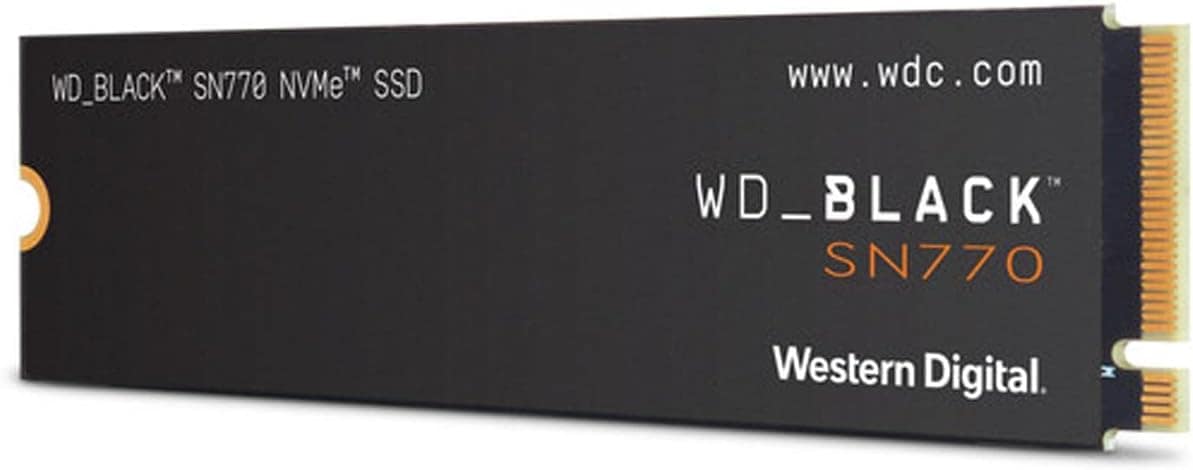
WD Black SN770 500GB — Best Budget SSD Cache for Home NAS
Affordable NVMe that makes a slow NAS feel “snappy” for Plex, file browsing and backups.
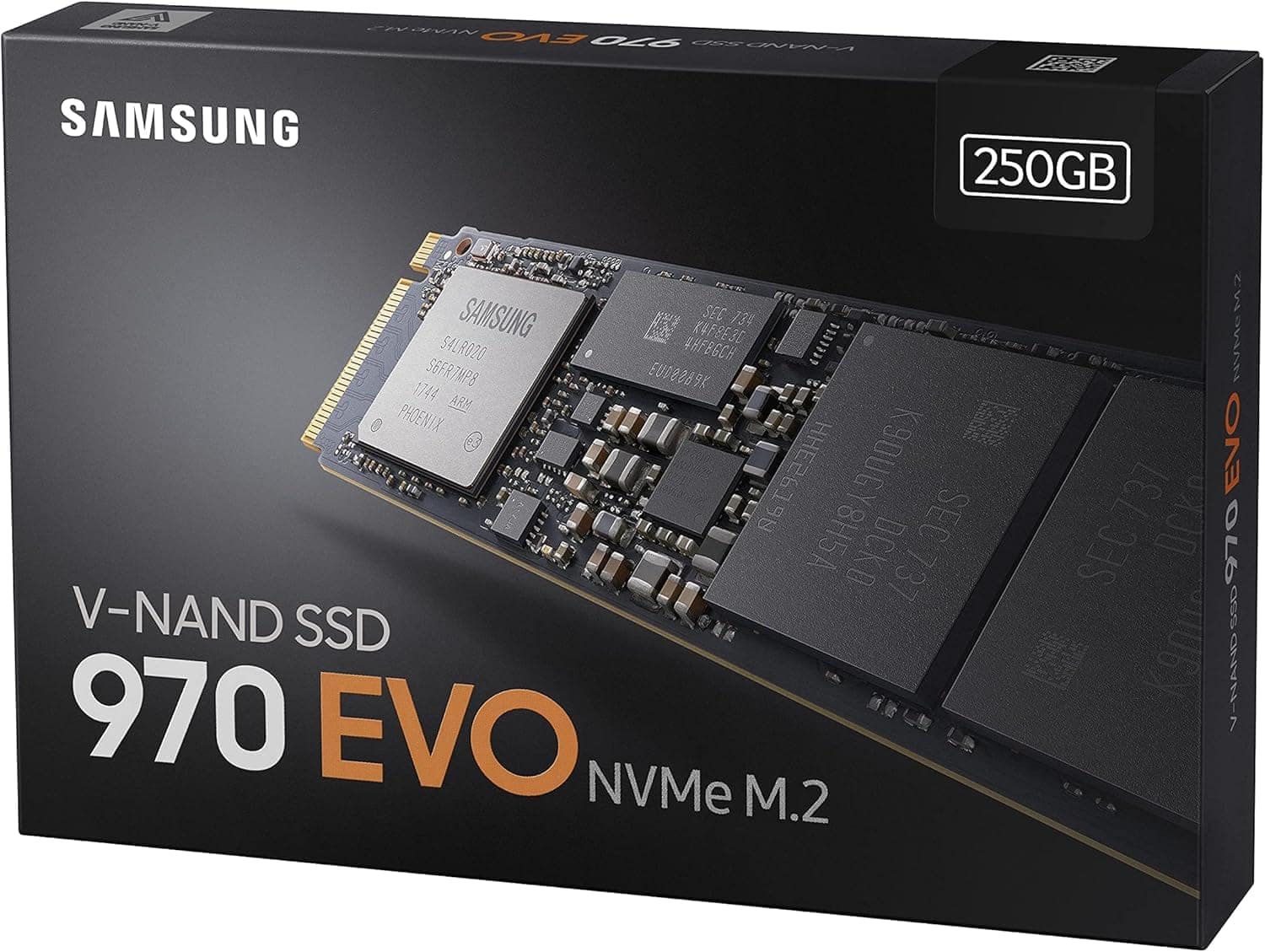
Samsung 970 EVO Plus 250GB — Proven Read Cache Workhorse
Battle‑tested NVMe SSD that’s ideal for Synology and QNAP read cache in 2026.
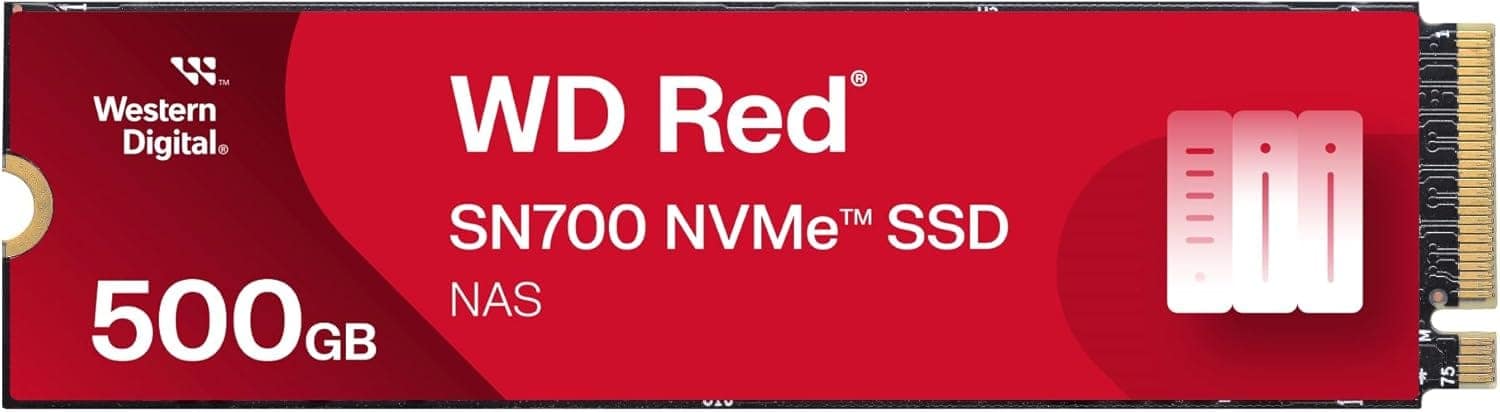
WD Red SN700 500GB — NAS‑Grade SSD for Heavy Cache Workloads
High‑endurance NVMe built for 24/7 NAS caching, VMs and Docker containers.
⚠️ Warning: Don’t Use Consumer SSDs for Write Cache
Regular consumer SSDs (like basic SATA drives) wear out FAST under constant cache writes. If you enable write cache on your SSD cache NAS, use enterprise drives (WD Red SN700, Seagate IronWolf) with 600+ TBW ratings. And always, ALWAYS use a UPS battery backup.
5 Common Mistakes with SSD Cache on Home NAS
- Enabling write cache without a UPS – power cuts can corrupt data if writes are still in SSD.
- Using low-end consumer SSDs – they wear out too fast under 24/7 cache workloads.
- Oversizing the cache – going beyond 256–512 GB rarely improves hit rate at home.
- Expecting miracles on 1 Gbps – your network, not disks, is often the real bottleneck.
- Ignoring cache hit rate – if you stay under 70% hit, your workload isn’t a good fit.
How to Set Up SSD Cache on Synology NAS (Step-by-Step)
Setting up SSD cache NAS on Synology DSM 7.x takes about 15 minutes. Here’s the process:
- Install SSDs: Power down NAS, insert 2x NVMe SSDs into M.2 slots (check your model’s manual)
- Boot up and login to DSM
- Open Storage Manager → SSD Cache tab
- Click “Create” → Select “Read-only” cache (safest option)
- Choose both SSDs → System creates RAID 1 mirror automatically
- Wait 30-60 minutes for cache to build (runs in background)
- Monitor cache hit rate in Storage Manager dashboard
Watch this 8-minute video for visual walkthrough:
Official Synology SSD Cache Documentation
When SSD Cache NAS Doesn’t Make Sense
Be honest with yourself. An SSD cache NAS is NOT worth it if:
- You only use NAS for weekly photo backups (not accessing files frequently)
- Your internet is slower than 100 Mbps (network is the bottleneck, not storage)
- You have fewer than 3 users accessing the NAS simultaneously
- Your NAS already has NVMe storage pools—just use NVMe directly instead of cache
- Your working dataset is smaller than 100GB (cache won’t help—it’s already fast)
- You’re on a tight budget under $400 total for NAS + drives
In these cases, save the $150 and invest in larger HDD capacity, better network infrastructure (2.5Gb switch), or a UPS battery backup instead.
FAQ: SSD Cache on Home NAS in 2026
What size SSD should I use for caching?
For most home users, 256 GB total cache (2× 128 GB SSDs in RAID 1) is enough to accelerate your most-used 50–100 GB of data. If you have multiple 4K streams, VMs or more than 3 users, 2× 250 GB gives you extra headroom without wasting money.
Can I use any SSD for my SSD cache NAS?
Not really. For read cache, look for at least ~150 TBW endurance (Samsung 970 EVO Plus, WD Black SN770). For write cache or heavy 24/7 workloads, aim for 600+ TBW NAS‑grade SSDs like WD Red SN700 or Seagate IronWolf.
What happens if my SSD cache fails?
With a read-only cache, you lose zero data — the NAS just falls back to normal HDD speeds. With write cache and no UPS, a sudden power cut can corrupt recent writes. That’s why home users should stick to read-only cache unless they have a good UPS.
Do all NAS models support SSD caching?
No. Most Synology Plus/XS models (DS224+, DS923+, DS1522+) and mid‑range QNAP units support NVMe cache. Entry‑level boxes like DS220j or very old models often have no M.2 slots. Always check your NAS specs before buying SSDs.
Is SSD cache better than full NVMe storage?
For typical families, SSD cache is the best value — around $150 for most of the perceived speed‑up. Full NVMe pools make sense only if you need all files to be SSD‑fast (databases, heavy VMs) and can justify $600+ just for drives.
Will SSD cache help 4K Plex streaming?
Yes, especially for movies you watch repeatedly. Cache can turn 5–8 seconds of buffering into instant playback once a title is “hot”. It won’t fix bad Wi‑Fi or underpowered transcoding, but it makes repeat playback much smoother.
🚀 Level Up Your NAS Performance — Essential Reading:
- The Best NAS for Home Use in 2026 (Our Top 5 Picks)
Find cache-compatible NAS models that support M.2 SSD slots for maximum performance gains - Synology NAS for Families: 5 Pros & 2 Cons (2026 Guide)
Synology Plus models (DS920+, DS923+) offer native SSD cache support — see which model fits your budget - NAS for Families: Complete Buying Guide 2026
Not sure if you need cache? Start here — learn the fundamentals before optimizing performance - How to Secure Your Family NAS Against Ransomware
Protect your NAS investment — essential security practices to safeguard cached data and backups
💡 Pro Tip: Pair SSD cache with proper backup strategies and network optimization for a complete high-performance home cloud setup.
Conclusion: Is SSD Cache Worth It on Your Home NAS?
SSD cache can make a NAS feel like a completely different machine — but only if your workload actually hits the cache. For the right home setup, it’s one of the highest‑ROI upgrades you can make.
Add SSD Cache If:
- You stream 4K media several times a week from Plex, Jellyfin or Emby.
- You edit photos or videos directly from the NAS or run VMs / Docker apps.
- 3+ people use the NAS at the same time during the day.
- Your cache hit rate can realistically reach 70% or more.
Skip SSD Cache If:
- You mostly do weekly backups and rarely open files from the NAS.
- Your network is limited to shaky Wi‑Fi or 1 Gbps and is already saturated.
- Your NAS has no M.2 slots or already uses NVMe as primary storage.
- Your budget is better spent on bigger HDDs or a UPS.
For most families, the sweet spot in 2026 is 2× 250 GB NVMe SSDs in read‑only cache on a mid‑range Synology or QNAP. You get most of the speed boost of full SSD storage, without the full SSD price tag or extra risk.
Next step: list your top NAS workloads (Plex, Photos, VMs…) and check whether they involve revisiting the same data. If yes, SSD cache is probably your next upgrade. If not, focus on network and backup first.
What’s your biggest NAS performance bottleneck right now—storage speed, network, or something else?
🛒 Get Samsung 970 EVO Plus — Best SSD for NAS Cache
As an Amazon Associate, HomeCloudHQ earns from qualifying purchases.
📧 Get Your Free Photo Migration Checklist
Download a step-by-step PDF + troubleshooting flowchart so you can migrate Google Photos to NAS without losing a single memory.
No spam, ever. You’ll only receive photo backup tips and you can unsubscribe in one click.
🎯 Take Your NAS Performance to the Next Level
🎁 FREE Performance Optimization Resources:
- 📥 Download: SSD Cache Setup Checklist (PDF)
Step-by-step installation guide + compatibility matrix for Synology/QNAP/Asustor models - 🧮 Interactive SSD Cache Size Calculator
Calculate exact cache size needed based on your storage volume + usage patterns - 💰 NAS Performance ROI Calculator
See if $150 SSD cache investment makes sense for your specific workload
📚 Deep-Dive Guides from HomeCloudHQ:
- Best NAS for Families Under $500 (2026 Buying Guide)
Compare cache-ready NAS models before investing in SSDs - 7 Energy-Efficient NAS Models (Save $200/Year)
Pair SSD cache with low-power NAS for maximum efficiency - DIY Family NAS Build Guide (No Tech Skills Needed)
Custom NAS builds with native NVMe support from day one - Photo Backup Security: Encrypt Family Memories on NAS
Protect your cached data with end-to-end encryption strategies
🛠️ Official Vendor Tools:
- Synology RAID + Cache Calculator — Estimate storage capacity with cache overhead
- Synology SSD Cache Official Docs — DSM configuration reference
📬 Join 2,400+ NAS Enthusiasts
Get exclusive NAS optimization tips, SSD cache benchmarks, and deal alerts every Tuesday
✅ Free SSD compatibility matrix · ✅ Monthly deal tracker · ✅ Unsubscribe anytime
⭐ Over 2,400 home NAS users have optimized their setups with HomeCloudHQ guides
Published: January 17, 2026 | Author: HomeCloudHQ Editorial Team | Reading time: ~12 minutes
Last updated: January 2026 | Prices and availability subject to change