

The beginner-friendly way to use NordVPN on Synology — no router changes, no networking degree.
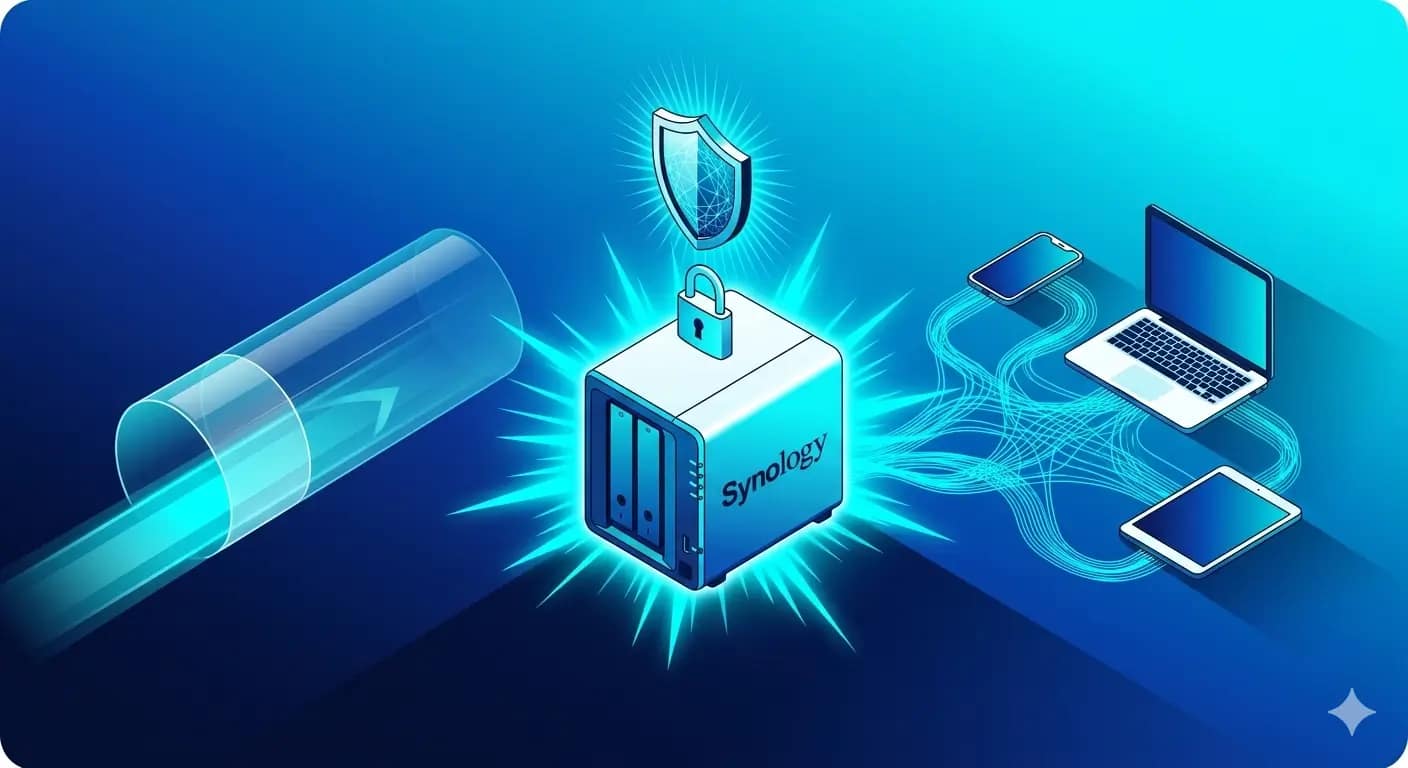
TL;DR: How to Set Up NordVPN on Your Synology NAS (Fast Version)
- ✅ NordVPN Synology setup works — and the easiest method is NordVPN Meshnet, included free with any NordVPN plan.
- 🔒 Meshnet creates a private tunnel between your NAS and all your family’s devices — without touching your router or opening any ports.
- ⚡ Setup takes about 20–30 minutes — install NordVPN on your NAS, enable Meshnet, invite family, done.
- 👨👩👧 Best for: Synology DS224+ and DS923+ owners who already use NordVPN and want secure remote access for photos, documents, and shared folders.
- 🛡️ No port forwarding needed. Your NAS stays invisible to the public internet — only approved family devices can reach it.
Here is a scenario that probably sounds familiar: you are at the office, you need a document you saved on your home Synology NAS, and you realize you have no idea how to get to it without being on your home Wi-Fi. NordVPN Synology setup is the most searched solution for exactly this situation — and the good news is, if you already have a NordVPN subscription, you are almost done.
The short answer: yes, NordVPN Synology integration works beautifully in 2026 — and the best method is no longer the old-school VPN tunnel. It is NordVPN Meshnet.
This guide will walk you through the full setup for NordVPN on your Synology NAS, in plain English, with no jargon walls. If you can install a Synology package, you can do this.This tutorial covers two methods: Method A (Meshnet — recommended for most families) and Method B (traditional VPN client — for advanced users). Most families will want to start and finish with Method A.
🔒 You will need a NordVPN subscription to follow this guide. Meshnet is included free with any plan — you do not need to upgrade. Check NordVPN’s current plans and pricing →
HomeCloudHQ earns a small commission if you sign up through our link — at no extra cost to you.
Not sure if this is the right remote access method for your family? Start with our complete remote NAS access guide to compare all your options side by side before committing to a setup.
What is NordVPN Synology Meshnet and why is it ideal for families?
📖 Jargon Box — NordVPN Meshnet: Meshnet is a feature inside the NordVPN app that connects all your approved devices into one private network — like creating a secret room that only your family’s devices can enter. Your Synology NAS at home, your phone at work, your partner’s laptop on a work trip — they all talk to each other as if they were on the same home Wi-Fi. No one else can see the room. No one else can knock on the door.
Regular NordVPN hides your browsing from your internet provider — that is its main job. Meshnet does something completely different: it connects your own devices to each other through an encrypted private network. NordVPN publishes full technical documentation on how Meshnet works at nordvpn.com/features/meshnet.
Why Meshnet is better than traditional VPN for home NAS access
The old NordVPN Synology approach involved running OpenVPN or WireGuard directly on the NAS — which works, but requires networking knowledge, certificate management, and ongoing maintenance.
Meshnet sidesteps all of that. You install the NordVPN app, flip a switch, invite your family members by email, and your NAS becomes privately reachable from every device on your Meshnet — without opening a single port on your router. No static IP address. No DDNS. No reverse proxy configuration.
💬 Plain English version: Traditional VPN on Synology = building your own private road (takes skill). NordVPN Meshnet = calling NordVPN and saying “connect all our family’s devices together” — they build the road for you, it is included in your subscription, and it takes 20 minutes instead of a few hours.
Is Meshnet compatible with my Synology model?
The NordVPN Synology Meshnet package works on any Synology NAS running DSM 7.0 or later (DSM = DiskStation Manager, Synology’s operating system).
Method A — NordVPN Synology Meshnet Setup (Recommended for families)
This is the method most families should use. It takes about 20–30 minutes start to finish, requires no router changes, and once it is set up, every family member just opens the NordVPN app on their phone or laptop to reach the NAS from anywhere.
⚠️ Before you start: Make sure your Synology NAS is running DSM 7.0 or later, that you have a NordVPN account (any plan), and that you have admin access to your NAS. Not sure about NAS security first? Read our NAS ransomware protection checklist — it takes 30 minutes and significantly reduces your risk before opening up remote access.
Step 1 — Install NordVPN on your Synology NAS
To begin your NordVPN Synology setup, log into your DSM dashboard from your home network — type your NAS’s local IP address into a browser, or visit find.synology.com.
- Open Package Center from the DSM main menu
- Search for “NordVPN” in the Package Center search bar
- Click Install on the NordVPN package — DSM will download and install it automatically
- Once installed, open NordVPN from your DSM app menu
- Click Log In and enter your NordVPN account credentials (the same email and password you use on your phone or laptop)
📸 Screenshot checkpoint: After logging in, you should see the NordVPN dashboard inside DSM — a simple interface with a connection status and a Meshnet tab. If you see “Not connected” under Meshnet, that is expected — you will enable it in the next step.
💬 Trouble finding NordVPN in Package Center? If the package does not appear, make sure your Synology account is logged in under Package Center → Settings → Package Sources and that your NAS has an active internet connection. If it still does not appear, visit Synology’s support hub for model-specific troubleshooting.
Step 2 — Enable Meshnet on your NAS
- Inside the NordVPN app on your NAS, click the Meshnet tab
- Toggle Meshnet: On
- Your NAS will appear in the device list with a private Meshnet IP address (it looks like a regular IP address, for example 100.x.x.x)
- Write down or copy that IP address — this is how your family’s devices will find the NAS when connecting remotely
📖 What is that 100.x.x.x address? Meshnet assigns every device on your private network a unique internal address. It works exactly like your home Wi-Fi address (like 192.168.x.x), except it is only accessible to devices you have approved on your Meshnet — not the whole internet.
📸 Screenshot checkpoint: The Meshnet tab should now show a green “Active” status and your NAS device name listed with its Meshnet IP. If it shows a yellow warning instead, confirm that your NordVPN app is running on at least one other device logged in with the same account — Meshnet needs a minimum of two devices to activate.
Step 3 — Invite family members to your Meshnet
This is the step that makes the whole thing family-friendly. You do not need to configure anything on your family members’ devices — you just invite them.
- Open the NordVPN app on your phone or laptop (not on the NAS — on your personal device)
- Go to Settings → Meshnet
- Tap Invite to Meshnet and enter your family members’ email addresses (the ones they use for their NordVPN accounts)
- They receive an email with a simple “Accept invitation” link — one tap and they are on your Meshnet
- Once accepted, their devices appear in your Meshnet device list alongside your NAS
⚠️ Each family member needs their own NordVPN account to join your Meshnet — but they do not need to be on the same subscription plan as you. NordVPN’s family plan covers multiple accounts, or each person can have their own individual plan. The Meshnet invitation system works regardless of which plans you each use.
Step 4 — Connect to your NAS remotely
From now on, any family member on your Meshnet can reach the NAS from anywhere in the world using the Meshnet IP address you noted in Step 2.
- On the remote device (phone, laptop, tablet), open NordVPN and confirm Meshnet is active
- Open Synology DS File or DS Photo (the official Synology apps) and log in using the NAS’s Meshnet IP address as the server address
- Enter your Synology username and password as usual
- You are in — browse folders, view photos, download documents exactly as you would at home
💬 Pro tip for working from the office: On your work laptop, open the NordVPN app, enable Meshnet, then map your NAS as a network drive using the Meshnet IP address. Your NAS shared folders will appear in File Explorer (Windows) or Finder (Mac) just like a local folder — no VPN connection window, no manual IP typing every session.
🔒 NordVPN Meshnet — Included Free With Any Plan
You do not need a special tier to use Meshnet. Any active NordVPN subscription unlocks it immediately. One subscription, whole-family private access to your Synology NAS — from anywhere.
🛡️ Get NordVPN + Meshnet →HomeCloudHQ earns a small commission if you sign up through our link — at no extra cost to you.
Method B — Traditional NordVPN Synology VPN Client (Advanced users only)
Fair warning: this method is more complex, requires more maintenance, and offers no meaningful security advantage over Meshnet for typical family use. If you are a beginner or a parent who just wants things to work, stop here and use Method A. Seriously — Meshnet is the better option for 95% of families.
That said, here is what Method B involves for those who have a specific reason to pursue it:
What this method does
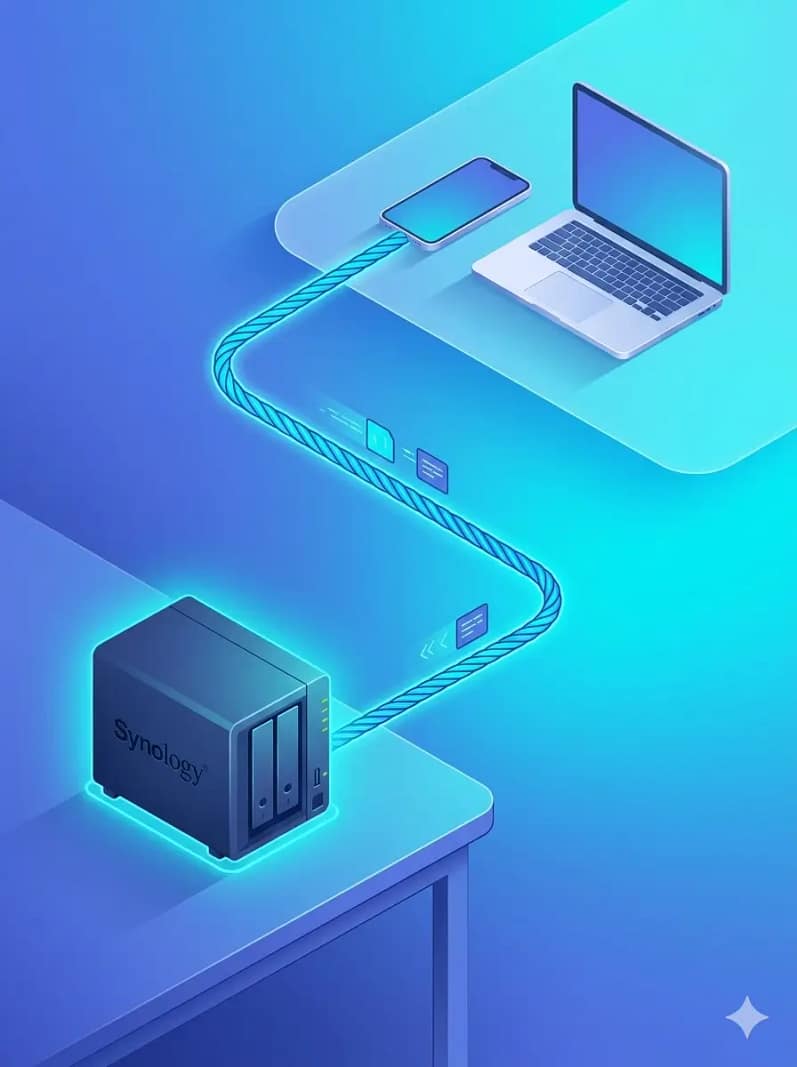
Instead of using Meshnet’s private device-to-device tunnel, this approach routes your NAS’s entire internet traffic through NordVPN’s servers — the same way a VPN works on your phone when you connect to a public Wi-Fi. This means all traffic leaving your NAS goes through NordVPN’s encrypted servers before reaching the internet.
When you might need it
- You want to route your NAS’s outbound internet traffic (for example, when your NAS downloads files or syncs to a cloud service) through a VPN for privacy
- You have a specific geo-restriction or privacy use case that Meshnet does not cover
- You are an advanced user who wants full control of the NordVPN connection at the operating system level
What it involves
The traditional NordVPN client on Synology uses the OpenVPN or WireGuard protocols configured manually through DSM’s VPN Client package. You need to download configuration files from your NordVPN account, import them into DSM, and manage connection profiles manually. NordVPN publishes official setup documentation for this process — visit their support site for the current Synology-specific guide.
⚠️ Honest trade-off: Setting up the traditional VPN client on Synology takes significantly longer than Meshnet, requires troubleshooting if settings change after NordVPN server updates, and does not provide remote access to your NAS — it routes your NAS’s outbound traffic. These are two completely different use cases. Most families want remote access to the NAS — for that, Meshnet (Method A) is the right tool.
Troubleshooting — Top 3 NordVPN Meshnet issues on Synology (and how to fix them)
Meshnet works cleanly for most setups — but here are the three issues that come up most often, and the fastest fixes for each.
Issue 1 — Meshnet shows as “inactive” or will not enable on the NAS
Most likely cause: The NordVPN app on the NAS is not fully logged in, or the DSM package needs a restart.
Fix:
- Open NordVPN in DSM and confirm you see your account name at the top — if you see a login prompt, re-enter your credentials
- Go to Package Center → Installed → NordVPN → Stop, wait 10 seconds, then click Run to restart the package
- If still inactive: log out of NordVPN on the NAS, log back in, then re-enable Meshnet
- Make sure your NordVPN subscription is active — an expired account disables Meshnet immediately
💡 Seeing other Synology errors unrelated to NordVPN? Our Synology NAS troubleshooting guide covers the most common DSM issues and their fastest fixes.
Issue 2 — The NAS does not appear in the Meshnet device list on other devices
Most likely cause: The NAS and the other device are logged into different NordVPN accounts, or the Meshnet invitation has not been accepted yet.
Fix:
- Confirm the NAS is logged into the same NordVPN account (or has accepted an invitation from the account owner) as your other devices
- On the inviting device, go to NordVPN → Meshnet → Linked Devices and confirm the NAS appears in the list — not just in Pending status
- If the NAS shows as Pending, re-accept the Meshnet connection from inside the NordVPN app on the NAS itself
- Toggle Meshnet off and back on on both devices, then wait 60 seconds for the connection to re-establish
Issue 3 — Remote access feels slow or photo thumbnails load sluggishly
Most likely cause: Your home internet’s upload speed is the bottleneck — not the NAS, not Meshnet, not NordVPN.
Fix:
- Test your home upload speed at fast.com — if it is below 20 Mbps upload, large file transfers and high-resolution photo loading will feel slow regardless of which remote access method you use
- For photo browsing: make sure thumbnails are pre-generated in Synology Photos (Synology Photos → Settings → Thumbnails → Generate) — this dramatically speeds up remote photo loading since only small preview files are transferred
- For file transfers: schedule large syncs for off-hours when no one is streaming video at home and your full upload bandwidth is available
NordVPN Synology Comparison: Meshnet vs Tailscale vs QuickConnect
All three methods give you remote access to your Synology NAS without port forwarding. The difference is in who they are designed for and what you already have. Here is the honest comparison:
| Method | Difficulty | Safety | Best For | Price | Setup Time |
|---|---|---|---|---|---|
| 🟣 NordVPN Meshnet | ⭐⭐ Moderate | Very Good — encrypted tunnel, trusted brand | Synology families already using NordVPN; want one tool for privacy + remote NAS access | Included with NordVPN (~$4–5/mo) | ~20–30 min |
| 🔵 Tailscale | ⭐⭐ Moderate | Excellent — WireGuard encryption, NAS fully off public internet | Security-first families; UGREEN & non-Synology NAS; users who want a free, open-source solution | Free (up to 3 users) | ~15–20 min |
| 🟢 Synology QuickConnect | ⭐ Very Easy | Good — Synology relay servers handle the routing | Total beginners; grandparents; anyone who wants zero configuration; Synology-only households | Free | ~5 min |
🎯 Quick Pick:
- ✅ Already paying for NordVPN? → Use Meshnet. It is already in your subscription. Turn it on and you are done.
- ✅ Want the free option with the strongest privacy record? → Use Tailscale.
- ✅ Complete beginner who just wants things to work in 5 minutes? → Start with QuickConnect, add Meshnet later when you are ready.
Want a deeper breakdown of all your remote access options, including port forwarding and self-hosted VPN? See our complete guide to accessing your NAS remotely in 2026 — it covers every method side by side with the same family-first approach.
Frequently Asked Questions — NordVPN on Synology NAS
Can I use NordVPN on a Synology NAS?
Yes. NordVPN is officially supported on Synology NAS devices running DSM 7.0 or later. You can install it directly from the Synology Package Center — no manual file downloads required. The easiest and most family-friendly use is NordVPN Meshnet, which gives your whole family private remote access to the NAS without any router configuration. The traditional VPN client mode (routing NAS outbound traffic through NordVPN servers) is also available but is more complex and aimed at advanced users.
Does NordVPN Meshnet work with Synology DSM 7?
Yes — NordVPN Meshnet is fully compatible with Synology DSM 7.0 and later, including DSM 7.1 and 7.2. The NordVPN package in the Synology Package Center is maintained and updated regularly to stay compatible with current DSM versions. If you are running an older version of DSM, update it first via Control Panel → Update & Restore before installing the NordVPN package. DSM 6.x is not officially supported by the current NordVPN package.
Is NordVPN Meshnet or Tailscale better for Synology NAS?
Both are solid — the right choice depends on what you already have. NordVPN Meshnet is the better pick if your family already uses NordVPN, because Meshnet is included at no extra cost and uses an app your family already trusts. Tailscale is the better pick if you want a completely free solution, value open-source transparency (Tailscale uses WireGuard under the hood), or need remote access for a NAS that is not made by Synology. For privacy and encryption quality, both are excellent — this comes down to convenience and what you already pay for.
How do I install NordVPN on my Synology NAS?
To install NordVPN on Synology, open Package Center in your Synology DSM dashboard, search for “NordVPN,” and click Install. The package will download and install automatically — no manual file uploads needed. Once installed, open the NordVPN app from DSM, log in with your existing NordVPN account credentials, and then navigate to the Meshnet tab to enable private device-to-device access. The full step-by-step process is covered in Method A above in this article.
Does NordVPN slow down my Synology NAS?
When using Meshnet for remote access, NordVPN does not noticeably slow down your NAS for typical family use — browsing photos, accessing documents, or downloading files remotely. The real speed limit is always your home internet’s upload speed, not the NAS hardware or the Meshnet connection itself. If you use the traditional VPN client mode (Method B), routing all NAS traffic through NordVPN servers will reduce outbound speeds somewhat, since all traffic travels through an intermediary server. For remote photo access and file management, Meshnet is the right tool and the speed impact is minimal.
Do I need a NordVPN subscription to use Meshnet on Synology?
Yes — an active NordVPN subscription is required. However, Meshnet is included at no extra cost in every NordVPN plan, including the most affordable tier. You do not need a premium or family plan specifically to unlock Meshnet. Each family member who wants to join your Meshnet also needs their own NordVPN account, but not necessarily the same plan — they can use their own individual subscription. Check NordVPN’s current plans to find the best option for your family →
The bottom line — should you set up NordVPN Meshnet on your Synology?
If you already pay for NordVPN, setting up NordVPN on your Synology NAS via Meshnet is almost certainly worth it. It costs you nothing extra, takes 20–30 minutes to set up, and gives every approved family member private, encrypted access to your Synology NAS from anywhere — without touching your router, without opening ports, and without learning anything new beyond the NordVPN app your family already uses.
The only reason to skip Meshnet is if you do not have a NordVPN subscription and do not plan to get one. In that case, Tailscale (free, WireGuard-based) or Synology QuickConnect (built-in, zero configuration) are both excellent alternatives — see our full remote NAS access guide for the complete side-by-side comparison.
And before you enable any remote access method: take 30 minutes to run through the security basics — strong passwords, 2FA on every account, and backups to an external location. Our NAS ransomware protection guide covers all of it in plain English, step by step.
📦 Choosing your first Synology NAS? The Synology DS224+ is our top beginner pick — fully compatible with NordVPN Meshnet, Tailscale, and QuickConnect out of the box. Check current price before buying.
Want more room to grow? The Synology DS923+ adds two extra drive bays and handles larger family storage needs without compromising ease of use.
Get the HomeCloudHQ NAS Setup Checklist — Free
One email per week: practical NAS tips, security reminders, and honest beginner guides. No fluff, no spam — unsubscribe any time.