

Disclosure: This article contains affiliate links. If you buy through them, we may earn a small commission at no extra cost to you. We only recommend products we’d use ourselves.
A plain-English, security-first guide for families who run Plex on a UGREEN NAS — no SSH, no scary terminal, no jargon left unexplained.
Picture this: it’s Friday night, the kids have finally agreed on a movie, you hit Play on Plex — and three seconds later, someone asks “Why is it always buffering on Dad’s account and never on mine?” You have absolutely no idea. You didn’t even know Plex kept track of who watches what.
That’s exactly the problem Tautulli solves. It’s a free monitoring tool that connects to your Plex server and shows you everything — who’s streaming, on which device, at what quality, and when something goes wrong. Think of it as a viewing history dashboard for your home Netflix, except it’s your movies, your rules, and your data. You can read more about its full feature set on the official Tautulli installation wiki.
And yes — the good news is you can install Tautulli on UGREEN NAS without touching a terminal window. This complete guide will walk you through every step using Portainer, explain every confusing term along the way, and make sure you don’t accidentally open a security hole in the process. Ready? Let’s do this.
📌 TL;DR — Which path is right for you?
- 🟢 “I’m a complete beginner” → Use Portainer Stacks (this guide). No SSH, pure GUI — just copy, paste, and click Deploy.
- 🔵 “I want zero extra apps” → Use the UGOS native Docker UI. Slightly less convenient for updates, but works fine. Quick note on this in Step 3 below.
- 🔴 “I plan on accessing Tautulli remotely” → Install first, then read the Security section before you touch your router settings. Seriously — it matters.
🏠 New to UGREEN NAS? Before diving into the install steps, make sure you have the right model for running Plex + Docker comfortably. Browse our NAS for families buying guide — it covers processor requirements, RAM, and storage in plain English.
What Is Tautulli, and Do You Actually Need It on a UGREEN NAS?
Before you install anything, it’s worth spending sixty seconds asking: is Tautulli actually useful for me? Because if your main goal is storing family photos or backing up documents, the honest answer is probably “not yet.” Tautulli is purpose-built for one thing: monitoring Plex.
📖 Jargon Box — Plex Media Server: Plex is an app you install on your NAS (or any computer) that streams your personal movie, TV, and music library to any screen in your house — phone, tablet, TV, laptop. It works like Netflix, except the content is yours and lives on your hard drive. Tautulli is the tool that watches what Plex is doing.
What does Tautulli actually do (in plain English)?
Tautulli sits quietly alongside your Plex server and logs everything: who played what, on which device, at what streaming quality, and whether the stream ever buffered. It can send you a notification when someone starts watching, when a new episode is added, or when a remote stream fails.
If you share your Plex library with family members or friends, Tautulli is the tool that tells you “your sister’s phone just started buffering because her internet is too slow for 4K.” That’s genuinely useful — and honestly kind of fun to look at once it’s running.
Is Tautulli right for you if your goal is family photos, not Plex?
If you don’t run Plex Media Server on your UGREEN NAS, Tautulli has nothing to connect to and nothing to monitor. It won’t help you back up photos or manage files. If that’s your priority, check out our NAS for families buying guide for tools better suited to photo management and family sharing. Come back here once Plex is running and you want to understand what’s happening on it.
Still here? Great — Plex is running, you want the monitoring layer. Let’s check whether it’s safe to run first.
Is It Safe to Run Tautulli at Home? (Port 8181 + Network Explained)
⚠️ Security Note: Do NOT port-forward port 8181 to the internet. Tautulli’s web interface has no built-in HTTPS encryption or login rate-limiting in its default configuration. That means if you open it to the world, anyone who finds your IP address can try to brute-force their way in — or at minimum, see your entire Plex watch history. Keep Tautulli on your home network only. If you need remote access, use a VPN like Tailscale — not a port forward.
What is port 8181, and why does it matter?
📖 Jargon Box — Port: Think of your UGREEN NAS like an apartment building. A “port” is a specific door number. Port 8181 is Tautulli’s front door — the number your browser uses to reach it. As long as that door is only reachable from inside your home (your Wi-Fi/LAN), you’re fine. The danger is when you “port-forward” — which means punching a hole in your router so that door is reachable from anywhere on the internet.
When you type http://192.168.1.100:8181 in your browser (where 192.168.1.100 is your NAS’s local IP address), your request goes to port 8181 — Tautulli’s door. That’s perfectly safe on your home network. The problem only starts if you forward that port through your router to the outside world.
LAN-only vs. remote access — what’s the safer choice for most families?
For most families: LAN-only is the right default. You can access Tautulli from any device on your home Wi-Fi — phone, tablet, laptop — without opening any ports. That covers the vast majority of use cases: checking who’s been watching what, adjusting notification settings, reviewing stream quality.
If you genuinely need to check Tautulli while away from home, the right approach is a VPN — a private encrypted tunnel from your phone back into your home network. Tailscale is the friendliest option for most families. For now: install first, port-forward never.
🔐 Want to go deeper on NAS security?
Read our NAS security checklist for families — it covers ports, VPNs, backups, and everything you need to sleep well at night knowing your data is protected.
What Do You Need Before You Start? (Prerequisites Checklist)
Before you install Tautulli on your UGREEN NAS, running through this checklist will save you a lot of frustration. Nothing’s worse than getting halfway through the install and realizing you’re missing a prerequisite. Check every item before opening Portainer.
☑️ Before You Start — Prerequisites Checklist
- ☐ UGREEN NAS is powered on and reachable on your home network (you can open UGOS in a browser)
- ☐ UGOS (UGREEN’s operating system) is fully up to date — check for updates in UGOS Settings
- ☐ Plex Media Server is already installed and running on your NAS (Tautulli needs Plex to connect to)
- ☐ Portainer is already installed on your UGREEN NAS — see the jargon box below if unsure what this is
- ☐ You’ve created a dedicated folder for Tautulli’s config files (e.g.,
/volume1/docker/tautulli) using UGOS File Manager - ☐ You know your PUID and PGID values — explained in detail in the PUID/PGID section below
📖 Jargon Box — Portainer: Portainer is a free, visual web-based dashboard for managing Docker apps. Instead of typing commands into a black terminal window, you click buttons in a browser interface to install, start, stop, and update your containers. Think of it as the “control panel” for all your Docker apps on the NAS. It’s the tool we’ll use to install Tautulli on your UGREEN NAS in this guide.
Don’t have Portainer installed yet? Our tutorial on how to install Docker apps on your NAS with Portainer covers the Portainer setup as part of its prerequisites — it’s a quick read and will get you ready for this guide.
📦 Running low on storage for your growing Plex library?
WD Red Plus NAS drives are built for always-on NAS workloads — they handle the constant read/write cycles that Plex streaming creates better than standard desktop drives.
Prices change often. Click to see the latest deal. Affiliate link — see disclosure above.
How Do You Install Tautulli on Your UGREEN NAS Using a Portainer Stack?
To install Tautulli on your UGREEN NAS with Portainer, you’ll paste a short configuration file (called a Docker Compose file) into Portainer’s interface and click Deploy. No terminal. No commands. Just a browser. This is the safest and most beginner-friendly way to get Tautulli running on a UGREEN NAS in 2026.
Before the steps, here’s a quick comparison of your options so you know exactly why we’re recommending this approach:
| Install Method | Skill Level | SSH Needed? | Best For |
|---|---|---|---|
| ⭐ Portainer Stack (this guide) | Beginner | ❌ No | Most families — easy to update, easy to manage |
| UGOS Native Docker UI | Beginner | ❌ No | Minimal installs — fewer features for updates |
| Docker Compose (CLI) | Intermediate | ✅ Yes | Power users comfortable with terminal |
docker run (CLI) | Intermediate | ✅ Yes | Quick one-time test only — not for permanent installs |
Step 1 — Create the Tautulli Config Folder in UGOS File Manager
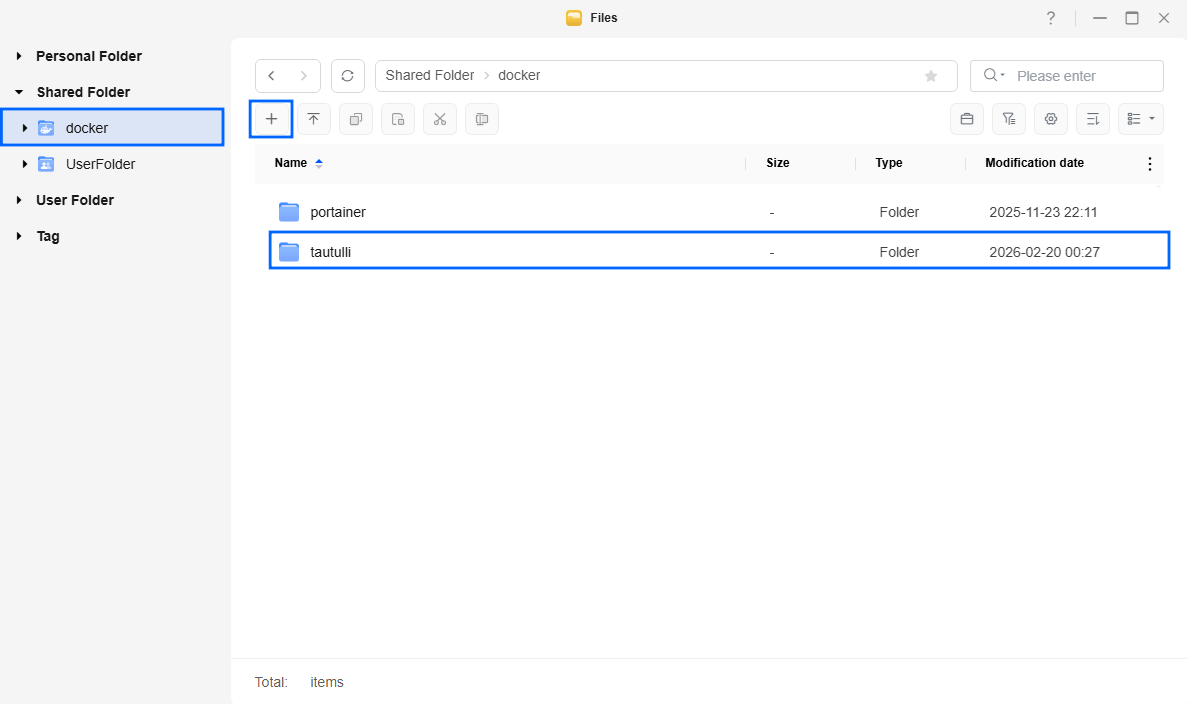
Log into your UGOS interface in a browser. Open File Manager, navigate to your Docker folder (or create one if it doesn’t exist), and create a new sub-folder named tautulli. The full path should look like: /volume1/docker/tautulli.
This folder is where Tautulli will store all its data — your watch history, notification settings, and Plex connection token. Treat this folder like gold. Back it up regularly.
Step 2 — Open Portainer and Create a New Stack
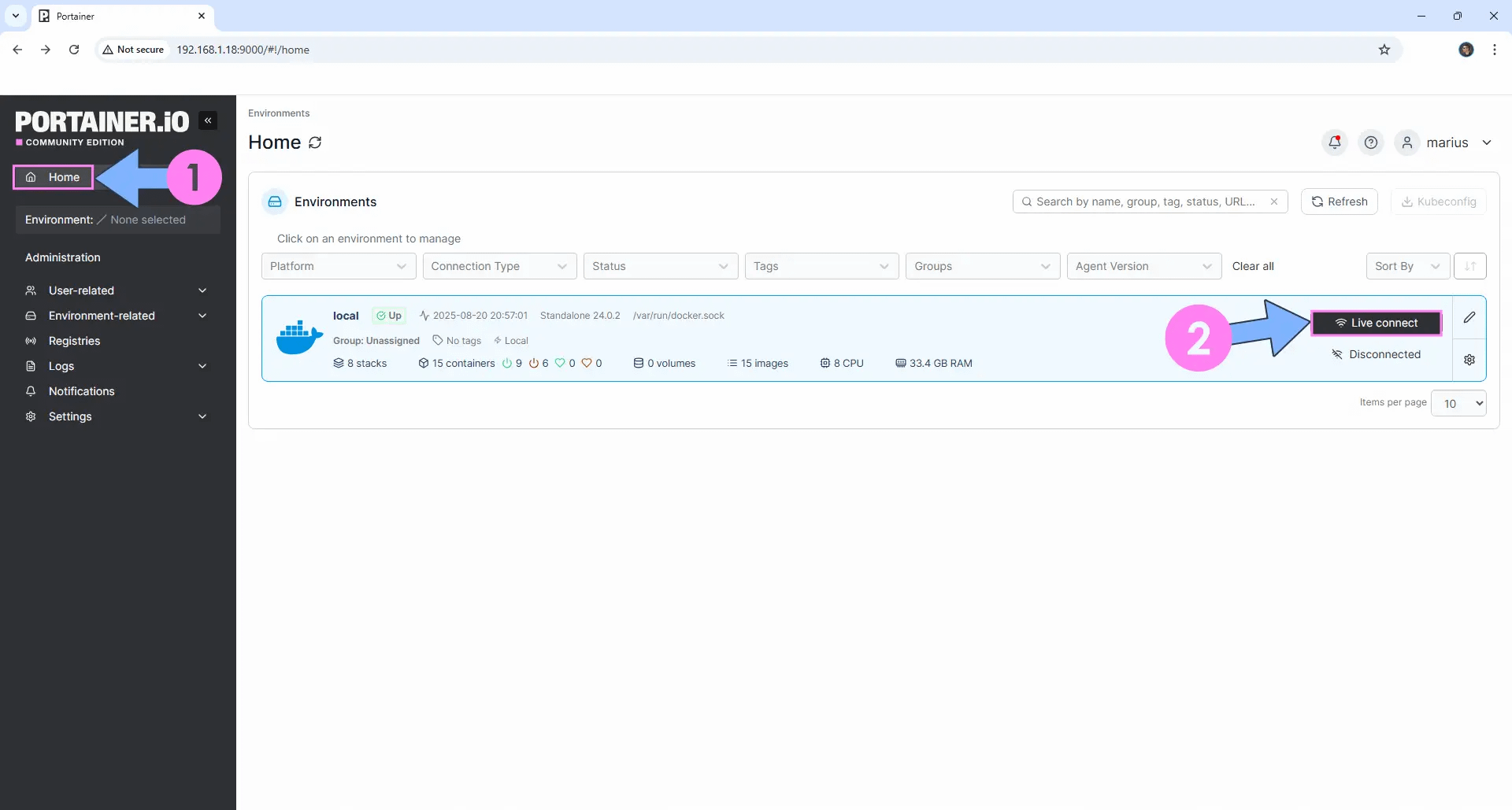
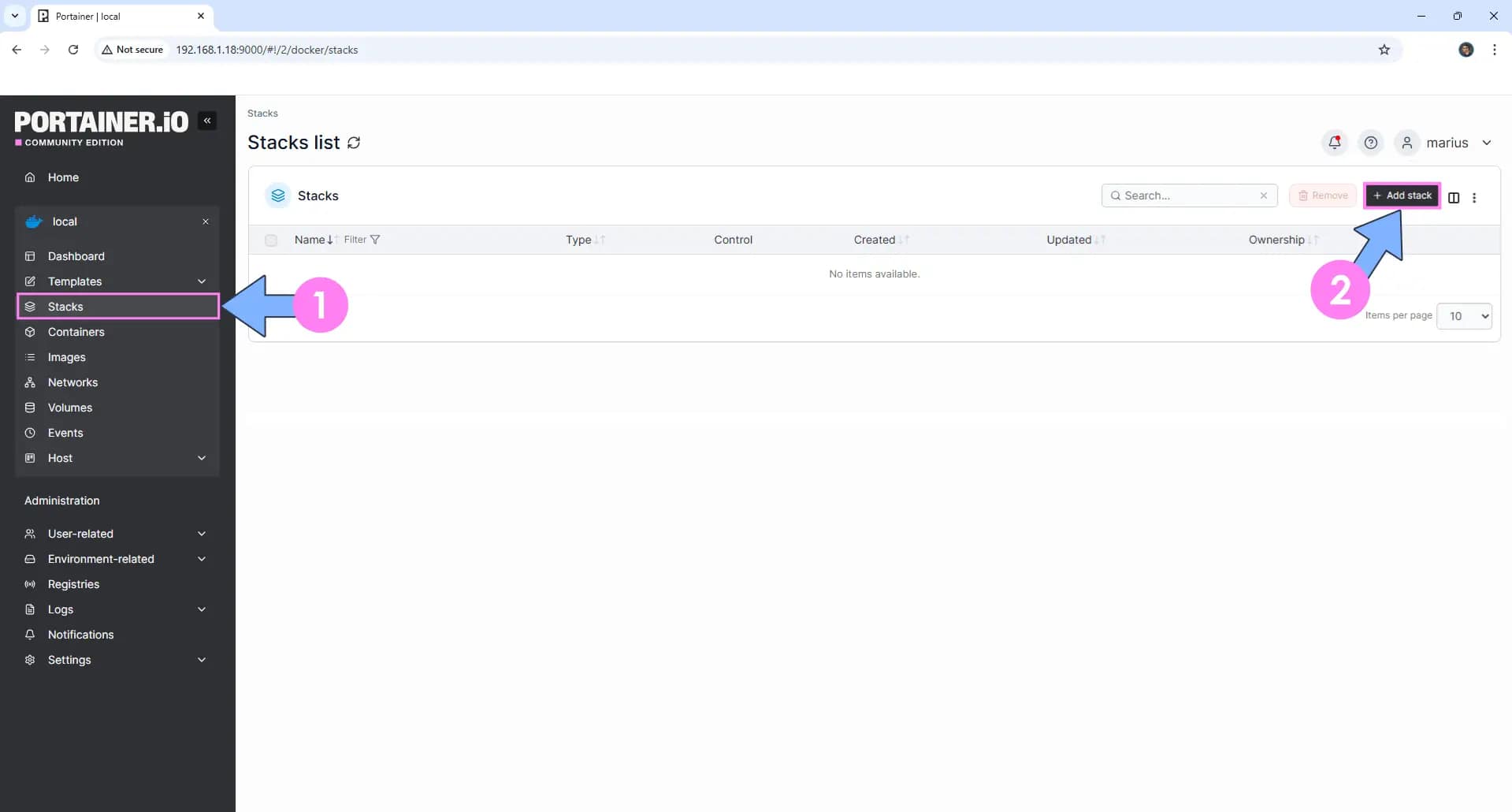
Open Portainer in your browser (usually at http://NAS-IP:9000). In the left sidebar, click Stacks, then click Add Stack in the top right corner. Give your Stack a simple name — tautulli works perfectly.
Step 3 — Paste the Docker Compose YAML
In the Stack editor, select “Web editor” and paste the following configuration. Replace America/New_York with your own time zone, and update the PUID/PGID values to match your UGOS user (see the PUID/PGID section if you’re not sure what to use).
services:
  tautulli:
    image: lscr.io/linuxserver/tautulli:latest
    container_name: tautulli
    environment:
      - PUID=1000
      - PGID=1000
      - TZ=America/New_York
    volumes:
      - /volume1/docker/tautulli:/config
    ports:
      - 8181:8181
    restart: unless-stopped
What does each line do?
image: lscr.io/linuxserver/tautulli:latest— pulls the official, community-maintained Tautulli Docker imagePUID / PGID— tells Docker which user account “owns” the app (see Section 5)TZ=America/New_York— sets the timezone so timestamps in Tautulli match your local timevolumes— links your NAS folder (/volume1/docker/tautulli) to the container’s config folderports: 8181:8181— makes Tautulli reachable at port 8181 on your NAS’s IP addressrestart: unless-stopped— auto-restarts Tautulli after NAS reboots
Always verify this YAML against the official LinuxServer.io Tautulli image documentation before deploying — it’s the authoritative source for environment variables and image updates.
Step 4 — Deploy the Stack and Confirm It’s Running
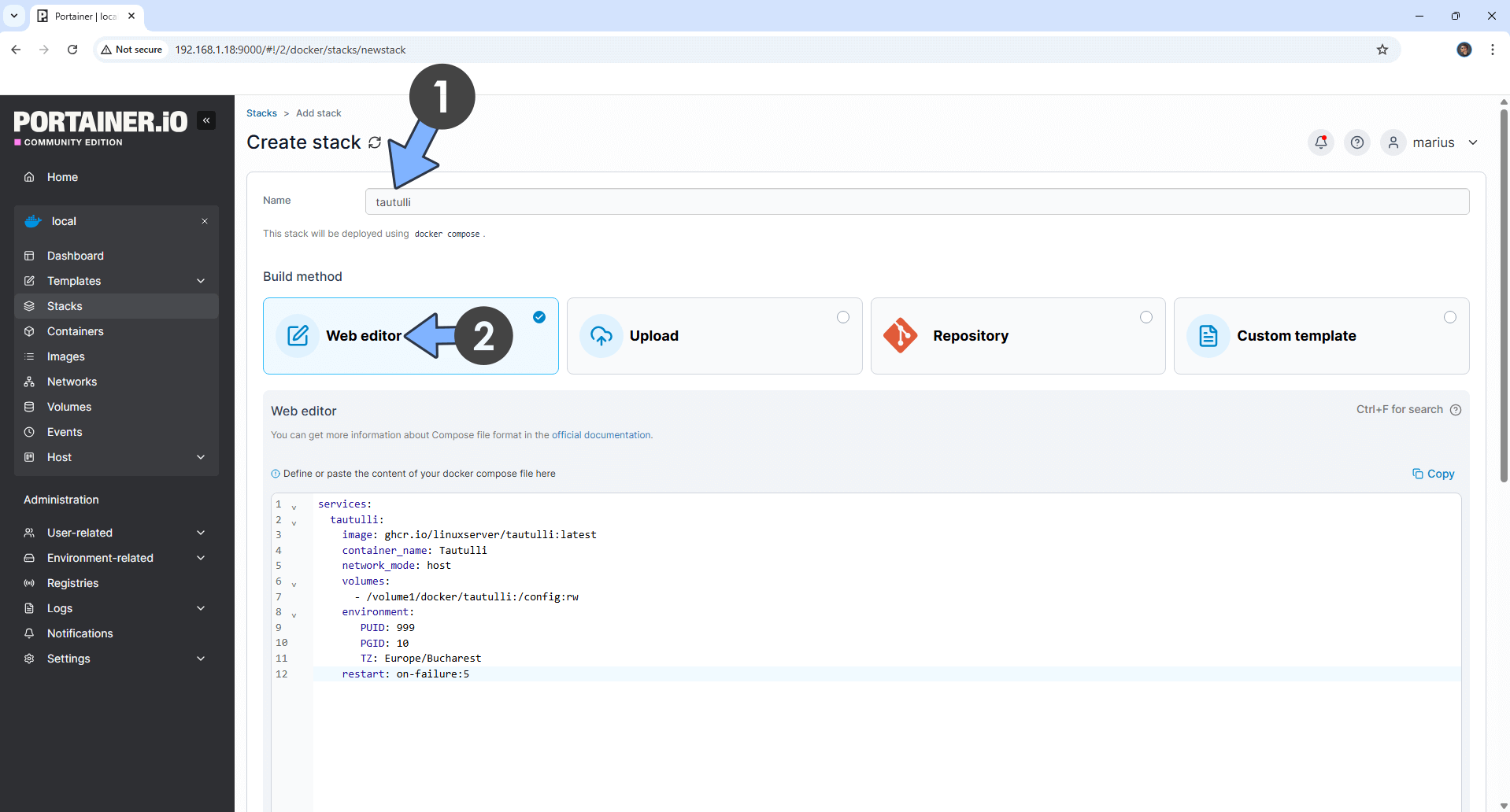
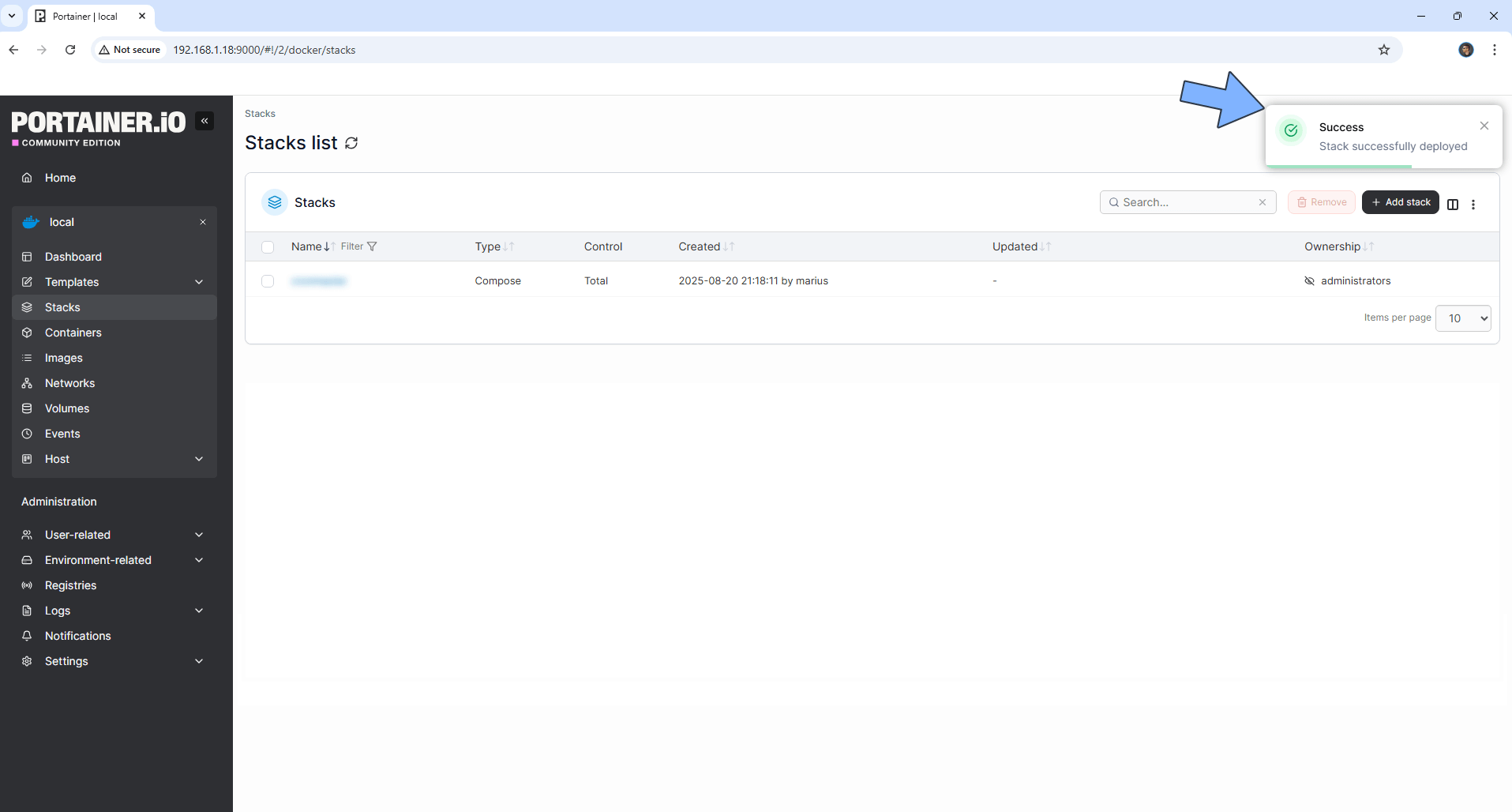
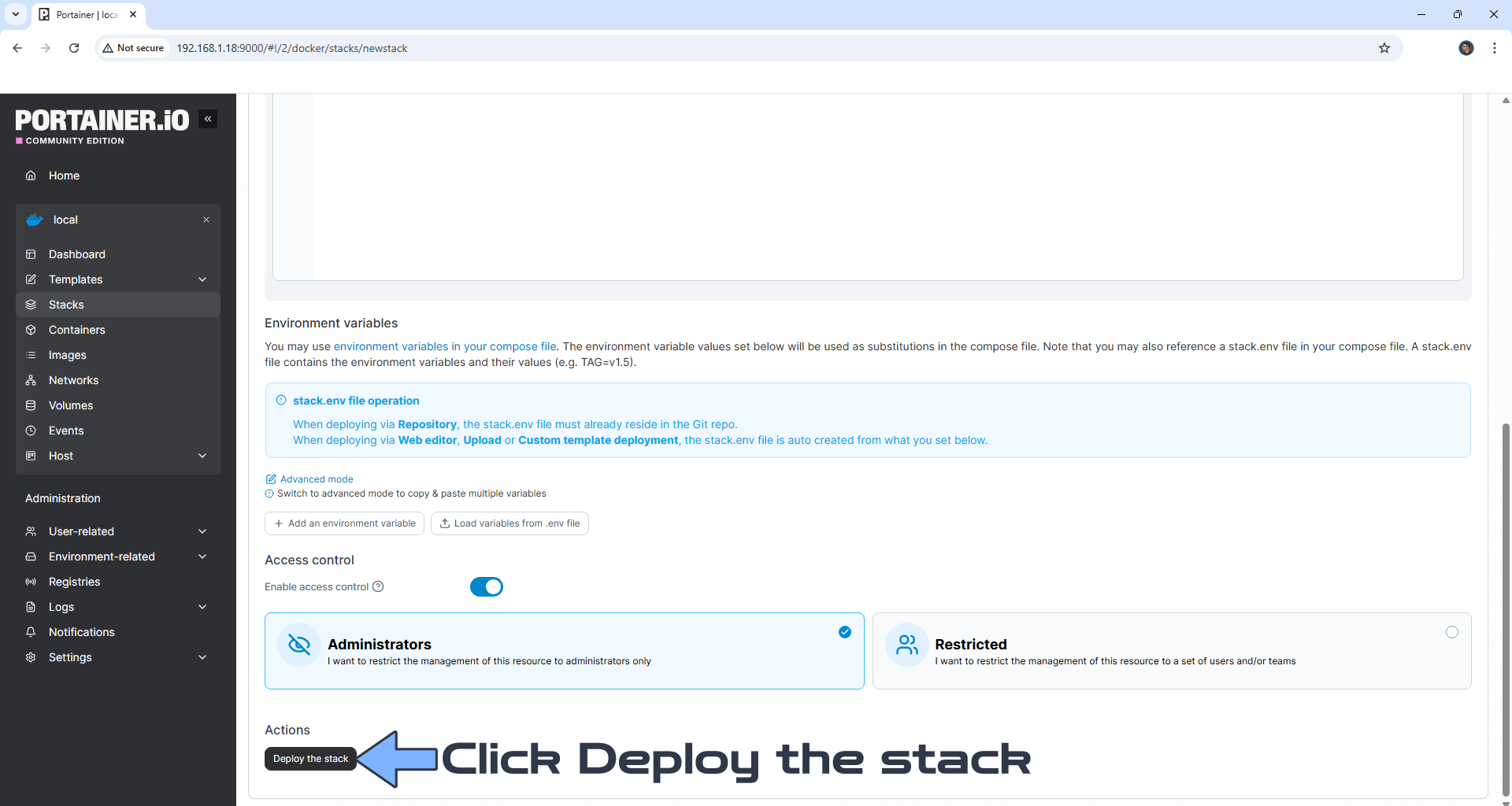
Scroll down and click Deploy the Stack. Portainer will pull the Tautulli Docker image from the internet — this may take a minute or two depending on your connection speed. Once complete, you’ll see a green “running” status next to the tautulli container.
Step 5 — Open Tautulli in Your Browser
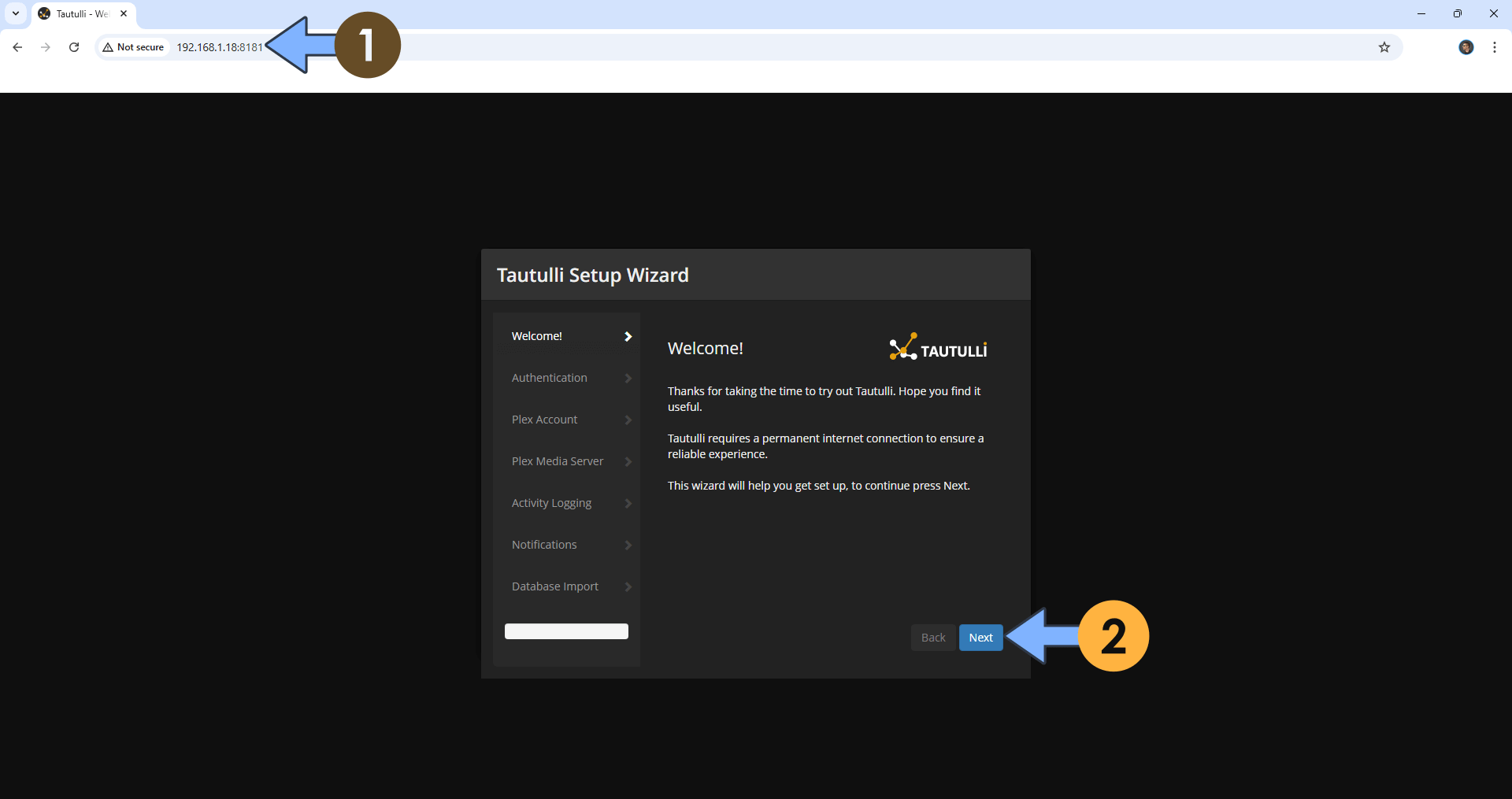
In any browser on your home network, go to: http://<YOUR-NAS-IP>:8181. Replace <YOUR-NAS-IP> with the actual local IP address of your UGREEN NAS — for example, http://192.168.1.100:8181. The Tautulli setup wizard should appear.
If you see a blank page or an error, don’t panic — jump straight to the troubleshooting section below. Most issues are quick fixes.
What PUID/PGID Should You Use on a UGREEN NAS?
📖 Jargon Box — PUID / PGID: These are ID numbers that tell Docker “run this app as this specific user on the NAS.” Think of it like a name badge — the app needs to wear the right badge to be allowed into your folders. If you use the wrong PUID/PGID, Tautulli will start but won’t be able to read or write its config files, and you’ll see permission errors. The reference for these values is the LinuxServer.io image docs.
How to find your PUID and PGID on UGOS (2 methods)
Method 1 — UGOS User Panel (no SSH needed): Log into UGOS, go to Control Panel → Users & Groups. Find the user account that Plex and Docker run under (usually the main admin account). The user ID (UID) is your PUID; the group ID (GID) is your PGID. UGOS displays these in the user details panel.
Method 2 — SSH command (30 seconds): If you’re comfortable opening an SSH connection to your NAS, run the following command — replace your_username with your actual UGOS username:
id your_username
The output will look like: uid=1000(your_username) gid=1000(your_username). Use those numbers as your PUID and PGID in the Compose file. The value 1000 is the common default on UGOS for the first user created.
What happens if you use the wrong PUID/PGID?
Tautulli will launch but immediately fail to read or write its config folder. You’ll either see an error in the Portainer container logs, or Tautulli will start fresh every time — losing your settings — because it can’t save anything. The fix is always the same: update the PUID/PGID values in your Compose file, then pull and redeploy the Stack.
How Do You Connect Tautulli to Plex (and Fix the Most Common Errors)?
Step-by-step: adding your Plex server inside Tautulli’s setup wizard
Once you’ve installed Tautulli on your UGREEN NAS, the first time you open it the setup wizard will ask you to connect to your Plex server. This is the step where most beginners hit their first snag — but it’s easy to fix. Here’s what to do:
- Click Next through the welcome screen
- When prompted for your Plex Media Server, click “Sign In with Plex” — this opens a Plex login window and generates a Plex Token (a secret key that lets Tautulli talk to Plex without needing your password every time)
- After signing in, Tautulli should automatically detect your Plex server running on the same NAS. If it does, select it and click Next
- If it doesn’t detect automatically, enter your NAS’s local IP address and port
32400(Plex’s default port) manually
Troubleshooting checklist — “Tautulli can’t find my Plex server”
This is the most common hiccup. Work through these five causes in order — the first one fixes it for most people:
🔧 5-Step Troubleshooting Checklist
- Wrong IP address entered. Never use
localhost— it doesn’t work as expected inside Docker containers. Use your NAS’s actual local IP (e.g.,192.168.1.100) with Plex’s port:192.168.1.100:32400. Alternatively try127.0.0.1:32400. - Plex isn’t actually running. Go to UGOS App Center and verify Plex is active. A stopped Plex container means Tautulli has nothing to connect to.
- Network mode mismatch. If you deployed Tautulli with the default
bridgenetwork mode and Plex is also in a container, they may not see each other. Try addingnetwork_mode: hostto your Compose file, redeploy, and test again. - UGOS firewall blocking port 32400. Go to UGOS Control Panel → Firewall and check whether port 32400 is allowed for local traffic. It should be open by default, but worth checking.
- Plex Token expired or invalid. If you’ve reinstalled Plex or changed your Plex account password, the old token won’t work. Go to Tautulli Settings → Plex Media Server and sign in again to regenerate a fresh token.
📖 Jargon Box — network_mode: host vs bridge: By default, Docker gives each container its own isolated mini-network (“bridge mode”) — like putting each app in its own bubble. This is great for security but can prevent Tautulli and Plex from talking to each other when both run as Docker containers on the same NAS. Host mode removes Tautulli’s bubble so it sees your NAS’s network directly — more reliable for local app-to-app communication, at the cost of a tiny bit of network isolation.
How Do You Update and Back Up Tautulli So You Don’t Lose Your History?
⚠️ Back up before you update. Your entire Tautulli history, notification rules, and Plex token live in one folder: /volume1/docker/tautulli/. Always copy this folder to a second location before pulling a new image. If anything goes wrong during an update, you can restore from your backup and pick up exactly where you left off.
How to update Tautulli in Portainer (pull latest image, redeploy Stack)
- In Portainer, go to Stacks and click on your
tautulliStack - Click Pull and Redeploy
- Check the “Re-pull image” option to ensure Portainer fetches the latest version
- Click Update — Portainer will stop the old container, pull the new image, and restart Tautulli with your existing config intact
When you install Tautulli on a UGREEN NAS via Portainer, the update process is painless — one click in the Stacks interface. A good habit: check for updates monthly. The LinuxServer.io team releases updated images regularly with security patches and Tautulli feature updates.
How to back up your Tautulli config folder on UGOS
The simplest method: use UGOS File Manager to copy the entire /volume1/docker/tautulli/ folder to a second location — ideally a separate drive or an external USB connected to the NAS. If you use UGOS’s built-in backup tool, you can schedule this automatically. For off-site backup peace of mind, consider a cloud backup service for your Docker config folders.
✅ After Install — Your Done-When Checklist
- ✅ Tautulli loads at
http://NAS-IP:8181in your browser - ✅ Plex connection confirmed — you can see your Plex libraries in the Tautulli dashboard
- ✅ Config folder (
/volume1/docker/tautulli/) backed up to a second location - ✅ Port 8181 is NOT forwarded in your router settings
- ✅ Monthly update reminder set (calendar event, sticky note — whatever works for you)
🔋 Protect your Tautulli data and your entire NAS from power interruptions.
A UPS (Uninterruptible Power Supply) gives your NAS time to shut down cleanly during outages — no corrupted Docker volumes, no lost Tautulli history.
Prices change often. Click to see the latest deal. Affiliate link — see disclosure above.
FAQ — Install Tautulli on UGREEN NAS
📬 Get Your Free NAS Setup Guide
Join our newsletter for beginner-friendly tutorials, security tips, and Docker guides — delivered to your inbox, jargon-free.
What to Do Right Now
My recommendation: If Portainer is already set up on your UGREEN NAS, go ahead and install Tautulli on your UGREEN NAS today — the whole process takes under fifteen minutes once you have your PUID/PGID values ready. The payoff is real: the next time a family member asks why something isn’t streaming smoothly, you’ll have the data to actually answer that question.
One thing to think about: Now that you have Tautulli running locally — what’s your plan if you want to check it while you’re away from home? A VPN (not a port-forward) is the right answer, but it deserves its own setup guide. What method are you considering — Tailscale, WireGuard, or something else? Drop a comment below — I read every one.
And one more layer of protection while you’re at it: Make sure your NAS is hardened against the more common threats — ransomware, exposed services, and weak passwords. Our NAS security checklist for families covers everything in the same plain-English style as this guide.
Affiliate link — prices vary, see disclosure above.