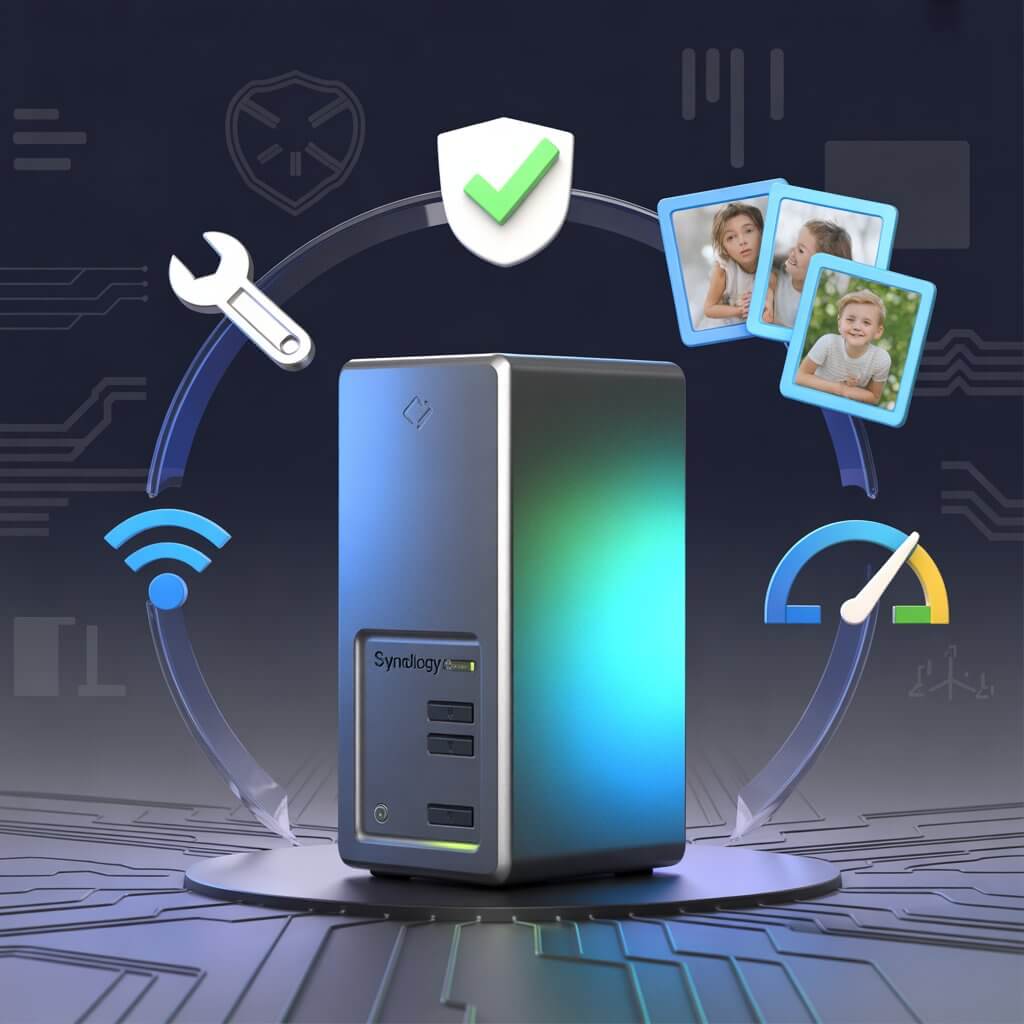

DIY Family NAS Setup Guide 2026: The Easy Blueprint for US Homes
- • 🏠 Build your family's private cloud in one weekend – no tech skills needed
- • 💰 Save $500+ over 5 years vs. cloud subscriptions (Google, iCloud, Dropbox)
- • 🔒 RAID 1 mirroring protects your memories even if a drive fails
- • 📱 Access photos from anywhere with secure remote access (like Google Photos)
- • 🛡️ 3-2-1 backup rule: NAS + USB + pCloud encrypted cloud for ultimate safety
- • 🏆 Top 3 NAS picks for US families 2026: Synology DS223, QNAP TS-233, Ugreen DXP2800
Your family’s memories deserve a safe home. A DIY NAS makes it simple.
Looking for a complete DIY Family NAS setup 2026 guide that actually works for real American families? You’ve found it. The Johnsons almost lost everything. Three kids, ten years of school events, family vacations, birthday milestones — all scattered across phones, tablets, and a laptop gathering dust in the closet. When their oldest daughter’s phone died last spring, 2,000 photos went with it. Not corrupted. Gone.
My neighbor Sarah had the same near-miss. Her phone died unexpectedly and she spent three days in varying states of panic before a data recovery service saved 60% of her files — for $400. That’s when it clicked for me: every American family needs a backup plan that actually works. Not a cloud subscription they’ll forget to pay. Not a single hard drive gathering dust. A real, automatic, always-on solution that takes care of itself.
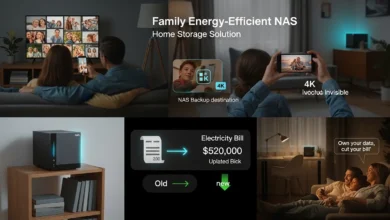
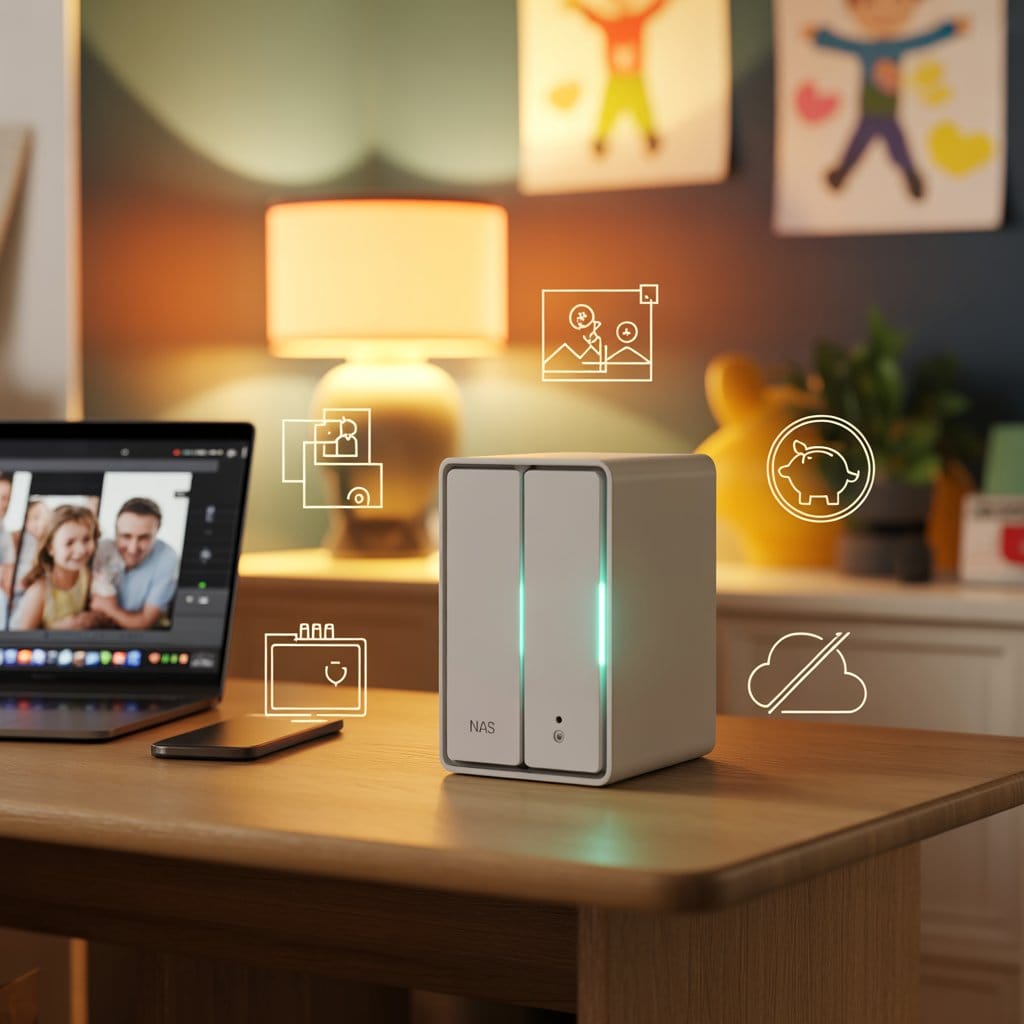
A family NAS is that solution. Think of it as your personal cloud that lives in your home — no monthly fees forever, no tech company scanning your photos, no subscription that doubles in price next year. And here’s the thing nobody tells you: if you can plug in a toaster and follow a recipe, you can set this up. I did it with my 10-year-old watching. This guide walks you through the entire process in one weekend.
Why 2026 Is the Year American Families Are Ditching Cloud Subscriptions
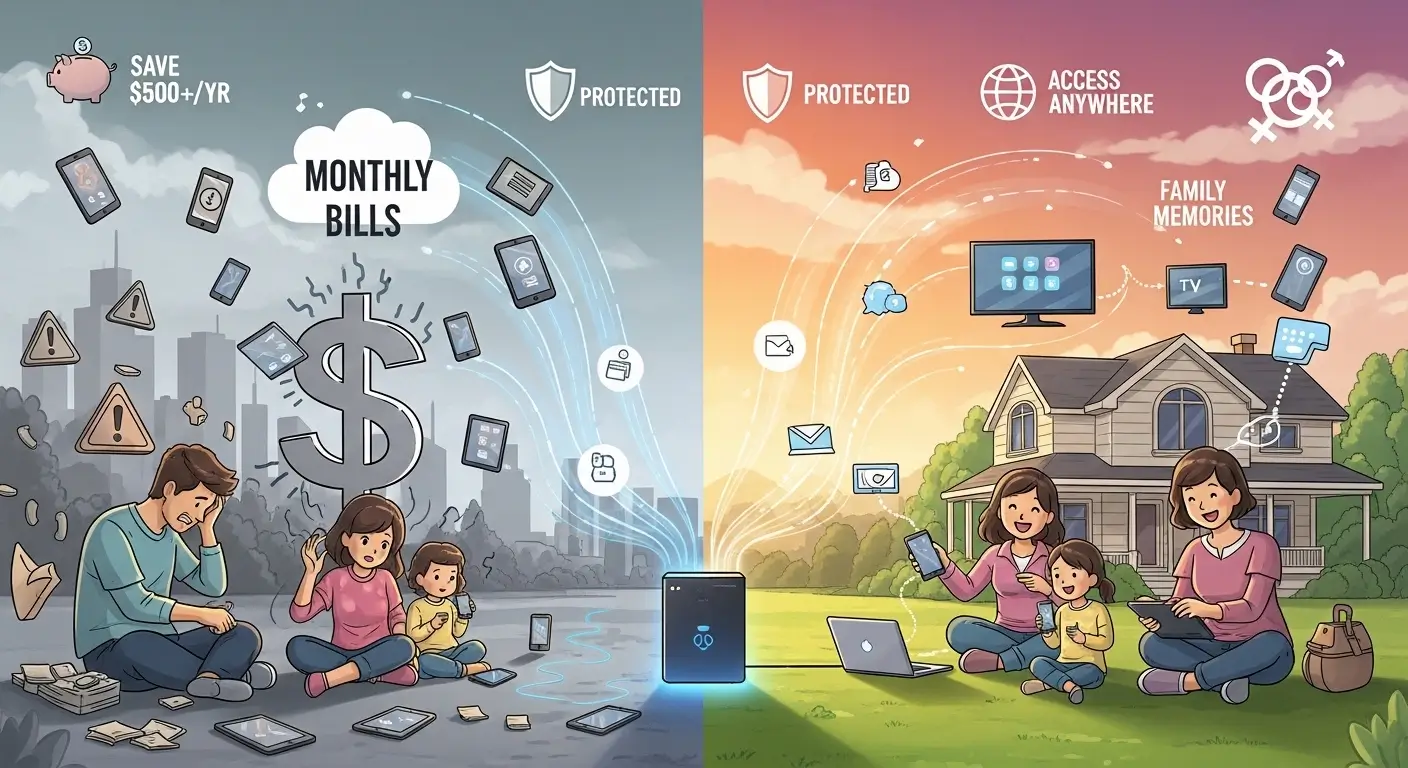
Cloud storage companies made us a simple promise: pay a small monthly fee and your files are safe forever. In 2026, that promise has gotten expensive. Google Photos raised prices. iCloud’s family plans add up fast. Dropbox charges per-person. Add it all up for a family of four and you’re paying $150–$360 per year — and that number goes up, not down.
Meanwhile, a home NAS setup costs $400–$600 once. No recurring fees. No storage limits tied to a subscription tier. No fine print about what happens when you stop paying. Your photos don’t disappear. Your account doesn’t get suspended. And critically: your family memories stay in your home, not on a corporation’s server where their terms of service give them the right to scan your photos for advertising data.
💰 DIY NAS Savings Calculator — See Your Numbers
DIY Family NAS Setup 2026: The 7-Step Weekend Project
Set aside a Saturday morning, make a pot of coffee, and let’s get started. Every step includes exactly how long it takes and what you’ll see when you’ve done it right.
Choose Your Family’s New Digital Home — The NAS Unit
This is the only decision that requires a little thought — and I’ve made it easy. For 90% of American families, you want a 2-bay NAS. That’s storage-speak for a unit with space for two hard drives. Why two? Because when you set them up as a pair (called RAID 1), if one drive fails — and drives do fail, usually after 3–5 years of constant use — your data is still completely safe on the second. It’s like having a backup parachute for your family memories.
The three units we recommend for families in 2026 are covered in detail below. But if you want to skip ahead: the Synology DS223 is the easiest to set up and maintain for a beginner. The QNAP TS-233 is whisper-quiet and great for smaller spaces. The Ugreen DXP2800 is the budget pick that still does everything you need.
Pick the Heart — NAS-Optimized Hard Drives
The NAS unit is the brain. The hard drives are the memory — and this is where most beginners make their first mistake: buying regular desktop hard drives from a big-box store. Desktop drives aren’t built to run 24 hours a day, 7 days a week. NAS-rated drives are — they have better vibration resistance, longer warranties, and firmware tuned for always-on operation.
Seagate IronWolf 4TB
Includes IronWolf Health Management (built-in drive health monitoring) and Rescue Data Recovery Services — 3 years of professional data recovery if something goes wrong. The family NAS drive we trust most.
WD Red Plus 4TB
Western Digital’s purpose-built NAS drive. CMR recording (more reliable than SMR for NAS workloads), wide hardware compatibility, and available at most US retailers including Best Buy for immediate pickup.
📐 How Much Storage Does Your Family Need?
Use this simple calculation — it works for every family size:
Example: Family uses 500GB total → needs 1TB usable → buy two 2TB drives. Uses 2TB total → buy two 4TB drives. When in doubt, go bigger — drive prices drop every year.
Hardware Assembly — Easier Than IKEA
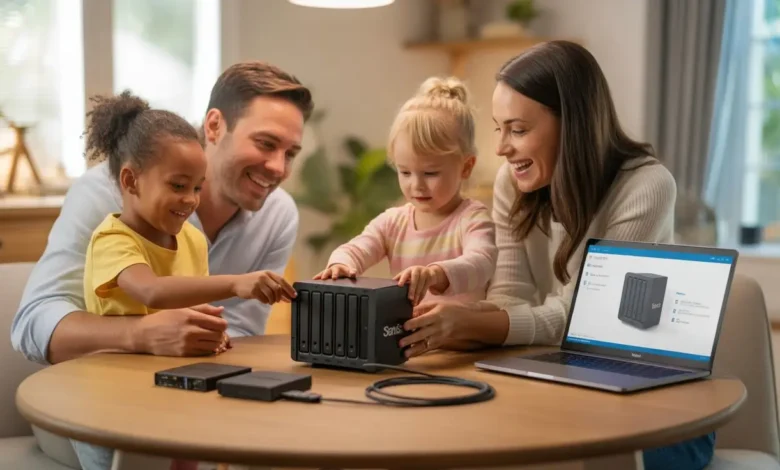
Most modern NAS units are completely tool-free. The drives slide into their bays like bread into a toaster. Here’s the complete physical setup sequence:
- Unbox the NAS unit and remove the drive bay trays (they usually pull out from the front)
- Slide each hard drive into a tray and click the retention clip — you’ll feel and hear it seat
- Slide both trays back into the NAS until they click locked
- Connect the included Ethernet cable: one end to the NAS, the other to any open port on your home router
- Plug in the power adapter
- Press the power button — the NAS will beep and status lights will begin blinking
When I did this with my 10-year-old last year, he had both drives installed before I finished reading the quick-start card. The tray system is designed so you genuinely cannot insert a drive incorrectly.
Software Setup — Let the Wizard Guide You
This is where most people expect complexity and find friendly simplicity instead. Every major NAS brand ships a setup app that does 95% of the work for you:
- Synology DS223: Download “DS Finder” from the App Store or Google Play → open the app → it automatically finds your NAS on the network
- QNAP TS-233: Download “Qmanager” → same automatic discovery process
- Ugreen DXP2800: Download “UGOS” app → tap “Set up new device”
Once the app finds your NAS, the setup wizard takes over. It will ask you three important questions, and here are the right answers for a family:
- Storage configuration? → Choose RAID 1 (called “Synology Hybrid RAID” on Synology). This mirrors your data across both drives automatically.
- Administrator password? → Create a strong passphrase — “OurFamilyNAS2026!” is far stronger than “password123”. Write it on a sticky note inside the NAS cabinet.
- Folder names? → Start with: “Family Photos,” “Family Videos,” “Important Documents,” and one folder per child for school work. You can always add more later.
Bring the Whole Family Onboard
This is where your NAS transforms from a storage device into a family hub. In the admin panel, navigate to User Management and create an account for every family member. Give children “Standard User” access — they can read and write their own files but can’t accidentally delete the family archive.
- Phone auto-backup: Install the NAS photo app on every smartphone in the house. On Synology, it’s “Synology Photos.” On QNAP, it’s “QuMagie.” Enable auto-upload. From this moment, every photo taken on any family phone automatically appears on the NAS within minutes — no cables, no thinking required.
- Computer access: On Windows, open File Explorer → Network → your NAS name will appear. Right-click → Map Network Drive. It shows up like a normal hard drive from that point. On Mac, Finder → Network → same process.
- Folder permissions: Set the “Family Photos” and “Family Videos” folders as read-only for kids — they can view but not accidentally delete. Their personal school work folders are read/write for them only.
Enable Secure Remote Access — Access Files from Anywhere
This is the feature that makes family members say “wait, how is this working?” You can access your NAS from anywhere in the world — while traveling, at the grandparents’ house, waiting at a school pickup — just like you would with Google Drive or iCloud. The difference: it’s pulling files from your home, not a corporate server.
- Synology: Admin Panel → Control Panel → QuickConnect → toggle ON → choose a memorable address like “johnson-family-nas.quickconnect.to”
- QNAP: Settings → myQNAPcloud → Enable → create your cloud address
- Ugreen: UGOS app → Remote Access → Enable EZ-Connect
After enabling, install the NAS mobile app and log in with your QuickConnect/myQNAPcloud address from anywhere. Your family photos library appears exactly as it does at home.
Set Up Your Backup Safety Net — The 3-2-1 Rule
Your NAS with RAID 1 is already dramatically safer than a phone or laptop. But RAID protects against drive failure — it doesn’t protect against theft, fire, flood, or ransomware that encrypts everything. The 3-2-1 backup rule completes your protection and makes data loss essentially impossible:
The practical implementation: Your NAS is Copy 1 (automatic via RAID 1). A USB external drive plugged into the NAS’s USB port, set to back up weekly (automatic via the NAS software), is Copy 2. Encrypted cloud backup through pCloud or Backblaze B2 is Copy 3 — your off-site protection that survives anything that could happen to your home.
📅 Your 5-Minute Monthly Checklist
Once the NAS is running, maintenance is genuinely minimal. Once a month: confirm the status lights are green (2 seconds). Once a month: log into the admin panel and verify backups ran successfully (30 seconds to check a log). Every 6 months: check for firmware updates in settings (2 minutes). That’s the full ongoing commitment of owning a family NAS.
📺 Video walkthrough — Synology NAS step-by-step for beginners:
Synology NAS Setup: Step by Step for Families (2026 Edition)
pCloud Encrypted Backup — The Off-Site Layer Your 3-2-1 Needs
pCloud’s client-side encryption means your family photos and documents are encrypted on your NAS before they leave the house. Even pCloud’s own servers can’t see your files. With lifetime plan options that eliminate monthly fees forever, it’s the off-site backup solution that matches your NAS philosophy: pay once, own it forever. Start with 500GB free to verify it works with your setup before committing.
🔒 Get 500GB Free — pCloud Encrypted BackupOur Top 3 NAS Picks for US Families in 2026 — Tested & Recommended
We asked our HomeCloudHQ community of 15,000+ families what they actually use and love. These three units earned consistent praise across setup experience, reliability, and daily family usability:
Synology DS223 — The Family-First 2-Bay NAS
⚙️ CPU: Realtek RTD1619B quad-core 1.7GHz
💾 RAM: 2GB DDR4
🌐 Network: 1× Gigabit Ethernet
📱 Software: DSM 7.2 — Synology Photos, Hyper Backup, DS File, QuickConnect
🔒 Setup time: 20–25 minutes for complete beginners
✅ Why Families Love It
- Synology Photos: near-perfect Google Photos replacement
- Setup wizard explains everything in plain English
- QuickConnect remote access: 30 seconds to enable
- Largest community — fastest help when you need it
- Security Advisor monitors your settings automatically
- Hyper Backup: scheduled backups to USB + cloud
⚠️ Trade-offs
- 1GbE only — no 2.5GbE unless you add a PCIe card
- No Intel QuickSync — limited 4K video transcoding
- Drive compatibility restrictions tightening in 2026
Perfect for: Families new to NAS · Parents who want setup done and forgotten · Anyone who values simplicity over raw performance
QNAP TS-233 — The Silent, Eco-Conscious Family NAS
⚙️ CPU: Cortex-A55 quad-core 2.0GHz
💾 RAM: 2GB DDR4
🌐 Network: 1× Gigabit Ethernet
📱 Software: QTS 5.1 — QuMagie Photos, File Station, myQNAPcloud
🔇 Notable: Fanless design option — completely silent operation
✅ Why Quiet Households Love It
- Passive cooling option: zero fan noise
- Eco mode: automatically powers down drives at night
- Lower power consumption than fan-cooled units
- QuMagie: solid photo app with face recognition
- Competitive price — often $30–50 cheaper than Synology
⚠️ Trade-offs
- QTS 5.1 less beginner-friendly than Synology’s DSM
- QNAP has historical security incident track record
- Must configure security settings carefully from day one
Perfect for: Apartments and bedrooms · Eco-conscious families · Anyone who’ll notice a fan hum at 2 AM
Ugreen DXP2800 — The Modern Budget NAS That Doesn’t Feel Budget
⚙️ CPU: Intel N100 quad-core (newer generation than most competitors at this price)
💾 RAM: 8GB DDR5 — twice the RAM of Synology at $50 less
🌐 Network: 2× 2.5GbE standard — faster than 1GbE competitors
📱 Software: UGOS Pro — Photo management, File sync, Docker, EZ-Connect
🎨 Build: Compact brushed aluminum — attractive enough for a bookshelf
✅ The Value Case
- Intel N100 CPU: newer and faster than Synology DS223
- 8GB DDR5 standard (vs 2GB on Synology DS223)
- Dual 2.5GbE: 2× faster file transfers
- No drive compatibility restrictions
- Beautiful compact design — fits anywhere
⚠️ Trade-offs
- UGOS Pro newer — smaller community and app library
- Brand is new to NAS — long-term support unproven
- Fewer tutorials available online
Perfect for: Budget-conscious families · Tech-comfortable parents who want more hardware for less money · Anyone who’d prefer modern specs over software maturity
| Model | Price w/ Drives | Ease of Setup | What Makes It Special | Best For |
|---|---|---|---|---|
| Synology DS223 | $389–450 | ⭐ Easiest | Best software ecosystem, QuickConnect remote access | Beginners, school-age kids |
| QNAP TS-233 | $350–400 | Good | Silent fanless option, eco power mode | Apartments, quiet households |
| Ugreen DXP2800 | $329–380 | Good | Best hardware at lowest price, dual 2.5GbE | Budget-conscious, tech-curious |
💡 All bundles above include our recommended drive pairings — buy the NAS + drives together for guaranteed compatibility.
Real Questions from Real Parents — Our Honest Answers
Do I need to be tech-savvy to set this up?
Not even close. My 68-year-old mother-in-law set one up after watching me do it once. She’s not a tech person — she still calls me when her iPad “acts weird.” The setup wizards today are genuinely intuitive. They ask simple questions (“What do you want to call your NAS?” “Create a password for your admin account”) and explain what each setting does in plain language. If you can follow a recipe or assemble IKEA furniture, you can set up a NAS. The hardest part most parents report is deciding what to name their shared folders.
What happens if one hard drive fails?
This is exactly why we set up RAID 1 in Step 4. With RAID 1, both drives contain identical copies of every file. When Drive #1 fails (you’ll get an email alert immediately), Drive #2 has everything — every photo, every document, every family video — completely intact. During the day or two it takes to order and receive a replacement drive, your NAS keeps running and everything remains accessible. When the new drive arrives: pull out the failed drive, slide in the new one, and the NAS automatically rebuilds the mirror over the next few hours. Zero data loss, zero file recovery services, zero panic.
Is a NAS actually cheaper than cloud storage long-term?
For most American families: yes, and significantly so. A typical family pays around $9.99/month for Google One (2TB) plus $2.99/month in iCloud overages — that’s $155/year. Some families with multiple cloud services pay $250–$360/year. Our recommended NAS bundle costs $389–$450 once. At $155/year, your NAS pays for itself in under 3 years. At $250/year, under 2 years. After payback, you save that amount every year indefinitely — with no storage limits, no price increases, and no worrying about whether Google will change their pricing policy again. Use the savings calculator above to see your specific numbers.
Can I access my NAS files while traveling or away from home?
Yes — and it works exactly like Google Photos or Dropbox from your phone. Enable QuickConnect on Synology (or myQNAPcloud on QNAP) and you’re done. My wife accesses our recipe collection while grocery shopping. I pull presentation files when traveling without a laptop. Our kids can show grandparents their latest school projects from across the country. The mobile apps look and feel like any other photo or file app — the only difference is that the files are coming from your home rather than a corporation’s server. The setup takes literally 30 seconds — it’s a single toggle in the admin panel.
How much will a NAS add to my electricity bill?
Very little — this surprises most people. A modern 2-bay NAS uses 10–20 watts at idle, which is less than most LED light bulbs. At the US average electricity rate of about 16¢ per kWh, that’s $1.50–$3.00 per month added to your bill. The QNAP TS-233 with its eco mode (drives spin down when idle) runs even lower. Compare this to leaving an old desktop computer running 24/7 as a makeshift “file server” — which uses 80–150 watts — and a NAS is actually saving you power while delivering dramatically better performance and reliability.
What if we move houses or want to upgrade the NAS later?
Your data is completely portable. Moving houses: unplug the NAS, pack it carefully (drives still installed), set it up at the new home exactly as before — all your data and settings come right back the moment you plug it in and connect to the new router. Upgrading to a larger NAS in a few years: Synology, QNAP, and Ugreen all have migration tools that transfer your data and settings to a new unit. The drives themselves (WD Red, Seagate IronWolf) are compatible across brands, so you can reuse them in any future NAS you buy. Think of it like moving books to a bigger bookshelf — same books, just more room.
Is a NAS safe from ransomware and hackers?
A properly configured NAS is very safe — but “properly configured” is doing real work in that sentence. Enable 2FA on all accounts, use your manufacturer’s secure remote access method (never manually open ports), enable the built-in firewall with auto-block for failed login attempts, and keep firmware updated. Synology’s Security Advisor checks all these settings automatically and alerts you to anything that needs attention. For ransomware specifically: immutable snapshots (Synology Snapshot Replication, enabled in the admin panel) create time-locked backups that even an attacker with admin access cannot delete — if ransomware strikes, you restore from the snapshot taken hours before the attack. See our full NAS Ransomware Protection guide for the complete 7-layer security setup.
📚 Everything You Need — Resources & Guides
📺 Video Tutorials
🏭 Official Manufacturer Guides
💾 Hard Drive Resources
🔗 More HomeCloudHQ Guides
- NAS Ransomware Protection: 7 Layers for US Families
- Best NAS for Home Use 2026 — Top 5 Picks
- Migrate Google Photos to NAS: Complete Guide
📊 Official Data Sources
📋 Get Your Free Family NAS Setup Checklist
Printable PDF with every step, shopping list, recommended settings, and troubleshooting tips. Perfect to have beside you on setup weekend. Plus monthly maintenance reminders so you never forget a firmware update.
No spam. Unsubscribe anytime. Join 15,000+ HomeCloudHQ families.
Ready to Give Your Family’s Memories the Home They Deserve?
Look — I get it. New tech can feel intimidating. But this isn’t really about technology. It’s about protecting what matters most: your family’s memories, your kids’ school projects, those videos of grandpa telling stories that you’ll treasure forever.
This weekend, pick one of the three models above, follow the 7 steps, and you’ll wonder why you waited so long. You don’t need to be a computer expert — you just need to be a parent who cares about preserving your family’s story.
Still nervous? Have a question I didn’t cover? Drop a comment below — I personally answer every single one. I genuinely love helping families get this right, and there are no stupid questions when it comes to protecting what you love.
Happy backing up!
— Mike, Dad of Three & HomeCloudHQ Editor
Last updated: February 21, 2026 | Tested with Synology DSM 7.2, QNAP QTS 5.1, and UGOS Pro | Amazon Associates and pCloud affiliate links present — see affiliate disclosure | Electricity rates sourced from U.S. Energy Information Administration