
🔧 RAID Calculator NAS Storage: Ultimate 2026 Guide to Perfect Storage Planning
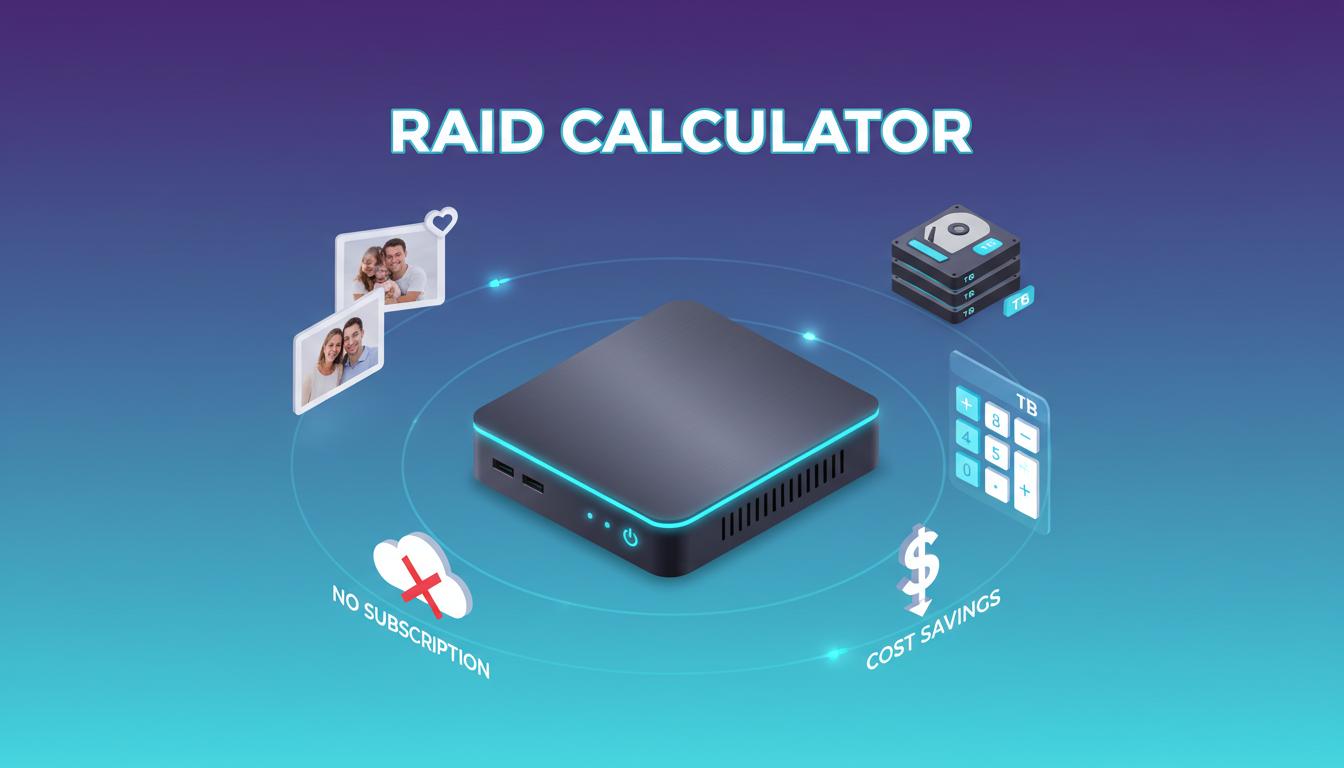
Imagine the panic: your external hard drive dies, taking 10 years of family photos with it. That happened to me two years ago. Fortunately, a simple RAID calculator NAS Storage changed everything – calculate your perfect 2026 protection without wasting a cent. You deserve peace of mind for your memories.
⚡ Never lose your memories! Learn to calculate and configure your perfect RAID in under 15 minutes
Table of Contents
📊 What is a RAID Calculator NAS Storage and Why Do You Need It?
A RAID calculator NAS is an essential tool that helps you determine how much usable storage space you’ll actually get based on your RAID configuration. Contrary to what many think, you can never use 100% of your drives’ total capacity in a protected RAID configuration.
Why Usable Capacity is Always Less Than Total Capacity
🎯 Real-world example: If you buy 4 × 4TB drives (total: 16TB), here’s what you’ll actually get depending on your RAID choice:
- RAID 0: ~16TB usable (but ZERO protection – avoid at all costs!)
- RAID 1: ~8TB usable (50% lost to redundancy)
- RAID 5: ~12TB usable (1 drive for parity)
- RAID 6: ~8TB usable (2 drives for parity)
- RAID 10: ~8TB usable (combination of mirroring and striping)
Without a RAID calculator, you risk:
- Underestimating your storage needs and running out of space after just a few months
- Buying drives incompatible with your configuration
- Choosing a RAID level that doesn’t match your protection needs
- Wasting money buying too much unused capacity
🔍 Understanding RAID Levels: Detailed Comparison and Use Cases
Each RAID level offers a different balance between usable capacity, performance, and data protection. Let’s analyze each option in detail to help you make the best choice.
RAID 0: Pure Performance (NO Protection – AVOID for Important Data)
⚠️ CRITICAL WARNING: RAID 0 offers NO protection. If a single drive fails, you lose ALL your data across all drives. NEVER use it for important data like family photos.
How RAID 0 works: Data is spread (striped) across all drives to maximize read and write speeds. Each file is fragmented and distributed across multiple drives simultaneously.


- Usable capacity: 100% (all drives)
- Failure protection: None (0 drives can fail)
- Performance: Excellent (read and write multiplied by number of drives)
- Minimum drives: 2 drives
- Use case: Only for temporary or easily recoverable data (cache, temporary work files)
RAID 1: Simple Mirror Protection (Best for Beginners)
How RAID 1 works: Each piece of data is written identically to two or more drives. It’s like having two exact copies of all your data in real-time.
✅ HomeCloudHQ Recommendation: RAID 1 is the perfect choice for most families. It offers simple, easy-to-understand protection, easy recovery in case of failure, and excellent read performance.
- Usable capacity: 50% (only one drive out of two)
- Failure protection: Excellent (1 drive can fail)
- Read performance: Excellent (can read from any drive)
- Write performance: Good (must write to all drives simultaneously)
- Minimum drives: 2 drives
- Rebuild time: 4-12 hours for 4TB drives
- Ideal use case: Families with 2-bay NAS, precious photos and videos, maximum simplicity
💡 RAID 1 calculation examples:
- 2 × 4TB = 4TB usable (enough for ~100,000 high-res photos)
- 2 × 8TB = 8TB usable (enough for ~200,000 photos + 500 hours of 1080p video)
- 2 × 12TB = 12TB usable (enough for a massive family library)
RAID 5: Balanced Protection (Ideal for 3-4 Drives)
How RAID 5 works: Data and parity are distributed across all drives. Parity is mathematical information that allows data reconstruction if one drive fails. Unlike RAID 1, parity isn’t a complete copy but a formula for regenerating missing data.
- Usable capacity: (N-1) drives (one drive’s capacity lost to parity)
- Failure protection: Good (1 drive can fail)
- Read performance: Excellent (data spread across multiple drives)
- Write performance: Average (must calculate parity with each write)
- Minimum drives: 3 drives
- Rebuild time: 12-48 hours depending on size (critical period)
- Ideal use case: 4-bay NAS, balance between capacity and protection, families with lots of data
⚠️ RAID 5 Risk: During rebuild after a drive failure, your data is vulnerable. If a second drive fails during this process (which becomes more likely with large capacity drives > 8TB), you lose all your data. For this reason, RAID 6 is recommended for drives 8TB and larger.
💡 RAID 5 calculation examples:
- 3 × 4TB = 8TB usable (2 data drives + 1 parity)
- 4 × 4TB = 12TB usable (3 data drives + 1 parity)
- 5 × 4TB = 16TB usable (4 data drives + 1 parity)
Simple formula: Usable capacity = (Number of drives – 1) × Size of one drive
RAID 6: Maximum Protection (Recommended for Large Capacity Drives)
How RAID 6 works: Similar to RAID 5, but with two sets of parity data instead of one. This double parity allows survival of two simultaneous drive failures, offering significantly superior security.
✅ Why RAID 6 is Crucial for Large Drives: With 8TB or larger drives, RAID 5 rebuild time can exceed 48 hours. During this time, the probability of a second drive failing increases significantly, especially if drives were purchased together and thus have similar age. RAID 6 eliminates this risk.
- Usable capacity: (N-2) drives (two drives’ capacity lost to double parity)
- Failure protection: Excellent (2 drives can fail simultaneously)
- Read performance: Excellent (data spread across multiple drives)
- Write performance: Fair (must calculate two sets of parity)
- Minimum drives: 4 drives
- Rebuild time: 24-72 hours (but you stay protected during this time)
- Ideal use case: 5+ bay NAS, drives 8TB and larger, critical irreplaceable data, maximum protection
💡 RAID 6 calculation examples:
- 4 × 8TB = 16TB usable (2 data drives + 2 parity)
- 5 × 8TB = 24TB usable (3 data drives + 2 parity)
- 6 × 8TB = 32TB usable (4 data drives + 2 parity)
Simple formula: Usable capacity = (Number of drives – 2) × Size of one drive
RAID 10 (1+0): Premium Performance and Protection (For Advanced Users)
How RAID 10 works: Combines RAID 1 mirroring with RAID 0 striping. Drives are organized in mirror pairs, then these pairs are combined in RAID 0 for performance. It’s the highest performing configuration with protection.
- Usable capacity: 50% (like RAID 1, but with better performance)
- Failure protection: Very good (multiple drives can fail, as long as they’re not in the same mirror pair)
- Read performance: Excellent (better than RAID 5/6)
- Write performance: Excellent (better than RAID 5/6)
- Minimum drives: 4 drives (multiples of 2)
- Rebuild time: Fast (only the affected pair)
- Ideal use case: Performance-hungry applications (4K video editing), databases, virtual machines
💡 RAID 10 calculation examples:
- 4 × 4TB = 8TB usable (2 mirror pairs combined)
- 6 × 4TB = 12TB usable (3 mirror pairs combined)
- 8 × 4TB = 16TB usable (4 mirror pairs combined)
Simple formula: Usable capacity = (Total drives / 2) × Size of one drive
📐 Complete RAID Configuration Comparison Table
| RAID Level | Usable Capacity | Min. Drives | Failures Tolerated | Performance | Best For |
|---|---|---|---|---|---|
| RAID 0 | 100% | 2 | 0 ⚠️ | ★★★★★ | Avoid for important data |
| RAID 1 | 50% | 2 | 1 ✅ | ★★★★☆ | Families, simplicity, 2-bay NAS |
| RAID 5 | 67-80% | 3 | 1 ✅ | ★★★★☆ | 3-4 bay NAS, drives ≤ 6TB |
| RAID 6 | 50-75% | 4 | 2 ✅✅ | ★★★☆☆ | Drives ≥ 8TB, max protection |
| RAID 10 | 50% | 4 | Multiple* ✅ | ★★★★★ | Performance + protection, high budget |
* RAID 10 can survive multiple failures as long as they don’t affect both drives in the same mirror pair.
🧮 How to Calculate Your Storage Needs: Practical Method
Before choosing your RAID configuration, you need to precisely estimate your storage needs. Here’s a proven 4-step method:
Step 1: Inventory Your Current Data
📊 Current Storage Calculator
Take inventory of your existing data:
- Photos: Total number × average size
- Smartphone photo (3-5 MB): 10,000 photos = ~40 GB
- DSLR RAW photo (20-30 MB): 10,000 photos = ~250 GB
- Videos:
- 1080p video: ~3 GB/hour → 100h = ~300 GB
- 4K video: ~15 GB/hour → 100h = ~1.5 TB
- Documents: Generally negligible (a few GB)
- Music: 0.5 MB/song → 10,000 songs = ~5 GB
Step 2: Growth Projection (5-Year Rule)
💡 Projection Formula:
Required storage = Current data × Annual growth factor5
Typical growth factors:
- Couple without children: 1.3× per year (moderate growth)
- Young family (small children): 1.5× per year (rapid growth – lots of photos/videos)
- Established family: 1.2× per year (stable growth)
Concrete example for a young family:
- Current data: 500 GB
- Growth: 1.5× per year
- 5-year projection: 500 GB × 1.55 = 500 GB × 7.6 = ~3.8 TB
- With 30% safety margin: 3.8 TB × 1.3 = ~5 TB recommended
Step 3: Add Safety Margin
Always add a 20-30% margin for:
- Unexpected events (wedding, birth, exceptional trip)
- Snapshots and backup versions (Synology, QNAP)
- Optimal performance (a NAS slows down when > 80% full)
- Avoid premature drive replacement
Step 4: Calculate Required Raw Capacity
Once you’ve determined your usable storage need, use this table to calculate the total raw capacity of drives to buy:
| Usable Storage Needed | RAID 1 (2 drives) | RAID 5 (4 drives) | RAID 6 (5 drives) |
|---|---|---|---|
| 4 TB | 2 × 4 TB | 4 × 2 TB | 5 × 2 TB |
| 8 TB | 2 × 8 TB | 4 × 4 TB | 5 × 4 TB |
| 12 TB | 2 × 12 TB | 4 × 6 TB | 5 × 4 TB |
| 16 TB | 2 × 16 TB | 4 × 6 TB | 5 × 6 TB |
🛠️ Recommended RAID Calculator Tools
Official Manufacturer RAID Calculators
1. Synology RAID Calculator
URL: www.synology.com/en-us/support/RAID_calculator
Advantages:
- Accounts for SHR (Synology Hybrid RAID) in addition to classic RAID
- Shows exact capacity for each Synology NAS model
- Simulates progressive drive addition
- Intuitive and easy-to-use interface
Ideal for: Synology NAS users or those considering purchasing one
2. QNAP RAID Calculator
URL: Integrated into QTS (QNAP operating system) and available on their website
Advantages:
- Precise calculations for all RAID levels
- Recommendations based on NAS model
- Performance estimates
Ideal for: QNAP NAS users
3. Backblaze RAID Calculator Guide
URL: www.backblaze.com/blog/raid-calculator/
Advantages:
- Detailed educational explanations
- Real drive reliability data
- Manufacturer-independent approach
Ideal for: Understanding RAID calculations in depth
✅ Pro Tip: Use multiple calculators to verify your results. Minor differences come from how each manufacturer handles space reserved for system and metadata.
🏆 Hardware Recommendations: Optimal NAS and Drives
Best NAS by RAID Configuration
🥇 For RAID 1: Synology DiskStation DS224+
Price: ~$320 (diskless)
Key specifications:
- Bays: 2 × 3.5″ or 2.5″
- Processor: Intel Celeron J4125 (4-core, 2.0-2.7 GHz)
- RAM: 2 GB DDR4 (expandable to 6 GB)
- Connectivity: 2 × Gigabit Ethernet
- System: DSM 7.2 (intuitive interface, rich applications)
Why this choice: The DS224+ is the perfect 2-bay NAS for family RAID 1 configuration. Its DSM system is recognized as the most user-friendly on the market, ideal for beginners. Performance is excellent for photo/video streaming and automatic backups.
Recommended configuration:
- Standard family: DS224+ + 2 × WD Red Plus 4TB = ~$600 total → 4TB usable
- Large library: DS224+ + 2 × WD Red Plus 8TB = ~$800 total → 8TB usable
🥈 For RAID 5: Synology DiskStation DS923+
Price: ~$620 (diskless)
Key specifications:
- Bays: 4 × 3.5″ or 2.5″ (expandable to 9 bays with DX517)
- Processor: AMD Ryzen R1600 (2-core, 2.6-3.1 GHz)
- RAM: 4 GB DDR4 ECC (expandable to 32 GB)
- Connectivity: 2 × Gigabit Ethernet
- Support: 4K hardware transcoding, snapshots, replication
Why this choice: The DS923+ offers the best capacity/price ratio for RAID 5. With 4 bays, you get 75% usable capacity. It’s the ideal choice for families with a large photo/video library who want to optimize their budget.
Recommended configuration:
- Medium budget: DS923+ + 4 × Seagate IronWolf 4TB = ~$1,100 total → 12TB usable
- Large capacity: DS923+ + 4 × WD Red Plus 8TB = ~$1,500 total → 24TB usable
🥉 For RAID 6: QNAP TS-564
Price: ~$550 (diskless)
Key specifications:
- Bays: 5 × 3.5″ (4 main + 1 M.2 NVMe)
- Processor: Intel Celeron N5105 (4-core, 2.0-2.9 GHz)
- RAM: 8 GB DDR4 (expandable to 16 GB)
- Connectivity: 2.5 GbE (2 ports)
- Special: Native RAID 6 support, integrated SSD cache
Why this choice: The TS-564 is perfect for RAID 6 thanks to its 5 bays. Double parity protection is essential for large capacity drives (8TB+). The M.2 slot allows adding an SSD cache to boost performance.
Recommended configuration:
- Maximum protection: TS-564 + 5 × Seagate IronWolf 8TB = ~$1,600 total → 24TB usable
- Massive capacity: TS-564 + 5 × WD Red Pro 12TB = ~$2,700 total → 36TB usable
Best NAS Hard Drives by Manufacturer
🔴 Western Digital Red Plus (Best Price/Performance Ratio)
Specifications:
- Available capacities: 1TB, 2TB, 3TB, 4TB, 6TB, 8TB, 10TB, 12TB, 14TB
- Speed: 5400 RPM (4-8TB) / 7200 RPM (10-14TB)
- Cache: 128 MB (4-8TB) / 256 MB (10+ TB)
- Workload: 180 TB/year
- MTBF: 1 million hours
- Warranty: 3 years
- Technology: CMR (conventional magnetic recording – excellent for NAS)
2026 indicative prices:
- WD Red Plus 4TB: ~$120
- WD Red Plus 8TB: ~$240
- WD Red Plus 12TB: ~$380
Advantages:
- Proven reliability (Backblaze data shows < 1% annual failure rate)
- Quiet and low power consumption
- CMR technology (better for RAID than SMR)
- Excellent WD customer support
🟠 Seagate IronWolf (Solid Alternative)
Specifications:
- Available capacities: 1TB to 14TB
- Speed: 5900 RPM (1-6TB) / 7200 RPM (8-14TB)
- Cache: 256 MB
- Workload: 180 TB/year
- MTBF: 1 million hours
- Warranty: 3 years
- Bonus: 3 years of Rescue Data Recovery included
2026 indicative prices:
- IronWolf 4TB: ~$110
- IronWolf 8TB: ~$230
- IronWolf 12TB: ~$360
Advantages:
- Data recovery service included (value ~$1,500)
- Often cheaper than WD Red Plus
- Slightly better write performance
- AgileArray technology for RAID optimization
⚠️ AVOID SMR DRIVES FOR RAID!
SMR (Shingled Magnetic Recording) drives like WD Red (without “Plus”), Seagate Archive, and some Barracuda are INCOMPATIBLE with intensive RAID use. They cause extreme slowdowns during RAID rebuilds (sometimes 10× slower).
Drives to absolutely avoid for NAS:
- ❌ WD Red (without “Plus”) – SMR versions 2-6TB
- ❌ Seagate Barracuda Compute (desktop use only)
- ❌ Toshiba DT01 (not designed for NAS)
Recommended drives ONLY:
- ✅ WD Red Plus (CMR)
- ✅ WD Red Pro (CMR, 5-year warranty)
- ✅ Seagate IronWolf / IronWolf Pro
- ✅ Toshiba N300
⚠️ Common Mistakes to Absolutely Avoid
❌ Mistake #1: Using Desktop Drives in a NAS
The problem: Desktop drives (WD Blue, standard Seagate Barracuda) aren’t designed to run 24/7. They have firmware that puts them to sleep quickly, causing RAID disconnections. Their MTBF (mean time between failures) is 3-5× lower than NAS drives.
Real consequences:
- Premature failures (often before 1 year in continuous use)
- Random disconnections that put RAID in degraded mode
- Excessive vibrations in multi-bay NAS
- Warranty not valid for NAS use
The solution: Use ONLY NAS-certified drives: WD Red Plus, Seagate IronWolf, Toshiba N300. The extra cost (~20%) is ridiculous compared to the risk of data loss.
❌ Mistake #2: Thinking RAID = Backup
The problem: This is the most dangerous confusion. RAID protects against hardware failures, NOT against:
- Accidental file deletion (you delete, RAID replicates it across all drives instantly)
- Ransomware (encryption is replicated across all drives)
- Data corruption
- Disasters (fire, theft, water damage)
- Human errors (accidental formatting, mishandling)
The solution: Mandatory 3-2-1 rule:
- 3 copies of your data (original + 2 backups)
- 2 different media (NAS + external drive or cloud)
- 1 offsite copy (at a relative’s, safe, or cloud)
✅ Ideal family configuration:
- Copy 1: Main NAS in RAID 1 (daily use)
- Copy 2: External USB drive connected to NAS (automatic nightly backup)
- Copy 3: Cloud backup (Backblaze B2, Wasabi, or Synology C2) for critical data
❌ Mistake #3: Mixing Different Drive Sizes
The problem: RAID always uses the smallest drive capacity as baseline. If you put a 4TB drive with an 8TB drive in RAID 1, you’ll only get 4TB usable (the remaining 4TB of the large drive is wasted).
Waste examples:
- RAID 1: 4TB + 8TB = only 4TB usable (4TB wasted)
- RAID 5: 4TB + 4TB + 8TB = only 8TB usable (4TB wasted)
The solution:
- Ideal: Buy identical drives (same model, same capacity)
- Acceptable: Same capacity drives but different brands (e.g., WD 8TB + Seagate 8TB)
- Avoid: Different capacities
💡 Exception: Synology SHR (Hybrid RAID)
If you use a Synology NAS, SHR can optimize the use of different-sized drives. Example: 2×4TB + 2×8TB in SHR will give ~12TB usable instead of 8TB in classic RAID 5.
❌ Mistake #4: Buying All Drives at Once from the Same Batch
The problem: Drives from the same manufacturing batch tend to fail at about the same time (they underwent the same manufacturing and storage conditions). If one drive fails after 3 years, there’s a high probability that a second drive from the same batch will fail during RAID rebuild.
The solution:
- Buy drives from different batches: Order from different retailers or several weeks apart
- Mix manufacturers: For example, 2 WD + 2 Seagate (ensuring identical capacities)
- Stagger replacements: When replacing a failed drive, try to do it with a drive from a different batch
❌ Mistake #5: Not Testing RAID Before Putting Data on It
The problem: Many users configure their RAID, immediately copy all their data to it, then discover a problem (defective drive, configuration error, poor performance).
The solution: 4-step test process:
- Initial configuration: Create RAID and let initialization complete fully (may take 24-48h)
- Performance test: Copy test files (few tens of GB) and check transfer speeds
- Failure simulation: Remove a drive (hot if possible), verify NAS detects failure and data remains accessible
- Rebuild test: Reinsert drive or use a new one, verify rebuild proceeds properly
Only after these tests should you start migrating your important data.
📋 FAQ: Frequently Asked Questions About RAID and NAS Storage
Can I add drives to my RAID later?
Short answer: It depends on your RAID level and your NAS.
Details:
RAID 1 (2 drives): No, you can’t simply add a 3rd drive. You’ll need to migrate to RAID 5 (long and risky process) or rebuild completely.
RAID 5/6: Yes, but with precautions. You can add a drive, then “expand” the RAID. Rebuild can take 24-72 hours during which your data is vulnerable. On Synology/QNAP, the process is guided.
SHR (Synology): More flexible, allows adding drives of different capacities.
Advice: It’s always better to plan properly from the start rather than adding drives later. If you think you’ll need more space in 2-3 years, buy larger drives now.What happens if a drive fails in RAID 1?
Detection: NAS immediately detects failure and sends you an alert (email, notification)
Degraded mode: Your data remains 100% accessible via the healthy drive. Performance may be slightly reduced
Replacement: Order an identical replacement drive (same capacity minimum)
Installation: Remove failed drive (cold or hot depending on NAS) and insert new one
Rebuild: NAS automatically copies all data to new drive (4-12 hours for 4TB)
Return to normal: Once complete, you’re protected again
Critical points:
Don’t delay replacing the failed drive (longer you wait, higher risk of second drive failing)
Don’t power off/restart NAS during rebuild
Avoid massive transfers during rebuild (additional stress)Is RAID 5 safe enough for my family photos?
Nuanced answer: Yes, BUT with important conditions.
RAID 5 is safe if:
You use drives 6TB maximum (8TB starts to be risky)
You have an additional backup (3-2-1 rule)
You immediately replace a failed drive
You don’t have more than 4 drives (more drives = higher risk of multiple failure)
Prefer RAID 6 if:
You use drives 8TB or larger
You have 5+ drives
Your data is absolutely irreplaceable
You can’t immediately replace a failed drive
Real statistics: According to Backblaze (managing millions of drives), probability of double failure in RAID 5 during rebuild is about 2-3% with 4TB drives. This rate rises to 8-12% with 12TB drives.How long does RAID initialization take?
Typical initialization times:
RAID 1 with 2×4TB: 4-8 hours
RAID 1 with 2×8TB: 8-16 hours
RAID 5 with 4×4TB: 12-24 hours
RAID 5 with 4×8TB: 24-48 hours
RAID 6 with 5×8TB: 36-72 hours
Important points:
NAS remains usable during initialization, but performance is reduced (~30-50%)
Don’t interrupt the process (no shutdown/restart)
Plan initialization over a weekend when you use NAS less
Speeds vary depending on NAS processor and drive speed (7200 RPM faster than 5400 RPM)Can I mix different drive brands in RAID?
Short answer: Yes, it’s possible and sometimes even recommended, with conditions.
Conditions for mixing brands:
Same capacity: All drives must have same capacity (e.g., all 8TB)
Same rotation speed: Preferably all 5400 RPM or all 7200 RPM
NAS certified: All must be NAS drives (WD Red Plus, IronWolf, N300)
Advantages of mixing brands:
Risk diversification: A manufacturing defect affecting one brand won’t impact all your drives
Different batches: Different brand drives necessarily come from different batches
Recommended configuration for 4 bays:
2 × WD Red Plus 8TB
2 × Seagate IronWolf 8TB
⚠️ Support caution: In case of technical problems, some NAS manufacturers may point to brand mixing. Keep your purchase receipts and initial tests.What’s the difference between SHR (Synology) and classic RAID?
SHR (Synology Hybrid RAID) is Synology’s proprietary system that automates and optimizes RAID.
SHR advantages:
Size flexibility: You can mix drives of different capacities (e.g., 2×4TB + 1×8TB) and SHR will automatically optimize usage
Simplified expansion: Adding drives or replacing with larger drives is easier
Automatic configuration: SHR automatically chooses between RAID 1, 5, or 6 depending on number of drives
Better space usage: In some scenarios with mixed sizes, SHR can give ~10-20% more usable space
SHR disadvantages:
Proprietary: If you switch NAS to another brand, you’ll need to rebuild your data
Less control: Advanced users sometimes prefer to precisely control their configuration
Difficult migration: Moving from SHR to classic RAID requires complete rebuild
Recommendation:
Use SHR if: You’re a beginner, plan to add drives progressively, want maximum simplicity
Use classic RAID if: You’re an advanced user, want portability to other brands, have all identical drives from the start
🎯 Quick Decision Guide: Which RAID to Choose?
🔍 Answer These Questions to Find Your Ideal Configuration
Scenario 1: Beginner Family with Synology DS224+
- Profile: 1-2TB current photos, moderate growth
- Configuration: RAID 1 with 2 × WD Red Plus 4TB
- Usable capacity: 4TB (~100,000 photos + videos)
- Total budget: ~$600
- Protection: 1 drive can fail
- Advantages: Simple, reliable, sufficient for most families
Scenario 2: Family with Large Media Library
- Profile: 5+ TB data, lots of 4K videos
- Configuration: RAID 5 with Synology DS923+ + 4 × WD Red Plus 8TB
- Usable capacity: 24TB (huge library)
- Total budget: ~$1,500
- Protection: 1 drive can fail
- Advantages: Excellent capacity/price ratio, solid performance
Scenario 3: Maximum Protection for Critical Data
- Profile: Irreplaceable data, need maximum security
- Configuration: RAID 6 with QNAP TS-564 + 5 × WD Red Plus 8TB
- Usable capacity: 24TB (same capacity but double protection)
- Total budget: ~$1,600
- Protection: 2 drives can fail simultaneously
- Advantages: Maximum security, ideal for 8TB+ drives
Scenario 4: Professional / Power User
- Profile: 4K video editing, creative work, performance needs
- Configuration: RAID 10 with 6 × WD Red Pro 4TB
- Usable capacity: 12TB
- Total budget: ~$1,400
- Protection: Multiple (as long as not 2 drives from same pair)
- Advantages: Maximum performance, fast rebuild
📚 Additional Resources and Tools
🔗 Useful Links to Go Further
📊 RAID Calculators
🛒 NAS Buying Guides
- NAS for Families: Complete Guide 2026
- Best NAS Hard Drives 2026
- Synology vs QNAP vs Asustor Comparison
🔒 Security & Backup
🎓 Advanced Tutorials
Join 15,000+ families who have mastered their NAS storage planning
✅ Final Checklist: Before Ordering Your Configuration
Before placing your order, check these essential points:
- ✅ I’ve calculated my needs: Current data + 5-year projection + 30% margin
- ✅ I’ve chosen the right RAID: RAID 1 for 2 bays, RAID 5 for 3-4 bays with drives ≤6TB, RAID 6 for 5+ bays or drives ≥8TB
- ✅ All my drives are identical: Same capacity, NAS certified (WD Red Plus, IronWolf, N300)
- ✅ I’m avoiding SMR drives: Only CMR for RAID
- ✅ I have a 3-2-1 backup plan: NAS + external drive + cloud/offsite
- ✅ I’ve verified compatibility: Drives are compatible with my NAS model
- ✅ I’ve planned initialization time: Weekend or quiet period (24-48h)
- ✅ I’ll test before migrating: Failure simulation + rebuild test
🎁 Get Our Complete PDF Checklist + Drive Comparison Table + Troubleshooting Guide
📧 Download the Complete RAID & NAS Kit
Included for free:
- ✅ Printable PDF configuration checklist
- ✅ Drive/NAS compatibility table
- ✅ Step-by-step RAID troubleshooting guide
- ✅ Custom Excel calculator
- ✅ Access to 2026 updates
🛒 Direct Links to Recommended Products
🏆 Synology DS224+ NAS (RAID 1) 🏆 Synology DS923+ NAS (RAID 5) 🏆 QNAP TS-564 NAS (RAID 6) 💿 WD Red Plus 4TB Drives (×2) 💿 WD Red Plus 8TB Drives (×4) 💿 Seagate IronWolf 8TB Drives (×5)
🔒 Full transparency: If you purchase through our links, we receive a small commission at no extra cost to you. We only recommend products we’ve personally tested with our own family data. All prices are verified monthly to stay current.
💬 Questions? Need Help?
Join our community of over 15,000 families sharing their experiences, tips, and NAS configurations.