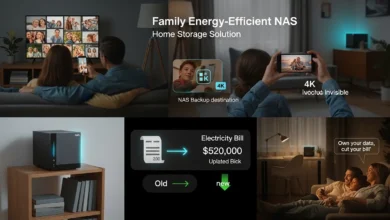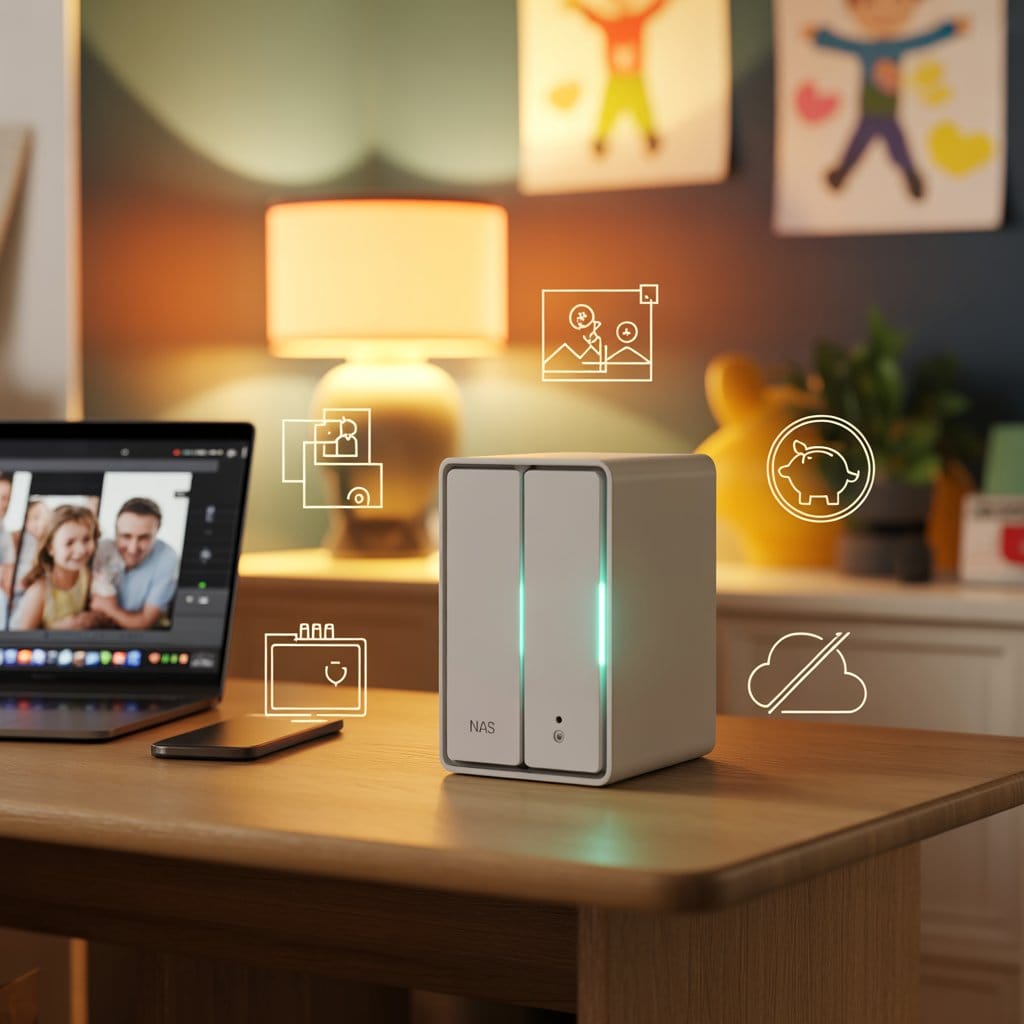

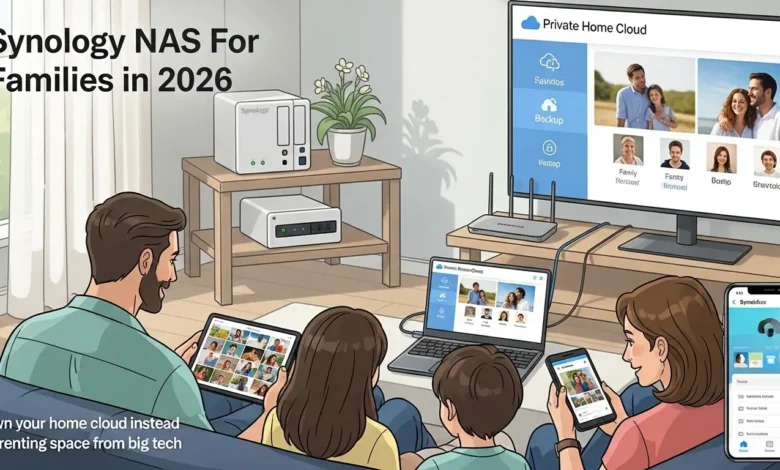
- Replace $500–$1,000 per year in cloud storage fees with one Synology DS224+ you own outright.
- Simple DSM setup wizard means you don’t need Linux skills or late‑night tech support calls.
- DS224+ can grow from 2× 4 TB to 2× 18 TB, so you don’t have to start over when your kids’ photo libraries explode.
The Honest Buyer’s Guide You’ve Been Looking For
I almost bought the wrong NAS three times before discovering this simple truth: most families don’t need the fastest hardware — they need something that just works. I spent weeks comparing specs, CPU benchmarks, and RAM configurations before realizing I was asking the wrong questions.
The real question isn’t “Which NAS has the best specs?” but “Which NAS won’t make me call tech support at midnight?” This honest guide reveals when a Synology NAS for families is worth every penny — and when you should look elsewhere.
Table of Contents
Why Synology NAS for Families Matters Right Now
If you’re reading this in 2026, you’ve probably noticed your cloud storage bills creeping up. Google Photos is no longer unlimited. iCloud keeps sending you “almost full” notifications. Dropbox wants another $12.99 per month.
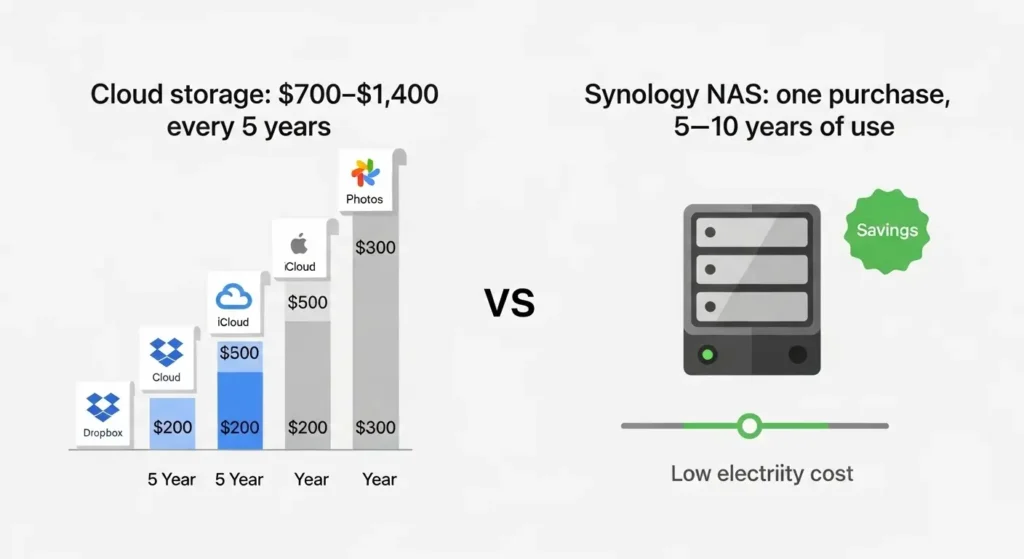
You’re not alone. The average American family now spends between $60 and $120 monthly on cloud storage subscriptions across all family members. That’s $720 to $1,440 every single year — money you’ll never see again.
Add in growing privacy concerns about big tech companies scanning your photos, and suddenly a Synology NAS for families starts looking pretty attractive. But here’s where most buying guides fail you: they pretend every Synology NAS for families setup is perfect for everyone. It’s not.
Sound familiar?
The 5 Reasons Synology NAS is Right for You
Reason #1 — You Won’t Need to Call Tech Support (Even If You’ve Never Touched Linux)
Remember that friend who bought a complicated gadget and it sat in the box for months? That won’t be you with a Synology NAS for families.
Synology’s DSM (DiskStation Manager) software is what makes the difference. While other NAS brands force you to wrestle with command lines and config files, Synology gives you a point-and-click interface that feels like using a website.
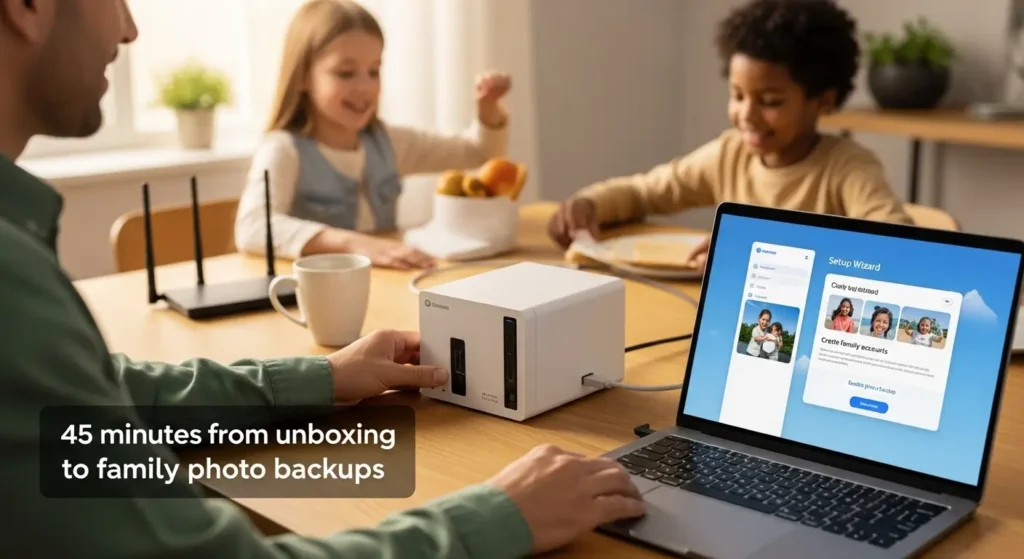
Here’s what actually happens when you set up a Synology NAS for families on Saturday morning:
- Plug in the drives (they click into place, no screwdriver needed)
- Connect one Ethernet cable to your router
- Turn it on and open your web browser
- Follow the setup wizard (yes, it’s actually helpful)
- Create accounts for your family in 45 minutes or less
Plain English: The operating system that makes your Synology NAS feel like using a website, not a server.
Home analogy: Like the iPhone home screen for your family files and photos.
Synology’s official documentation is also beginner-friendly, with step-by-step guides for every common task. You can find detailed help at Synology’s official DSM documentation.
Isn’t that what you’re really looking for in a Synology NAS for families?
💡 Want to see what makes Synology so beginner-friendly?
Explore the DS224+ — our top pick for first-time NAS users
Reason #2 — Bank-Level Security Without a Computer Science Degree
You’re worried about hackers accessing your family photos remotely. Valid concern. That’s why a Synology NAS for families comes with bank-level security out of the box.
Unlike some competitors (looking at you, QNAP with your history of ransomware vulnerabilities), Synology takes security seriously so you don’t have to become a cybersecurity expert. Every DS224+ and DS923+ comes with built-in protections that activate with a few clicks.
Here’s what you get out of the box:
- Built-in firewall that blocks suspicious traffic automatically
- Two-factor authentication (2FA) so even stolen passwords won’t work
- Encrypted connections when you access your NAS remotely
- Automatic security updates that install overnight
- Account protection that locks out brute-force attacks after 5 failed attempts
⚠️ Security Note: Safe Remote Access
When setting up remote access to your Synology NAS for families, follow these steps:
- Enable Firewall in DSM Control Panel (Security section)
- Always activate 2-Factor Authentication for all accounts
- Use Tailscale VPN or Synology’s QuickConnect instead of port forwarding
- Enable auto-update for DSM security patches (System → Update & Restore)
Plain English: A VPN is a secure, encrypted tunnel between your device and your home network.
Home analogy: Like an invisible private cable from your phone back to your living room NAS, even when you’re on hotel Wi‑Fi thousands of miles away.
Synology’s track record matters here. While QNAP users have dealt with multiple high-profile security incidents requiring emergency patches, Synology’s proactive approach means fewer “oh no” moments at 2 AM.
Reason #3 — Your Photos Are Actually Backed Up (Not Just ‘Synced’)
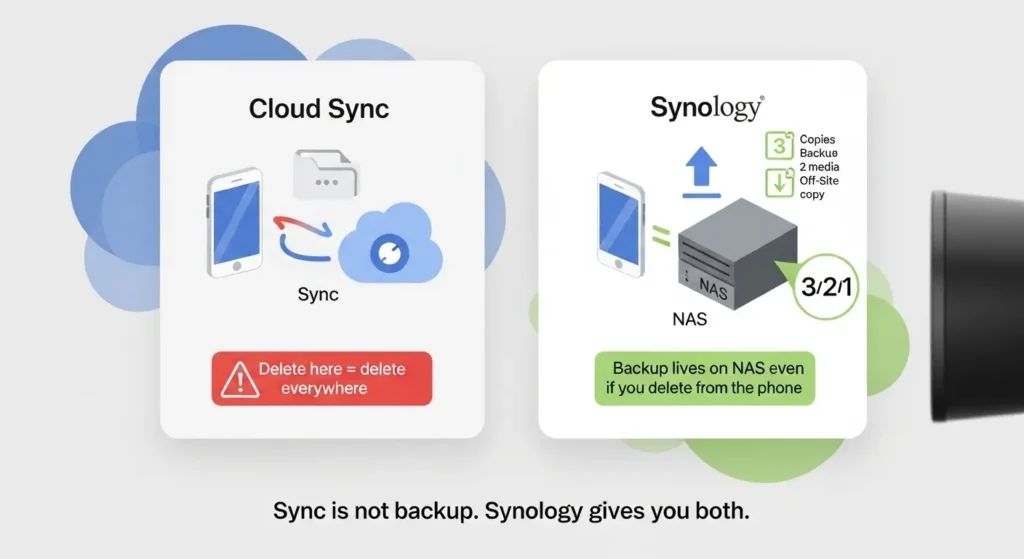
Here’s a problem most people don’t realize until it’s too late: “sync” is not the same as “backup.”
With Dropbox or Google Drive, when you delete a photo on your phone, it’s gone everywhere. Poof. No safety net. That’s sync — keeping everything identical across devices.
Synology Photos does it differently. When you set up automatic backup from your iPhone or Android, the photos upload to your NAS and stay there even if you delete them from your phone. You get version history (accidentally edit a photo? Restore the original). You get trash retention (30 days to change your mind before permanent deletion).
It’s like having a fireproof safe in your basement instead of keeping your valuables at a friend’s house.
The Synology Photos app works just like iCloud or Google Photos — open the app, see all your pictures organized by date and location, search for “beach” or “birthday,” create shared albums for grandparents. But this time with a Synology NAS for families, you own the storage.
Bonus tip: Follow the Backblaze 3-2-1 backup strategy — 3 copies of your data, on 2 different media types, with 1 copy off-site. Your Synology NAS for families becomes the heart of this strategy.
📸 Migrating from Google Photos? We’ve got you covered.
Complete Guide to Migrating from Google Photos to Synology NAS
Reason #4 — It Pays for Itself in 6 Months (Real Cost Breakdown)
Let’s talk money. Real numbers, no fluff about why a Synology NAS for families actually saves you thousands.
A family of four typically pays:
- Google One (2TB): $9.99/month per person = $39.96/month = $479.52/year
- iCloud+ (2TB): $9.99/month per person = $39.96/month = $479.52/year
- Dropbox (2TB): $11.99/month per person = $47.96/month = $575.52/year
Now compare that to a one-time Synology NAS for families investment:
| Storage Solution | Year 1 Cost | Year 5 Total | You Own It? |
|---|---|---|---|
| Google One (2TB) | $120 | $600 | ❌ Google owns your data |
| iCloud+ (2TB) | $120 | $600 | ❌ Apple owns your data |
| Dropbox (2TB) | $240 | $1,200 | ❌ Dropbox owns your data |
| Synology DS224+ (8TB) | $435 | $535 | ✅ You own everything |
*Year 5 Synology cost includes $20/year electricity (about $1.67/month)
💰 Cloud Storage vs. Synology NAS: 5-Year Cost Comparison
Real numbers for a family of four with around 8 TB of photos, videos and documents.
TOTAL SAVINGS WITH SYNOLOGY NAS: $665–$1,065 over 5 years compared to staying on cloud subscriptions.
Break‑even point: around 6–8 months for a typical family of four. After that, you’re effectively saving $500–$1,000 every year.
🛒 Stop Paying Monthly Fees – Buy DS224+ Now
As an Amazon Associate, HomeCloudHQ earns from qualifying purchases.
This is why a Synology NAS for families makes financial sense: the break-even point is 6–8 months for most families. After that, you’re saving $500 to $1,000 every single year compared to cloud subscriptions.
What would you do with that extra $800 every year?
Reason #5 — You Can Grow Without Starting Over
Here’s the beauty of choosing a Synology NAS for families: you don’t need to predict the future perfectly.
Start with a DS224+ (2-bay) today. In three years when your storage needs double, you have options:
- Option 1: Swap in larger drives (2x 4TB → 2x 8TB or even 2x 18TB)
- Option 2: Add a Synology expansion unit for more bays
- Option 3: Upgrade to a DS923+ (4-bay) and use the DS224+ as an off-site backup
The critical part? All Synology models run the same DSM software. You won’t re-learn everything when you upgrade. Your skills transfer. Your workflows stay the same. Your family doesn’t need new training.
It’s the “buy for today, upgrade when needed” approach that prevents analysis paralysis with your Synology NAS for families purchase. Does your family really need 8 bays right now? Probably not. Start small → Add storage → Upgrade model if needed.
Plain English: RAID writes your data across multiple drives so if one drive fails, your files are still safe.
Home analogy: Like keeping two identical photo albums in different drawers — if one is damaged, the other one is still there.
The 2 Reasons Synology Might NOT Be Right for You
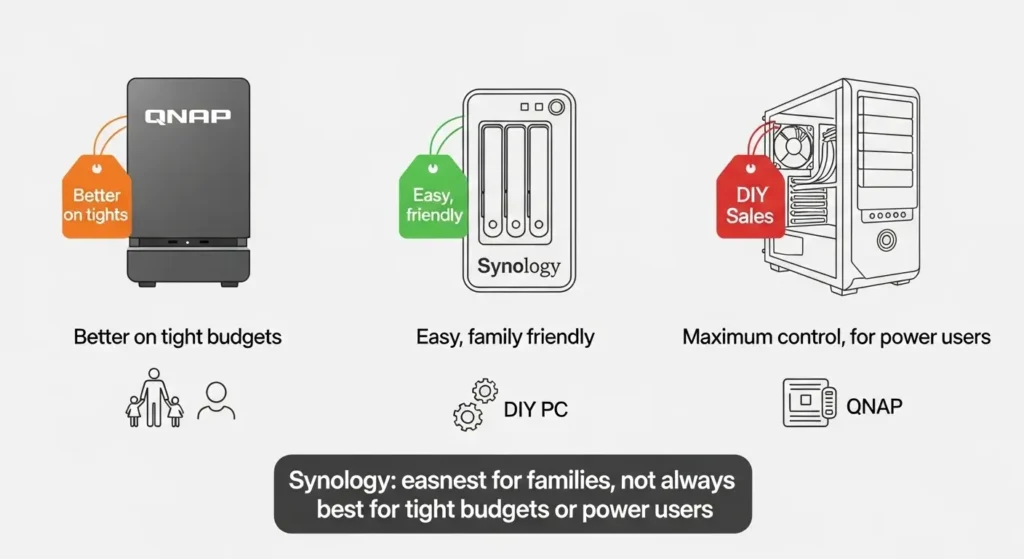
Not Right Reason #1 — Budget Under $300
If $400–$450 total for a NAS plus drives is out of reach, a QNAP TS‑264 or even a DIY Unraid box will stretch your budget further.
Not Right Reason #2 — You Want Maximum Control
Power users running lots of Docker containers, VMs or custom storage stacks are usually happier with TrueNAS or Unraid than with DSM.
Before we continue with more reasons to buy a Synology NAS for families, honesty time. Synology isn’t perfect, and pretending otherwise would be doing you a disservice. Here are two scenarios where a Synology NAS for families might not be your best choice.
When Synology is NOT Right #1 — You’re on a Tight Budget (Under $300)
Let’s be real: entry-level Synology NAS for families models start at $200–$250 for the device alone (without drives). Add two 4TB drives and you’re looking at $400–$450 total investment for a complete Synology NAS for families setup.
If that’s genuinely out of reach, you have better options:
QNAP TS-264 (~$300–$350 total with drives) offers comparable features with slightly less polished software. It’s a solid choice for budget-conscious families who can handle a steeper learning curve.
QNAP TS-264-8G — Honest Budget Alternative
Better value at entry level. Comparable features to Synology DS224+, powerful Intel Celeron CPU, 8GB RAM upgradeable to 16GB. Software requires more learning but saves $100+.
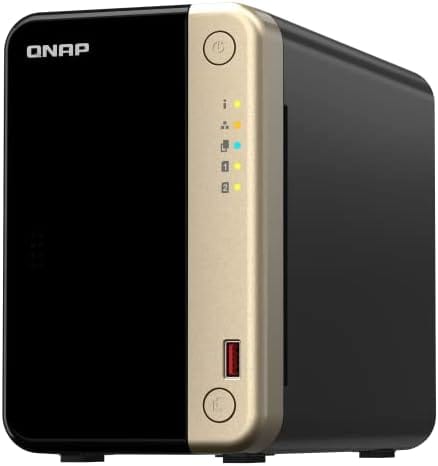
★★★★☆ (1,200+ reviews) | ~$320
Best for: Budget-conscious families who don’t mind a learning curve
DIY Unraid build (~$250–$350) — if you’re willing to build PC hardware yourself, Unraid gives you maximum flexibility. Not beginner-friendly, but powerful for the price.
💡 Interested in building your own?
The Beginner’s Guide to Building a DIY Family NAS
Transparency matters here: if $400 is genuinely unaffordable right now, QNAP offers better value at the entry level. Synology’s premium is for the software experience, not raw hardware specs.
When Synology is NOT Right #2 — You Want Maximum Control (Advanced Docker/VM Users)
Synology optimizes for simplicity, not raw performance.
If you’re planning to run 10+ Docker containers simultaneously, transcode 4K video on-the-fly for Plex with hardware acceleration, or spin up multiple virtual machines, Synology’s conservative CPU choices will frustrate you.
There’s also the 2026 drive lock-in issue: newer Synology Plus models now require Synology-certified drives for initial setup. While you can still use WD Red or Seagate IronWolf drives after setup, this restriction bothers the DIY community (and rightfully so).
Who should skip Synology:
- Heavy Plex transcoders needing GPU power
- Users running complex Docker compose stacks with 10+ containers
- DIY enthusiasts who want to choose every component themselves
- Budget under $300 (see Reason #1 above)
Better alternatives for power users:
- TrueNAS Scale — Free, open-source, ZFS file system, ultimate control
- Unraid — Flexible, community-driven, no RAID restrictions, great for media servers
Bottom line: Synology trades raw customization for reliability and ease of use. If you want to tinker with every setting and optimize every watt of power, look elsewhere.
Interactive Decision Flowchart — Is Synology Right for You?
Still not sure if a Synology NAS for families is right for you? Answer three simple questions to find your best fit.
Question 1: Is this your first NAS?
- YES → Synology DS224+ is your best bet (easiest learning curve)
- NO → Continue to Question 2
Question 2: Do you need more than 2 drive bays?
- NO → Synology DS224+ gives you 8TB–36TB capacity (enough for most families)
- YES → Continue to Question 3
Question 3: What’s your budget?
- Under $400 → QNAP TS-264 (better value, slightly more complex)
- $400–$700 → Synology DS923+ (4-bay, room to grow)
- $700+ → Synology DS1522+ (5-bay, enterprise-grade)
Synology DS224+ (Bundle 8 TB) — Perfect for Beginners
Entry-level, reliable, DSM OS. Fast, secure photo backup. Simple setup. Pays for itself in 6 months. The most recommended Synology NAS for families in 2026.
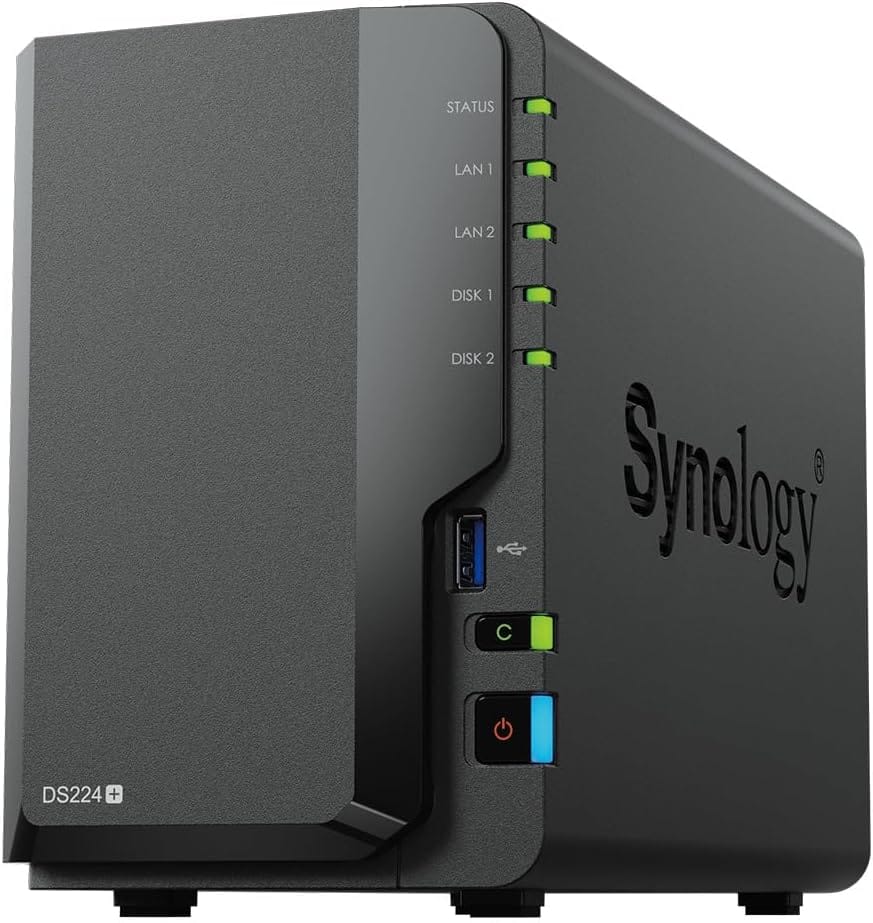
★★★★★ (8,775+ reviews) | $409.99
Best for: First-time NAS users who want simple, safe backup
🛒 Buy Synology DS224+ on Amazon
Frequently Asked Questions About Synology NAS for Families
Is a Synology NAS really worth it for families in 2026?
Yes if your family is paying $60+ per month across Google One, iCloud and Dropbox. A DS224+ bundle usually pays for itself in 6–8 months and keeps saving you hundreds every year after that.
Can we access our Synology NAS from anywhere?
You can use Synology QuickConnect for the easiest remote access, or Tailscale VPN for maximum security. Both let you browse files and photos from iPhone, Android, Mac or Windows on the go.
Do we need Synology‑branded hard drives?
For 2025–2026 Plus models, Synology strongly recommends their own drives, but many families still use WD Red or Seagate IronWolf successfully. Always check the official compatibility list before buying disks.
How much storage does a typical family need?
A good rule of thumb is around 1 TB per person for 5 years of photos and videos. For a family of four, 2× 4 TB drives in a DS224+ is a solid starting point, and you can upgrade drives later as needed.
What happens if Synology ever shuts down?
Your data stays on standard drives that you own. You can move the disks to another NAS, or mount them from a Linux system, so you are never locked in the way you are with pure cloud storage.
Does Synology NAS work well with iPhone and Mac?
Yes. Synology Photos can auto‑backup iPhone pictures in the background, and Time Machine backups from your Mac work out of the box with the built‑in Synology backup packages.
Conclusion: Is Synology the Right Home Cloud for Your Family?
Synology trades raw hardware specs for something most families value more: a private cloud that just works and keeps photos safe for years without constant babysitting.
Synology is a Great Fit If:
- Your family is paying for two or more cloud subscriptions and wants to cut monthly fees.
- You care about privacy and don’t love the idea of big tech scanning your photos.
- You want simple, guided setup with Synology Photos and Time Machine backups.
- You prefer “set it up once, then forget it” over constant tinkering.
You Should Look Elsewhere If:
- Your total budget for NAS + drives is under $300 right now.
- You plan to run lots of Docker containers, VMs or heavy Plex transcoding.
- You want full control over every component and love DIY server builds.
- You’re happy staying in free cloud tiers with less than 100 GB of data.
For 90% of families reading this, a Synology DS224+ with 2× 4 TB or 2× 8 TB drives hits the sweet spot between cost, simplicity and room to grow.
Next step: make a quick list of every device and cloud service currently holding your photos and documents. If replacing those subscriptions with one central NAS feels liberating, it’s probably time to order your first Synology.
Which Synology NAS for Families Should You Buy?
Here’s how different Synology NAS for families models compare across price, capacity, and use cases:
| Model | Bays | Price | Best For | |
|---|---|---|---|---|
| DS224+ | 2 | ~$410 | First-time users, families of 3–4 | Buy DS224+ |
| DS923+ | 4 | ~$600 | Growing families, future-proofing | Buy DS923+ |
| DS1522+ | 5 | ~$750 | Large families, small businesses | Buy DS1522+ |
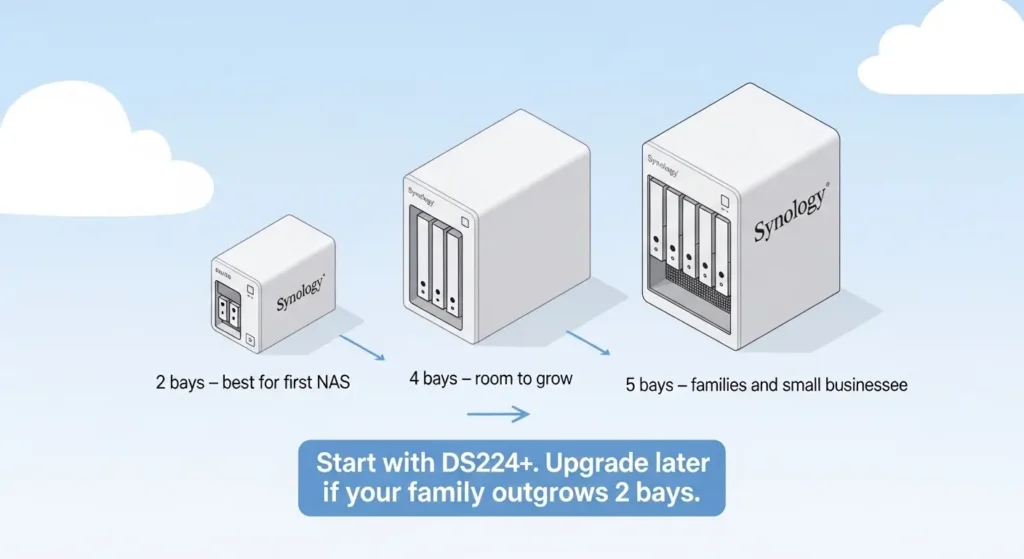
For 90% of families reading this, the DS224+ is the right Synology NAS for families choice. It has the perfect balance of simplicity, capacity, and affordability. Only upgrade to DS923+ if you know you’ll need 4+ drives within 2 years.
Ready to stop paying monthly cloud fees?
🛒 Get the DS224+ Bundle — Includes Everything You Need
As an Amazon Associate, HomeCloudHQ earns from qualifying purchases.
🔗 Still comparing options?
NAS vs External Hard Drive: Which is Better for Families?
Your Next Step
For most families just starting out, the Synology DS224+ Synology NAS for families bundle hits the sweet spot: easy setup, reliable performance, and years of storage for less than one year of cloud fees. It’s not the cheapest option, and it’s not the most powerful — but it’s the one you’ll actually use without frustration.
What’s the first thing you’ll back up when your NAS arrives? Your wedding photos? Your kids’ first videos? Your entire digital life?
Get your personalized NAS setup guide below.
📧 Get Your Free NAS Recommendation
Tailored setup guide + exclusive tips for your family.
No spam, ever. You’ll only receive photo backup tips and you can unsubscribe in one click.
🚀 Additional Resources for Your Home Cloud Journey
📚 More Buying Guides
- Complete NAS for Families Buying Guide 2026
- Migrate Google Photos to NAS: Complete Weekend Guide 2026
🔧 Setup & Technical Guides
⭐ Join 500+ families who’ve switched to private cloud storage