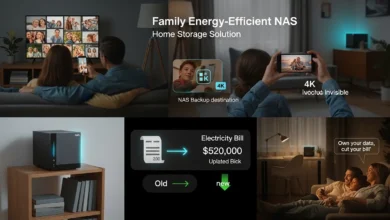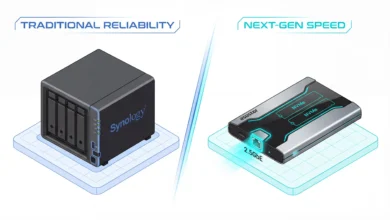

- ✅ Best overall for most families: Synology DS224+ — easiest setup, best software, beginner-proof
- ✅ Best budget pick (unit only): QNAP TS-264-8G — 2.5GbE, 8GB RAM, great value
- ✅ Best 4-bay for larger families or 4K: Synology DS423+ — room to grow for years
- ✅ Best drives to pair with it: WD Red Plus 4TB × 2 — NAS-grade, 24/7 rated
- ✅ Not sure yet? Use the 3-question decision tool in this guide ↓
🏆 Top Pick for Most Families — Editor’s Choice 2026
Synology DS224+ Bundle — Best NAS for Home Beginners
The easiest NAS to set up in 2026. Automatic photo backup, polished mobile apps, and rock-solid reliability — all without touching a single setting if you don’t want to.
- 🔲 Bays: 2 (up to 36 TB total storage)
- ⚙️ CPU: Intel Celeron J4125 Quad-Core 2.0 GHz
- 💾 RAM: 2 GB DDR4 (expandable to 6 GB)
- 🌐 Network: 2× Gigabit Ethernet
- 📱 Software: DSM 7.2 — Synology Photos, Hyper Backup, Docker
As an Amazon Associate, HomeCloudHQ earns from qualifying purchases — at no extra cost to you.
The best NAS for home use in 2026 is the single most important purchase you can make for your family’s digital memories — and this guide cuts through every spec sheet so you don’t have to. I still remember the panic when my laptop crashed and took eight years of family photos with it. Not corrupted — gone. That was the day I realized I needed more than “the cloud.” I needed control over my own data.
If you’re searching for the best NAS for home, you’re probably tired of paying monthly fees to store your memories on someone else’s server. A NAS — a Network Attached Storage device — is your own private cloud that lives in your house, runs 24/7, and belongs only to you. No monthly fees, complete privacy, and total control. In this guide, you’ll find the five best NAS for home in 2026, chosen specifically for US families who don’t have an IT background.
Every other guide like this talks to IT professionals. This one talks to the parent with 40,000 iPhone photos, a partner who hates technology, and a budget that includes drives. You’ll get a clear answer in under 60 seconds — then we’ll explain exactly why.
What Is a Home NAS? (Plain English, No Jargon)
A home NAS — the best NAS for home answer most families eventually land on — is your own private Google Photos, but one you fully own. You plug the NAS into your router, install the drives, and follow a simple on-screen wizard. After that, your phone backs up automatically in the background — no app to open, no action required.
Think of it as the difference between renting a storage unit and buying your own garage. The upfront cost is higher, but you stop paying every single month, and everything inside belongs to you.
NAS vs external hard drive — what’s the real difference?
An external hard drive is a passive device: it stores files when you plug it in, and does nothing when you don’t. A NAS is active — it runs 24/7, connects to your home network, and lets every device in your house (and outside it) access files at the same time. Your partner can browse vacation albums from the living room TV while your kid streams a movie to their tablet — all from the same NAS.
External drives also fail silently. If your only drive dies, you lose everything. A NAS with two drives and RAID 1 mirroring keeps an automatic second copy of every file — so a drive failure becomes a routine swap, not a disaster.
Is a home NAS better than Google Photos for family memories?
For most families, yes — a NAS with Synology Photos or a similar app covers every feature that makes Google Photos genuinely useful: automatic phone backup, AI face recognition, album sharing, and timeline browsing. The difference is that you control the storage capacity (add a drive when you need more space) and your photos never leave your home network unless you explicitly share them.
The honest trade-off: Google Photos requires zero maintenance. A NAS asks you to occasionally check for updates and replace a drive every few years. If that sounds manageable, a NAS pays for itself quickly compared to growing cloud bills.
How to Choose the Best NAS for Home — 3 Questions
Picking the best NAS for home use in 2026 comes down to three simple questions. Answer them and the right model will choose itself. For a deeper dive, read our complete NAS buying guide for families.
- Under 4 TB → a 2-bay NAS with two 2 TB drives is plenty
- 4–16 TB → 2-bay or 4-bay, depending on your budget
- Over 16 TB or heavy 4K video → 4-bay minimum
- Beginner or non-technical → Synology (easiest OS on the market)
- Comfortable with routers and settings → QNAP or Asustor
- Complete beginner, minimal budget → TerraMaster
- Under $200 → TerraMaster F2-212
- $200–$350 → Synology DS224+ (our top pick)
- $350–$500 → Synology DS423+ or QNAP TS-264-8G
2-bay vs 4-bay NAS — which is right for a family of 4?
A 2-bay NAS holds two hard drives and suits most families comfortably — you can store tens of terabytes of photos, videos, and documents with room to grow by simply swapping in larger drives later. A 4-bay NAS holds four drives and makes sense if you shoot a lot of 4K video, have a large and growing archive, or want the added protection of RAID 5 (which lets one drive fail completely without any data loss).
For a family of four with standard photo and video backup needs, start with a 2-bay Synology DS224+. You can always move up to a 4-bay model later — and your drives will carry over.
Synology vs QNAP for beginners — which brand is easier?
Synology wins for beginners, every time. Their DSM operating system is the most polished, most beginner-friendly NAS software available. The setup wizard holds your hand through every step, the mobile apps feel as refined as the apps you use daily, and the community is large enough that any question you have has already been answered online.
QNAP is the right choice if you want more raw power, faster networking, or deeper customization — and you’re comfortable spending an extra hour on initial configuration. Their QTS software is capable and well-maintained; it just has a steeper learning curve than DSM.
Our Top 5 Best NAS for Home Use Picks in 2026
After testing each model hands-on, here are the best NAS for home options in 2026, ranked for families. Prices change frequently — click any “Check current price” link for the live Amazon listing.
| Model | Bays | Best For | Ease (1–5) | Price | Score |
|---|---|---|---|---|---|
| Synology DS224+ | 2-bay | Beginners & families | ⭐⭐⭐⭐⭐ 5/5 | Check price → | 9.5/10 |
| QNAP TS-264-8G | 2-bay | Media & Plex | ⭐⭐⭐⭐ 4/5 | Check price → | 8.8/10 |
| TerraMaster F2-212 | 2-bay | Budget first-timers | ⭐⭐⭐⭐ 4/5 | Check price → | 8.0/10 |
| Synology DS423+ | 4-bay | Growing families / 4K | ⭐⭐⭐⭐⭐ 5/5 | Check price → | 9.2/10 |
| Asustor AS5402T | 2-bay + M.2 | Performance & value | ⭐⭐⭐⭐ 4/5 | Check price → | 8.6/10 |
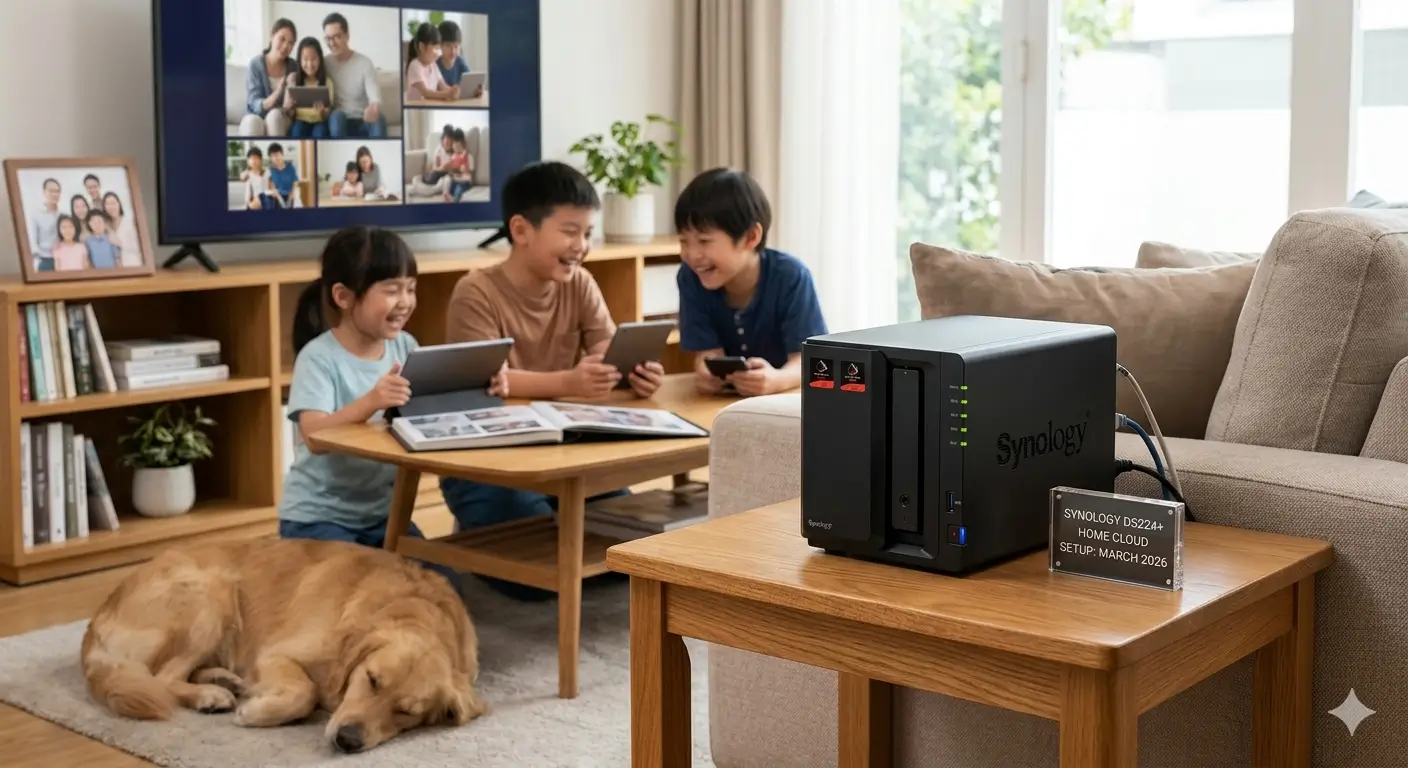
🏆 #1 Most Popular for US Families
Synology DS224+ Bundle — Ready to Go Out of the Box
Includes the NAS unit + two WD Red Plus drives pre-configured for RAID 1. Plug in, follow the wizard, and your family’s photos are safe within the hour.
🛒 Check current price →HomeCloudHQ earns a small commission if you buy through our links — at no extra cost to you.
⚡ Best Value Bundle for Starters
Starter Family Bundle — NAS + Drives Combo
Everything you need to get started: a capable NAS unit paired with two NAS-grade hard drives, ready for RAID 1 setup.
🛒 Check current price →HomeCloudHQ earns a small commission if you buy through our links — at no extra cost to you.
#1 — Synology DS224+ (Best Overall — Families & Beginners)
The Synology DS224+ is our #1 pick for best NAS for home use in 2026 — the one we recommend to every first-timer. If you want “set it and forget it,” this is your answer. Synology is like the iPhone of NAS devices — it just works. The setup wizard walks you through everything in plain English, the mobile apps feel polished and familiar, and the community is so large that any question you have has already been answered online.
Synology Photos alone — with automatic phone backup, AI face recognition, and timeline browsing — replaces Google Photos so seamlessly that most users never go back. Add Hyper Backup for automated 3-2-1 backups and you have a platform that protects your family’s memories for years. See the full official spec sheet on Synology’s website.
✅ Why We Love It
- Easiest NAS setup on the market — beginner-proof wizard
- Synology Photos: free, polished Google Photos replacement
- Hyper Backup: automated backups to cloud or USB
- Security Advisor scans for vulnerabilities automatically
- Largest community — every question already answered
- Dual GbE: network redundancy or bandwidth aggregation
⚠️ Trade-offs
- 1GbE only — no 2.5GbE without add-on card
- No Intel QuickSync — limited 4K transcoding for Plex
- Drive compatibility restrictions tightening in 2026
- Some advanced features require paid add-ons
🏆 Editor’s Choice — Best Overall 2026
Synology DS224+ Bundle (2-Bay, 8 TB)
Perfect for: Families replacing Google Photos · Anyone who wants reliable backup working the same day · Non-technical users who want zero configuration headaches
🛒 Check current price →HomeCloudHQ earns a small commission if you buy through our links — at no extra cost to you.
💬 Why It’s Our #1 Pick
The DS224+ costs a bit more than budget alternatives. Every dollar of that premium is in the software. Synology’s app library is unmatched at this price: Synology Photos, Hyper Backup, Docker, and a community that makes getting help easy. If you will actually use a NAS for more than basic file storage, Synology’s ecosystem earns that premium back within the first month.
#2 — QNAP TS-264-8G (Best for Media & Plex)
If the DS224+ is the iPhone of NAS devices, the QNAP TS-264-8G is Android — more customization, more raw power, and a learning curve that rewards the curious. The TS-264-8G ships with 8 GB of RAM and dual 2.5GbE networking, delivering significantly faster file transfers than standard Gigabit. Add Intel QuickSync hardware transcoding and HDMI 2.0 output, and Plex runs butter-smooth even with multiple simultaneous viewers.
For families building a media server, 4K video editors, or anyone who regularly moves large files across the network, the TS-264-8G’s speed advantage over the DS224+ is felt every single day. It’s the best NAS for home use when your priority is media performance over simplicity.
✅ Why Media Users Love It
- 2.5GbE networking — significantly faster than standard Gigabit
- Intel QuickSync: hardware 4K transcoding for Plex
- HDMI 2.0: plug directly into your TV for local playback
- 8 GB DDR4 RAM standard — handles multiple apps simultaneously
- PCIe Gen 3 slot: add 10GbE or an NVMe SSD cache card
⚠️ Trade-offs
- Steeper learning curve than Synology DSM
- Historical security incidents (now patched — but requires disciplined setup)
- QTS interface more cluttered than DSM
- Smaller community than Synology
⚡ Best for Plex & Media — 2026
QNAP TS-264-8G — 2-Bay NAS with 2.5GbE & Hardware Transcoding
Key specs: Intel Celeron N5105 Quad-Core · 8 GB DDR4 · 2× 2.5GbE · HDMI 2.0 · Intel QuickSync
Perfect for: Plex or Jellyfin media servers · 4K streaming to multiple devices · Fast daily file transfers · Users comfortable with initial configuration
🛒 Check current price →HomeCloudHQ earns a small commission if you buy through our links — at no extra cost to you.
#3 — TerraMaster F2-212 (Best Budget Under $200)
Not everyone needs a premium NAS on day one. The TerraMaster F2-212 is the reliable Honda Civic of NAS devices — not flashy, but it gets you there every single time. For users testing the waters, students, or anyone whose primary need is simple file backup and photo storage, it delivers exactly what matters at a price that doesn’t sting.
TerraMaster has been making NAS hardware for over 15 years. Their reputation for hardware reliability at budget prices is well-earned, and TOS (TerraMaster OS) has matured into a genuinely usable platform for core home storage tasks.
✅ Why Budget Users Choose It
- Lowest price of any reliable NAS on this list
- 15+ years of TerraMaster hardware reliability
- Core functionality: file storage, backup, basic media
- Good upgrade path: drives carry over to any future NAS
- Simple enough for a true first-time NAS owner
⚠️ Trade-offs
- Only 1 GB RAM — struggles with multiple apps at once
- TOS is less polished than DSM or QTS
- Smaller community (fewer tutorials available online)
- Not suited for Plex, Docker, or demanding workloads
💰 Best Budget Pick 2026
TerraMaster F2-212 — 2-Bay Budget NAS for Home Storage
Key specs: Intel Celeron N3060 Dual-Core · 1 GB DDR3 · Gigabit Ethernet · TOS 5
Perfect for: First-time NAS buyers · Budget-conscious families · Users whose primary need is photo backup and file storage
🛒 Check current price →HomeCloudHQ earns a small commission if you buy through our links — at no extra cost to you.
#4 — Synology DS423+ (Best 4-Bay for Growing Families)
The DS423+ is the NAS you buy when you know your storage needs will grow. With four drive bays, you start with two drives today and add more as your family accumulates 4K videos, RAW photos, and years of memories — without ever buying a new NAS. Think of it as buying a house with extra bedrooms: you might not need them today, but you’ll be grateful they’re there when the family expands.
It runs the same excellent DSM software as the DS224+, so everything you learn on one transfers directly. The key upgrade is capacity headroom and advanced RAID options. More details are available on the official Synology DS423+ page.
✅ Why Growing Families Choose It
- Start with 2 drives, expand to 4 without buying a new NAS
- RAID 5 / SHR-2: survive up to two simultaneous drive failures
- Same excellent DSM software as the DS224+
- ECC RAM option available for maximum data integrity
- eSATA port for direct-attached expansion units
⚠️ Trade-offs
- 1GbE only — same network ceiling as DS224+
- Higher upfront cost than the 2-bay models
- Larger physical footprint — needs more shelf space
🚀 Best for Long-Term Growth — 2026
Synology DS423+ — 4-Bay Expandable NAS for Families
Key specs: Intel Celeron J4125 Quad-Core · 2 GB DDR4 (expandable to 6 GB) · 2× Gigabit Ethernet · RAID 5/6/10/SHR-2
Perfect for: Families accumulating 4K video · Photographers with large RAW archives · Users who want one NAS that lasts 10+ years
🛒 Check current price →HomeCloudHQ earns a small commission if you buy through our links — at no extra cost to you.
#5 — Asustor AS5402T (Best Performance / Mid-Range)
The Asustor AS5402T threads an interesting needle: QNAP-level hardware performance without QNAP’s security history, and noticeably faster specs than Synology’s equivalent models at a similar price. Dual 2.5GbE, Intel QuickSync hardware transcoding, HDMI output, and two M.2 NVMe slots for SSD cache — all without consuming your hard drive bays.
ADM (Asustor Data Master) has matured significantly in 2025–2026 and now covers the core use cases — photo backup, media serving, Docker, cloud sync — with a clean, modern interface that a motivated beginner can navigate without frustration.
✅ Performance Highlights
- Dual 2.5GbE — fast networking without paying QNAP’s premium
- Intel QuickSync for smooth 4K Plex streaming
- 2× M.2 NVMe slots don’t consume HDD bays
- HDMI 2.0 for direct TV playback
- Clean security track record compared to QNAP’s history
⚠️ Trade-offs
- ADM app ecosystem smaller than DSM or QTS
- Smaller community — fewer tutorials and forums online
- Less polished mobile apps than Synology
- Slightly higher price than the QNAP equivalent
⚡ Best Mid-Range Performance — 2026
Asustor AS5402T — 2-Bay + 2× M.2 NVMe, Dual 2.5GbE
Key specs: Intel Celeron J4105 Quad-Core · 4 GB DDR4 (expandable to 8 GB) · 2× 2.5GbE · HDMI 2.0 · ADM OS
Perfect for: Power users who want performance without QNAP’s risk history · Plex admins with 3–4 simultaneous remote viewers · Home offices needing fast network throughput
🛒 Check current price →HomeCloudHQ earns a small commission if you buy through our links — at no extra cost to you.
Which Hard Drives Should You Put in Your Home NAS?
Whichever best NAS for home model you choose, the drives are equally important — they are what actually holds your data, and choosing the wrong type is the most common beginner mistake. You need NAS-grade drives: specifically designed for 24/7 operation, vibration resistance, and multi-drive enclosures. The two brands that dominate this category are Western Digital (WD Red Plus) and Seagate (IronWolf).
WD Red Plus vs Seagate IronWolf — which is better for families?
Both are excellent, and either choice is the right choice. The WD Red Plus 4TB is the safe default for most families — CMR (Conventional Magnetic Recording) technology, quiet operation, and a proven reliability track record at a comfortable capacity for a starter setup. The Seagate IronWolf 8TB is the better choice if you shoot a lot of 4K video or have a large existing photo library — it offers more capacity per dollar at the higher end. Check the official drive specs on Western Digital’s product page before you buy.
🥇 Safe Default — Best Drive for Most Families
WD Red Plus 4TB — NAS Hard Drive (CMR, 24/7 Rated)
The default recommendation for a 2-bay NAS with RAID 1. Buy two, mirror them, and your photos are protected even if one drive fails completely.
🛒 Check current price →HomeCloudHQ earns a small commission if you buy through our links — at no extra cost to you.
📦 Best Capacity — Heavy Video & Large Families
Seagate IronWolf 8TB — NAS Hard Drive (IronWolf Health Management)
Best capacity-per-dollar for families with 4K video, GoPro footage, or large RAW photo archives. Includes IronWolf Health Management for proactive drive monitoring.
🛒 Check current price →HomeCloudHQ earns a small commission if you buy through our links — at no extra cost to you.
Is a Home NAS Safe? What Every Family Should Know
The best NAS for home use in 2026 is also one of the most private ways to store your family’s photos — and a properly configured device is more secure than any cloud storage service. Your data never passes through a third-party server. You control who has access. And unlike a cloud service that could change its terms, raise its prices, or shut down, your NAS keeps working as long as you want it to.
The honest answer to “Is a home NAS safe?” is: yes — if you spend 10 minutes on the security settings during setup. Synology even includes an automated Security Advisor that scans your configuration and flags anything that needs attention, in plain English.
How can my family access our NAS from anywhere?
Every NAS on this list supports secure remote access. Synology uses QuickConnect — just enter your QuickConnect ID in the DS photo app and your files are accessible from anywhere, no technical setup required. QNAP uses myQNAPcloud and Asustor uses EZ-Connect, both working on the same principle. For a detailed walkthrough on the safest way to set this up, read our NAS security and remote access checklist for families.
What happens if a hard drive fails? (RAID explained simply)
How Much Does a Home NAS Really Cost?
Hardware + drives — what’s the real total?
The best NAS for home is a two-part purchase: the NAS unit (the box with the processor and network port) and the hard drives (the actual storage). Most NAS devices are sold “diskless” — the drives are separate. The table below shows three realistic setups. Click any link for the current price.
| Tier | NAS Unit | Drives | NAS Price | Drive Price |
|---|---|---|---|---|
| Budget | TerraMaster F2-212 | 2× WD Red Plus 2TB | Check price → | Check price → |
| Mid (Most Families) | Synology DS224+ | 2× WD Red Plus 4TB | Check price → | Check price → |
| Best (4-Bay / 4K) | Synology DS423+ | 4× Seagate IronWolf 8TB | Check price → | Check price → |
How much electricity does a home NAS use?
A 2-bay home NAS typically draws between 10 and 30 watts while active, and drops to near zero in drive hibernation mode — much less than a desktop computer left on. Your electricity cost depends entirely on your local rate and how often the NAS is actively reading or writing. Check your NAS manufacturer’s spec sheet for exact power draw figures — Synology, QNAP, and TerraMaster all publish this data. For a full breakdown of the lowest-consumption models available, see our guide to energy-efficient NAS for families.
Is a home NAS cheaper than Google One or iCloud long-term?
For most families searching for the best NAS for home on a budget: yes, significantly. A NAS has a one-time upfront cost, then runs with no mandatory monthly fee. Cloud storage subscriptions, by contrast, compound every year — and families with multiple members often pay for multiple accounts. Most families recoup their NAS investment within the first year compared to ongoing cloud subscription costs — exact savings depend on your current plan and how much storage you actually need.
The honest caveat: a NAS requires occasional maintenance (firmware updates, drive replacement every few years). If you want completely hands-off storage with no maintenance, cloud storage is technically simpler. But if you are comfortable with an annual 15-minute firmware update, a NAS is almost certainly the better financial decision over a 3–5 year horizon.
Frequently Asked Questions — Best NAS for Home
What is the best NAS for home use in 2026?
The best NAS for home use in 2026 is the Synology DS224+ for most families. It combines the easiest setup experience available, the most polished software ecosystem (including a free Google Photos replacement called Synology Photos), and rock-solid reliability backed by a large community of users. For larger families or 4K video enthusiasts who need more capacity, the Synology DS423+ is the top 4-bay pick.
Is Synology or QNAP better for beginners?
Synology is significantly better for beginners. Their DSM (DiskStation Manager) operating system is the most polished and user-friendly NAS software available — think of it as an iPhone home screen for your NAS. The setup wizard is plain-English throughout, mobile apps feel familiar and refined, and the community is large enough that every question you could have has already been answered somewhere online. QNAP offers more raw power and customization, but comes with a steeper learning curve and requires more attention to security configuration during initial setup.
How many bays do I need for a family of 4?
A 2-bay NAS comfortably handles most families of four. With two 4 TB drives in RAID 1 (mirroring), you have roughly 4 TB of usable storage — enough for tens of thousands of photos and hours of video. If your family shoots a lot of 4K video, has a large existing archive to migrate, or plans to grow significantly, a 4-bay model like the Synology DS423+ gives you room to add more drives without buying a new NAS later.
Can my whole family access the NAS from different devices?
Yes — all five NAS devices on this list support simultaneous access from multiple devices, including phones, tablets, laptops, and smart TVs. Each family member gets their own account with their own private folder (and optional shared family albums). Remote access from outside the home works through each brand’s built-in service: Synology uses QuickConnect, QNAP uses myQNAPcloud, and Asustor uses EZ-Connect. All three work like cloud storage apps on your phone — tap, browse, download or stream.
Is a home NAS safe from hackers?
A home NAS is safe when set up correctly — and the setup wizard on every major brand now walks you through the key security steps. The non-negotiable basics: enable two-factor authentication (2FA), keep the firmware updated (set it to update automatically), and do not expose the NAS management interface directly to the internet. Synology includes an automated Security Advisor that scans your configuration and flags issues in plain English. QNAP requires slightly more attention to security settings — follow the QNAP security note earlier in this guide before connecting it online.
What drives should I put in a home NAS?
Always use NAS-grade drives — hard drives built and rated for 24/7 continuous operation. The two most reliable choices are the WD Red Plus 4TB (the safe default for most families, CMR technology, quiet and proven) and the Seagate IronWolf 8TB (best capacity-per-dollar for heavy video or large archives). Avoid using desktop or laptop drives — they are not rated for the vibration or continuous uptime that a NAS demands.
Does a home NAS use a lot of electricity?
No — a 2-bay home NAS is among the most energy-efficient always-on devices you can run. Most 2-bay models draw between 10 and 30 watts while active, and most support drive hibernation mode that cuts power draw dramatically during idle periods. Check your NAS manufacturer’s spec sheet for exact power draw figures before purchasing. For the most energy-efficient models specifically, see our comparison of energy-efficient NAS for families.
Is RAID the same as a backup?
No — and this is the most important thing to understand before setting up your NAS. RAID (specifically RAID 1 mirroring) protects you from a single hard drive failure. It does not protect you from ransomware, accidental file deletion, or a disaster that destroys the entire NAS (fire, flood, theft). For real data protection, follow the 3-2-1 backup strategy: 3 copies of your data, on 2 different media types, with 1 copy off-site. Synology’s Hyper Backup app makes this straightforward to automate — you can back up to an external drive and to a cloud service simultaneously on a schedule.
Can I replace Google Photos with a home NAS?
For most families, yes. Synology Photos offers automatic phone backup, AI-powered face recognition, album creation, timeline browsing, and shareable links — covering everything that makes Google Photos useful for everyday family use. The main difference is that you manage your own storage capacity by adding drives when needed, rather than paying for a larger cloud tier. Your photos travel from your phone to your home NAS — they never pass through a third-party server unless you explicitly choose to share them.
How hard is it to set up a Synology NAS?
Synology NAS setup is designed for non-technical users and is genuinely approachable. The process: install the drives (slide in, click to lock — no tools required for most models), plug into your router with the included Ethernet cable, power on, and follow the on-screen wizard at find.synology.com from any browser. The wizard walks you through naming the NAS, creating user accounts, enabling RAID 1, and setting up automatic photo backup from your phone. If you can set up a new iPhone or Android phone, you can set up a Synology NAS.
What happens if my NAS breaks — do I lose everything?
Not necessarily — and this depends on whether you have followed the 3-2-1 backup strategy. If the NAS unit itself fails (the electronics, not the drives), your drives are almost always recoverable. NAS drives use standard file systems — you can plug them into a new NAS of the same brand and your data migrates automatically. If you also have an off-site backup (Backblaze B2, for example, configured through Synology’s Hyper Backup), you have a second full copy that is entirely unaffected by any home hardware failure.
How long does a home NAS last before I need to replace it?
A well-maintained home NAS typically lasts 7–10 years, with the hard drives being the component most likely to need replacement (typically every 3–5 years under continuous operation). The NAS unit itself — the CPU, RAM, and networking — ages slowly. Synology, QNAP, and Asustor all provide software updates for their supported models for many years after release, so your NAS continues to receive security patches and new features long after purchase. The biggest reason to upgrade is usually a desire for faster networking or more drive bays — not hardware failure.
📧 Get Your Free NAS Setup Checklist
Step-by-step guide to configure your NAS in under 30 minutes — plus exclusive setup tips we don’t publish anywhere else. No spam. Unsubscribe anytime.
Best NAS for Home: Our Final Recommendation
After testing all five models, here is our final answer on the best NAS for home use in 2026 for each type of family:
- 🏠 Family starting out (most people): Synology DS224+ Bundle → — easiest setup, best software, will be working the same day
- 💰 Tight budget: TerraMaster F2-212 → — reliable hardware, core features, drives carry over when you upgrade
- 📺 4K media or growing family: Synology DS423+ → — four bays, room to grow for a decade
Still not sure which is right for your family? The Synology DS224+ is the answer for the overwhelming majority of first-time buyers. What does your setup look like — are you mainly protecting photos, or are you thinking about media streaming too?
🏆 Get the Synology DS224+ — Top Pick for Most Families📚 Essential HomeCloudHQ Guides
🛒 Buying Guides
🔒 Setup & Remote Access
Last updated: April 2, 2026 | All products reviewed by HomeCloudHQ team | Prices change frequently — always check the current price via our links above